Getting Started
Installation
Clip Renamer Pro is a single .py file. No installer, no extra packages, no admin rights required — the only prerequisite is a free Python 3 install.
Before You Start — Python 3
DaVinci Resolve only runs .py scripts if Python 3 is installed on your machine. Download the free installer from python.org/downloads. If you feel more comfortable getting it through Resolve directly, open the console (Workspace → Console) — when Python isn’t detected, Resolve shows a link to the same Python 3 download.
- Download Clip Renamer Pro 2.2.2.py from the suite download page.
- In the Finder, navigate to:
~/Library/Application Support/Blackmagic Design/DaVinci Resolve/Fusion/Scripts/Utility/
On Windows: C:\ProgramData\Blackmagic Design\DaVinci Resolve\Support\Developer\Scripting\Scripts\Utility\
- Drop the
.py file into that folder. A subfolder is fine — the name doesn't matter.
- Open DaVinci Resolve. From the top menu choose Workspace → Scripts → Utility → Clip Renamer Pro 2.2.2.
- The window opens. Select clips and timelines in the Media Pool and the preview will populate immediately.
Tip
Clip Renamer Pro reads your selection from the Media Pool in real time. Select your clips first, then set up your rename operation — the live preview updates as you type.
Interface
The Main Window
The window is divided into two zones: the Rename Operations panel at the top, and the live preview split panel below.
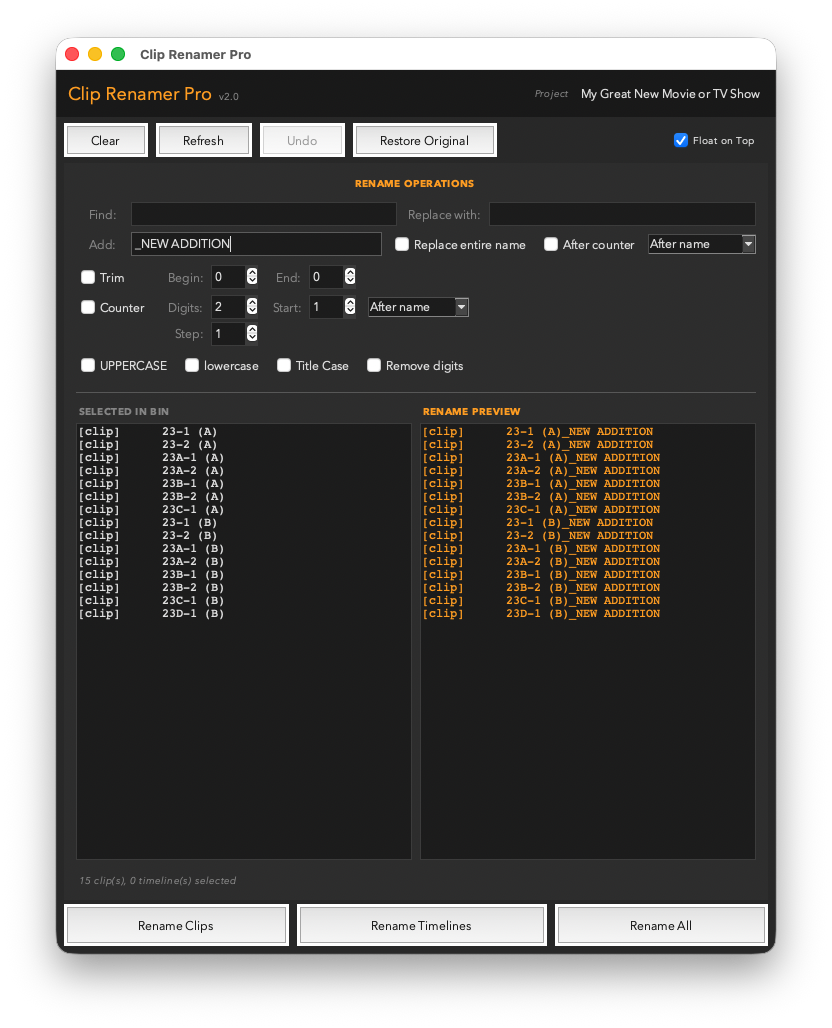
Clip Renamer Pro — the full window with operations panel and live before/after preview.
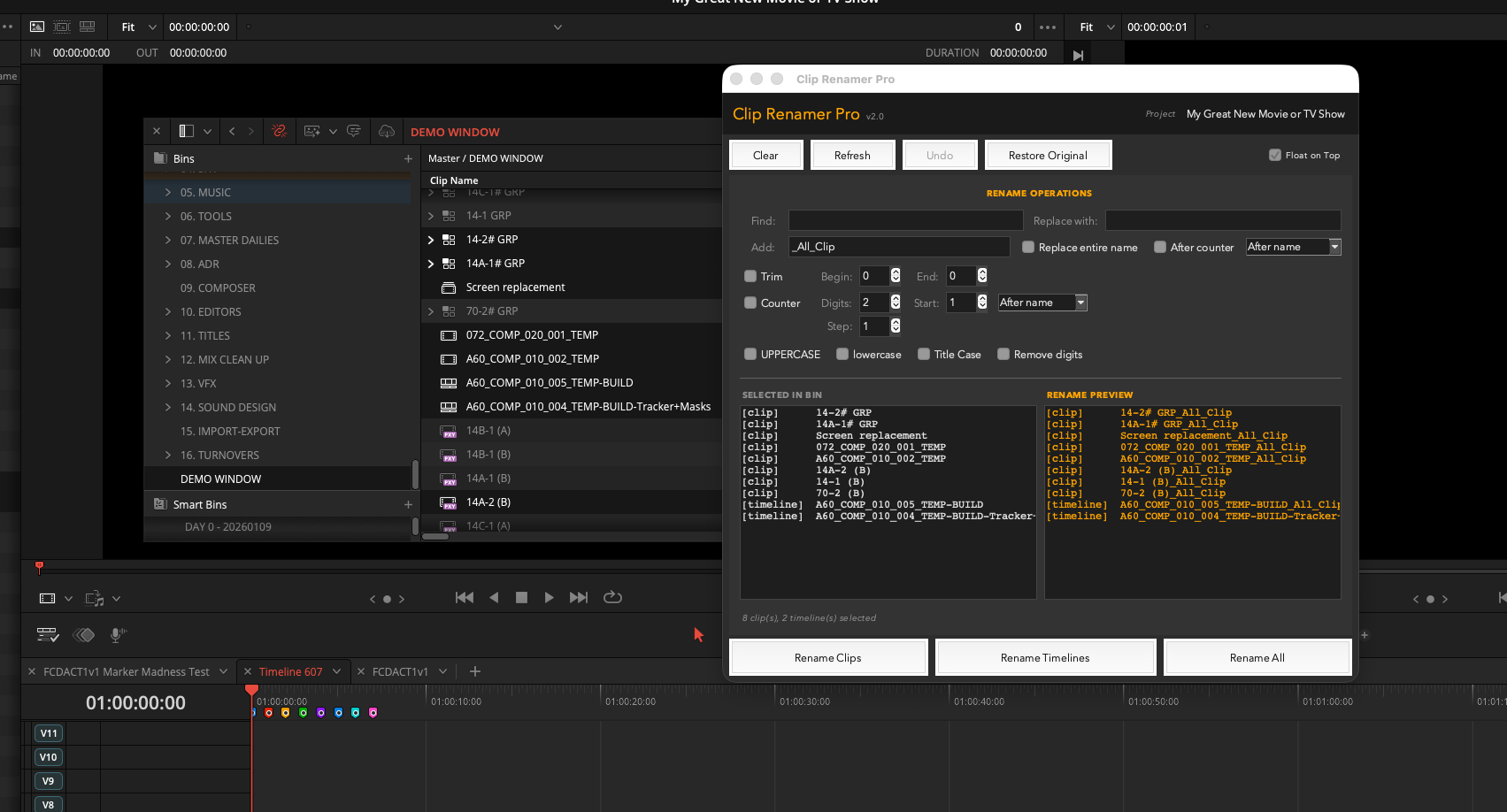
The app floating above DaVinci Resolve's Media Pool with a full bin selected and preview populated.
Toolbar Buttons
The top row carries the four global controls.

Left to right: Clear, Refresh, Undo, Restore Original — plus the Float on Top toggle at far right.
| Button | What it does |
|---|
| Clear | Resets all rename operation fields back to their defaults without touching any clips. |
| Refresh | Re-reads your current Media Pool selection and updates the preview. Use this if you've changed which clips are selected. |
| Undo | Reverses the last rename operation applied. One step only — see Undo & Restore. |
| Restore Original | Puts every clip in the last batch back to exactly the name it had before you hit Rename. Works even after multiple other edits. |
| Float on Top | Keeps the window above DaVinci Resolve's panels while you work. |
Features
Rename Operations
All rename operations live in the RENAME OPERATIONS panel. Operations are cumulative — they all apply in a single pass when you hit Rename.
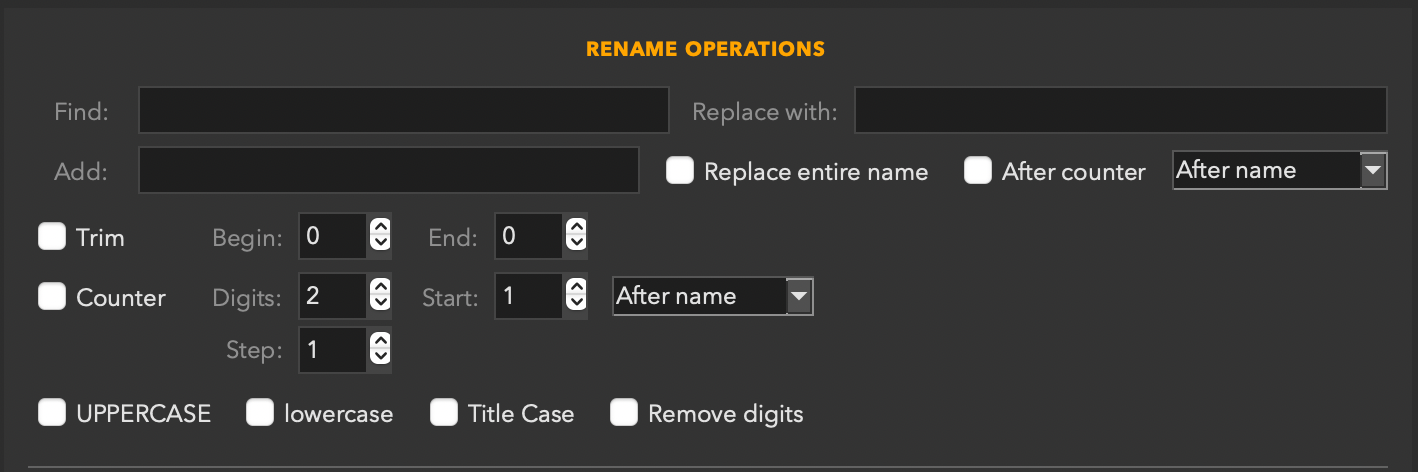
The Rename Operations panel with the Add field filled and ready to preview.
Find & Replace
A literal text search and replace across clip names.
- Find — the text to search for. Case-sensitive.
- Replace with — what to substitute. Leave blank to delete all occurrences of the Find text.
- Replace entire name checkbox — when checked, the entire clip name is replaced with the Replace text (ignores Find). Useful for setting a common base name before adding a counter.
Add Text
Inserts a text string at a position you choose.
- Add field — the text to insert.
- Position dropdown — choose Before name, After name, or After counter (places text after the counter number, useful for building
ShotName_010_VFX in one pass).
- After counter checkbox — shortcut to switch position to "After counter" without opening the dropdown.
Trim
Removes a fixed number of characters from the start or end of the name.
- Begin — number of characters to trim from the left.
- End — number of characters to trim from the right.
Counter
Appends or inserts an auto-incrementing number to each clip name.
- Digits — zero-padded width.
2 → 01, 3 → 001.
- Start — the first number the counter produces.
- Step — how much the counter increments between clips.
- Position — where the counter appears: After name, Before name, or After counter (for use with the Add field).
VFX Numbering Trick
Set Start: 10, Step: 10, Digits: 3 → generates 010, 020, 030. Standard VFX shot numbering in one operation, with room to slot a shot in later. Combine with Add "After counter" for ShotName_010_VFX.
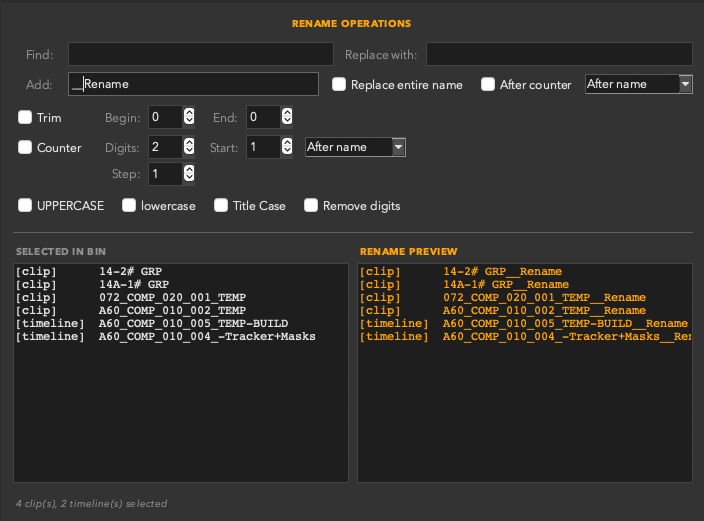
Counter active with a suffix added after — the preview column shows exactly what will be applied.
Version — new in 2.1
Appends a version tag to every name in one pass, instead of typing _v1 on each clip by hand.
- Tag — the text before the number. Defaults to
_v; -v, .v or a bare v all work.
- No — the version number.
- Digits — zero-padded width.
1 → _v1, 2 → _v01, 3 → _v001.
The version is always appended last — after the counter, and after anything the After counter option adds. A version suffix that isn't at the end of the name isn't a version suffix.
Strip the extension and stamp the version in one pass
Renders coming back from Fusion or a vendor often arrive as shot01.mov. Set Find: .mov with Replace with empty, tick Version, and you get shot01_v1 — no separate find-and-delete pass. Find/Replace runs near the start of the chain and the version tag is appended at the very end, so they never collide.
Case Conversion
Transform the capitalisation of every clip name in the selection.

UPPERCASE, lowercase, Title Case, and Remove digits — applied after all other operations.
- UPPERCASE — converts the entire name to uppercase.
- lowercase — converts the entire name to lowercase.
- Title Case — capitalises the first letter of each word.
- Remove digits — strips all numeric characters from the name.
Only one case mode can be active at a time. Remove digits is independent and can be combined with a case mode.
Features
Live Preview
The lower half of the window is split into two columns: SELECTED IN BIN on the left shows the current names, and RENAME PREVIEW on the right shows exactly what will happen when you apply.
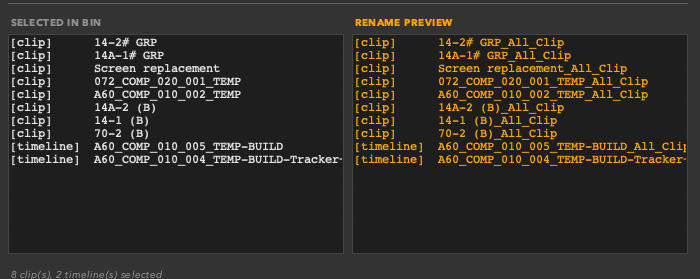
Before (left) and after (right) — preview updates live as you change any operation field.
The preview updates automatically as you type or adjust any field — no need to press a button. Each item in the preview is tagged as [clip] or [timeline] so you can see at a glance what type of item is affected.
Tip
Changed your selection in the Media Pool? Hit Refresh to re-read the current selection and update the preview without losing your operation settings.
Features
Applying Changes
Three buttons at the bottom of the window let you choose exactly which items to rename.

The three apply buttons — rename just clips, just timelines, or everything in the selection.
| Button | What it renames |
|---|
| Rename Clips | Applies the operation only to clip items (footage, compound clips, etc.) in the selection. Timelines are skipped. |
| Rename Timelines | Applies only to timeline items in the selection. Clips are skipped. |
| Rename All | Applies to every item in the selection — clips and timelines alike. |
The status bar below the preview shows how many items were selected and how many were renamed after each operation.
Safety
Undo & Restore Original
Clip Renamer Pro has two layers of protection against accidental renames.
Undo
The Undo button (and ⌘Z) reverses the most recent rename batch — putting every clip in that batch back to what it was before you pressed Rename. It is a single-level undo: one press undoes the last batch in its entirety.
Undo only covers the last Rename operation. If you rename a second time without undoing, the first undo entry is overwritten.
Restore Original
Restore Original is a deeper safety net. It remembers the clip names from the moment you opened the app or last hit Refresh — before any rename operations were applied. Clicking it rolls every clip in your selection back to those original names, regardless of how many renames you've done since.
Tip
If you want a clean "start from scratch" baseline, hit Refresh first (which re-reads current names and resets the Restore Original baseline), then begin your rename workflow.
Best Practices
Pro Tips
Replace entire name + counter = clean batch numbering
Check Replace entire name, type the new base name in the Replace field, enable Counter, and hit Rename Clips. Every clip gets the same base name with a unique number appended — no leftover original-name noise.
Use Trim to strip temp suffixes
If your clips end in _TEMP (4 characters + underscore = 5), set End: 5 in Trim and preview — the suffix is stripped cleanly. Combine with a Find/Replace step for more complex cleanup.
Title Case is great for delivery
After a long offline edit where all your clip names are lowercase or ALL_CAPS, a single Title Case pass makes a Media Pool that looks professional in a PDF export or delivery package.
After counter position
The "After counter" position in the Add field places your text after the number: ShotName_010_VFX in a single pass. No need to run two separate rename operations.
Select a bin, not individual clips
Click a bin in the Media Pool sidebar to select all its contents at once. Clip Renamer Pro reads the full selection — clips and timelines — instantly.
Reference
Keyboard Shortcuts
| ⌘Z |
Undo last rename batch |
| Return / Enter |
Apply rename (same as Rename All) |