You've got a finished cut on V1 — or a selects reel on V2 — and you want every clip captured into a Media Pool bin with its name and in/out points intact. You could do each one by hand... forty times. Or you could open Clipper, pick the track, pick the bin, and hit Create.
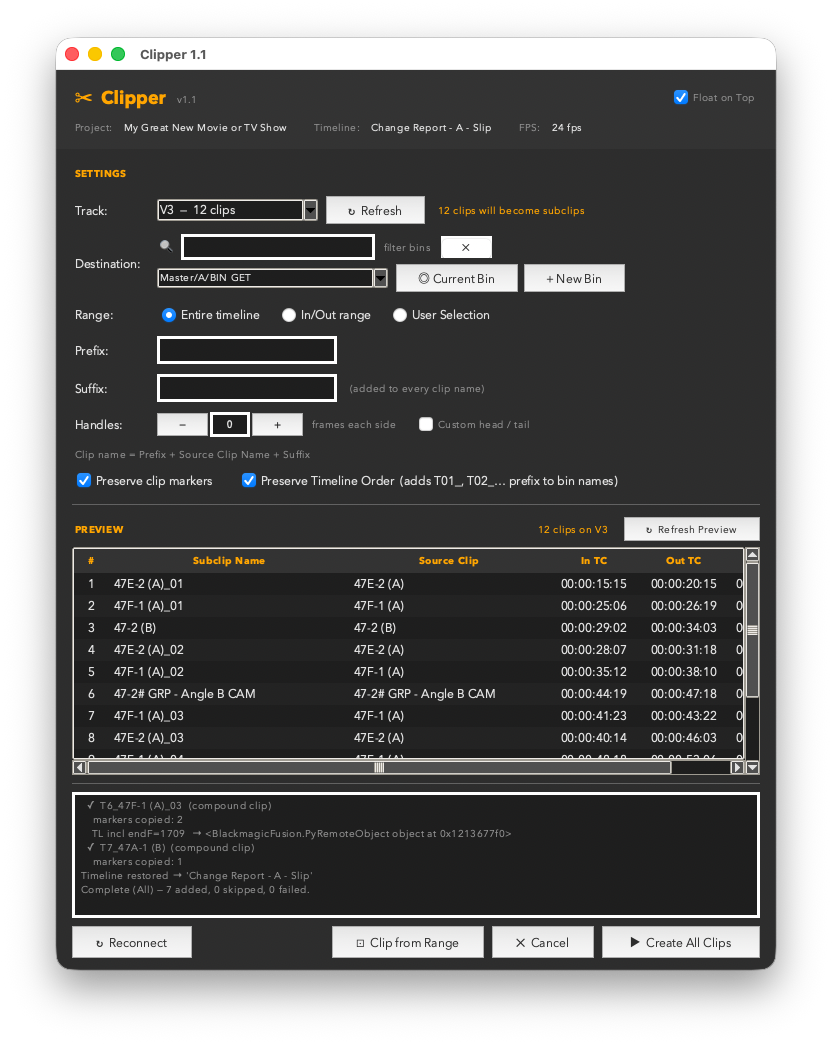
Clipper reads every clip on the chosen track, calculates the exact source in/out points from the timeline, names each clip after its source, and drops the whole batch into whichever Media Pool bin you specify — or a new one you create on the spot. Add handles for VFX pulls. A live preview shows exactly what will be created before you commit.
Works with camera clips, compound clips, and Fusion compositions. Generator-based titles and adjustment clips have no source media and are skipped — flagged in amber in the preview so you always know what you're getting.
Features
Works on any video or audio track — V1, V2, A3, whatever you point it at
Reads source in/out points directly from timeline clip position — no markers required
Names each clip after its source clip automatically
Add a prefix and/or suffix to every clip name in one pass
Auto-disambiguates duplicate names — two clips from the same source become _01 and _02
Add handles (head and tail frames) for VFX pulls — shared or custom per side
Drop clips into any existing Media Pool bin — or create a new one without leaving the tool
All Tracks mode — capture every clip across all video and audio tracks in one pass, automatically prefixed by track (V1_, A2_, etc.)
Clip from Range — set an In/Out mark on the timeline and Clipper assembles all clips in that range into a single new sequence in your chosen bin
Preserve Clip Markers — any markers on original timeline clips are copied to the new subclips or sequence clips, with offsets adjusted for head handles
Preserve Timeline Order — prepends a sort prefix to every name so clips sort in cut order in the bin, regardless of source clip names. Two modes: Sequential (T01_, T02_…) or Timecode (01-00-44-05_…) for reliable sorting across multiple runs
Video Only — strip all audio tracks from created sequences when you only need the picture
Abort — stop a running batch mid-way with one click; clips already created are kept and a summary shows exactly what was processed
Live preview table: see every clip name, source clip, source In TC, source Out TC, and duration before creating anything
Clips without source media (generators, titles) are flagged in amber in the preview and skipped gracefully
Results summary after each run: created, skipped, failed — with a list of any failures
Stay-on-top option keeps Clipper visible while you work in Resolve
Reconnect button if Resolve restarts or the project changes
Works with DaVinci Resolve 18+ — free version and Studio both fully supported
How it works
Pick a track
Choose any video or audio track from the dropdown. The clip count updates instantly so you know what you're working with before you commit.
Choose your bin
Select any existing Media Pool bin from the dropdown — the full folder hierarchy is shown. Or hit + New Bin to create one on the spot. Your clips land exactly where you point.
Add prefix, suffix & handles
Type a prefix or suffix and every clip name updates live in the preview. Add head and tail handle frames for VFX pulls — shared or custom per side. Great for tagging a batch: SC42_ prefix turns every clip on the track into a named scene deliverable.
Preview, then commit
The preview table shows the exact clip name, source clip, and source In/Out timecodes for every clip on the track. Clips without source media — generators, titles — are flagged in amber before you run anything.
A note about the Resolve scripting API
Clipper is not the subclip tool from Avid Media Composer. The DaVinci Resolve scripting API does not expose a way to create a single multi-source subclip — each subclip must come from one source clip. What Clipper creates are true single-source subclips (one per clip on the track), named after their source and trimmed to the exact in/out points you see on the timeline.
Want to capture a range of clips as a single edit-ready sequence? Use the Clip from Range button. Set an In and Out mark on your timeline, choose a track, and Clipper assembles all the clips within that range into one new timeline sequence — placed in your chosen bin — in a single step.
Want true standalone clips from that range instead of a sequence? Here's a two-step workaround that works cleanly:
Use Clip from Range to build the sequence as described above.
Open that new sequence in the Resolve timeline, lasso all the clips, and drag them directly from the timeline into any Media Pool bin.
Resolve converts each dragged clip into its own clip entry — source name, in/out points, and all. It's a couple of extra steps, but it gets you there.
Made for these moments
Selects reel → bin: Cut your selects onto a track, run Clipper, get every select as a named clip in a Selects bin — ready to hand off or re-cut.
Finished cut archiving: Turn your locked picture cut on V1 into a trimmed clip for every scene, drop them into a Deliverables bin, done.
Music spotting: Every music cue on a dedicated audio track becomes a named, trimmed clip binned for the music editor.
VFX pull lists: All VFX shots live on V2. One click captures every shot with exact source in/out — plus handles — ready for the VFX vendor.
Get Clipper
A single .py file. Drop it in your Resolve scripts folder and it appears under Workspace → Scripts → Utility.
Works with DaVinci Resolve 18+ — free version and Studio both fully supported. Requires Python 3 — free from python.org/downloads. Prefer to get it through Resolve? The Resolve console (Workspace → Console) links to the same Python 3 installer when Python isn’t detected.
v1.4.1 — One window at a time — launching the tool while it is already open now brings the open window to the front instead of starting a second copy.
v1.4 — Reel name field: Build reel can now be given any name you like. Leave it blank and the reel is named after the timeline and track it came from, as before; type a name and the reel is created as exactly that — built for VFX pulls where the reel should carry the scene (VFX 024) rather than the source track. Repeat pulls of the same name get automatic _02 / _03 suffixes. Build reel also leaves beta in this release.
v1.3 — Name from markers (subclips take the first named marker's name, with stray source-marker filtering). Add handles toggle — off by default, with ★ Make Default to remember your handle counts across launches. Build reel (beta): assemble created clips into one sequence in order. Collision-proof timeline naming (auto _02/_03 suffixes). Clip from Range now verifies every placement, skips grouped/synced clips by name with a flatten tip, and cleans up stray audio from failed placements. Track selection is remembered across runs.
 Marker Madness
 Clip Renamer Pro
 Track Command
 Reel Time Plus