Tool 03

Track Command
Take Control Of All Aspects Of Your Tracks.
Your timeline's track names, finally under control.
Batch rename, add, and delete — in one place.
Take Control Of All Aspects Of Your Tracks.
Your timeline's track names, finally under control.
Batch rename, add, and delete — in one place.
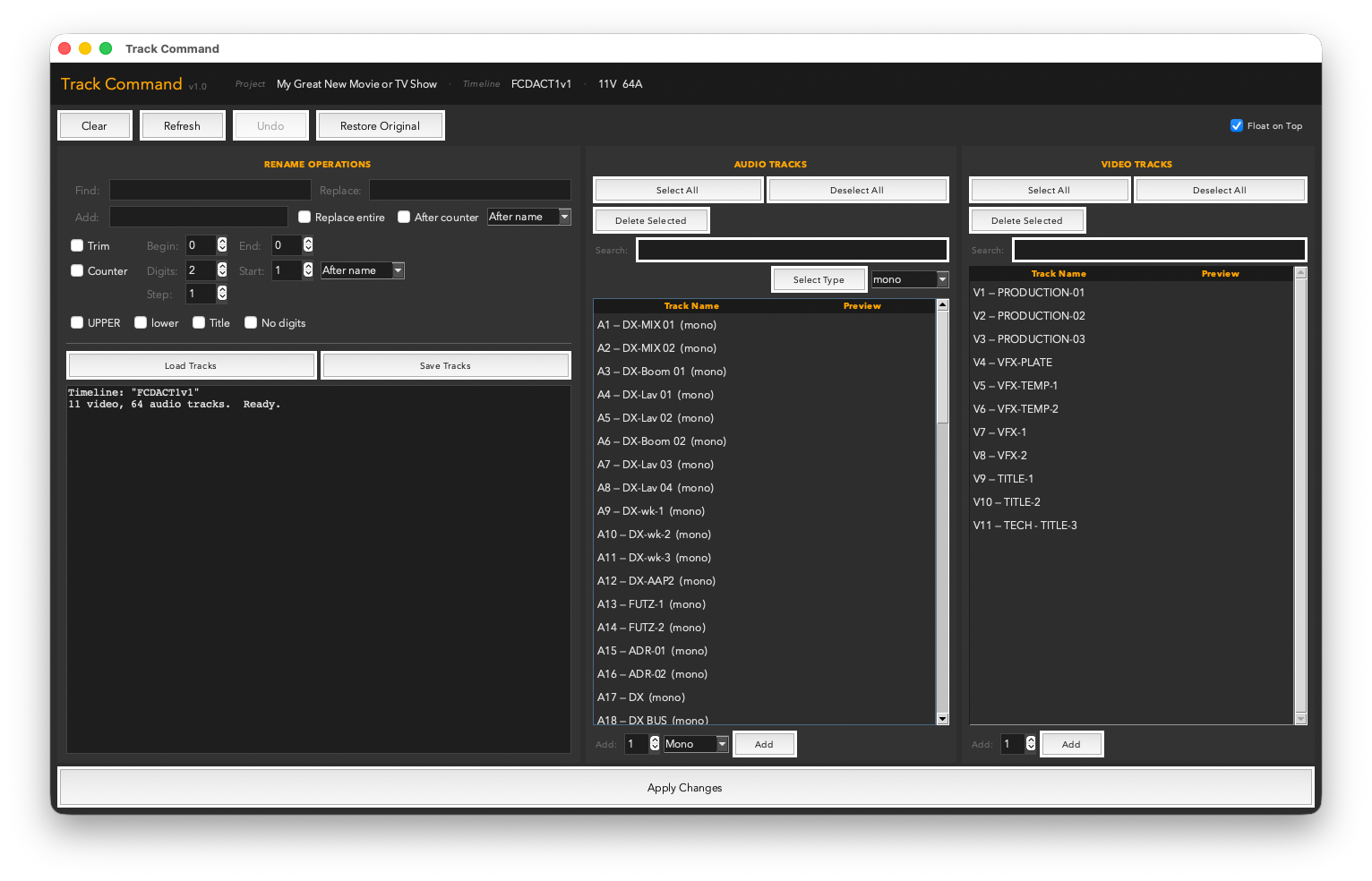
A 65-track timeline where half the audio tracks are still named "Audio 1" through "Audio 65" is nobody's friend — not in exports, not in delivery, not when a client asks where the music stem is.
Track Command puts every audio and video track from your current timeline into an editable list. Rename one track or all of them, batch-apply prefixes and counters to build a consistent layout, add new tracks without leaving the tool, or delete the ones you don't need. The same full rename engine powering Clip Renamer Pro — now for your track stack.
Dia_010, Dia_020, Dia_030. Great for production dialogue track naming conventions._Boom, position: "After counter" → Dialogue_010_Boom, Dialogue_020_Lav in a single Apply.A single .py file. Drop it in your Resolve scripts folder and it appears under Workspace → Scripts → Utility.
Works with DaVinci Resolve 18+ — free version and Studio both fully supported.
Requires Python 3 — free from python.org/downloads. Prefer to get it through Resolve? The Resolve console (Workspace → Console) links to the same Python 3 installer when Python isn’t detected.
 Marker Madness
 Clip Renamer Pro
 Reel Time Plus