Tool 01

Marker Madness
The Ultimate DaVinci Resolve Marker Utility.
Full marker management for DaVinci Resolve.
Now there's nothing you can't do with a marker.
The Ultimate DaVinci Resolve Marker Utility.
Full marker management for DaVinci Resolve.
Now there's nothing you can't do with a marker.
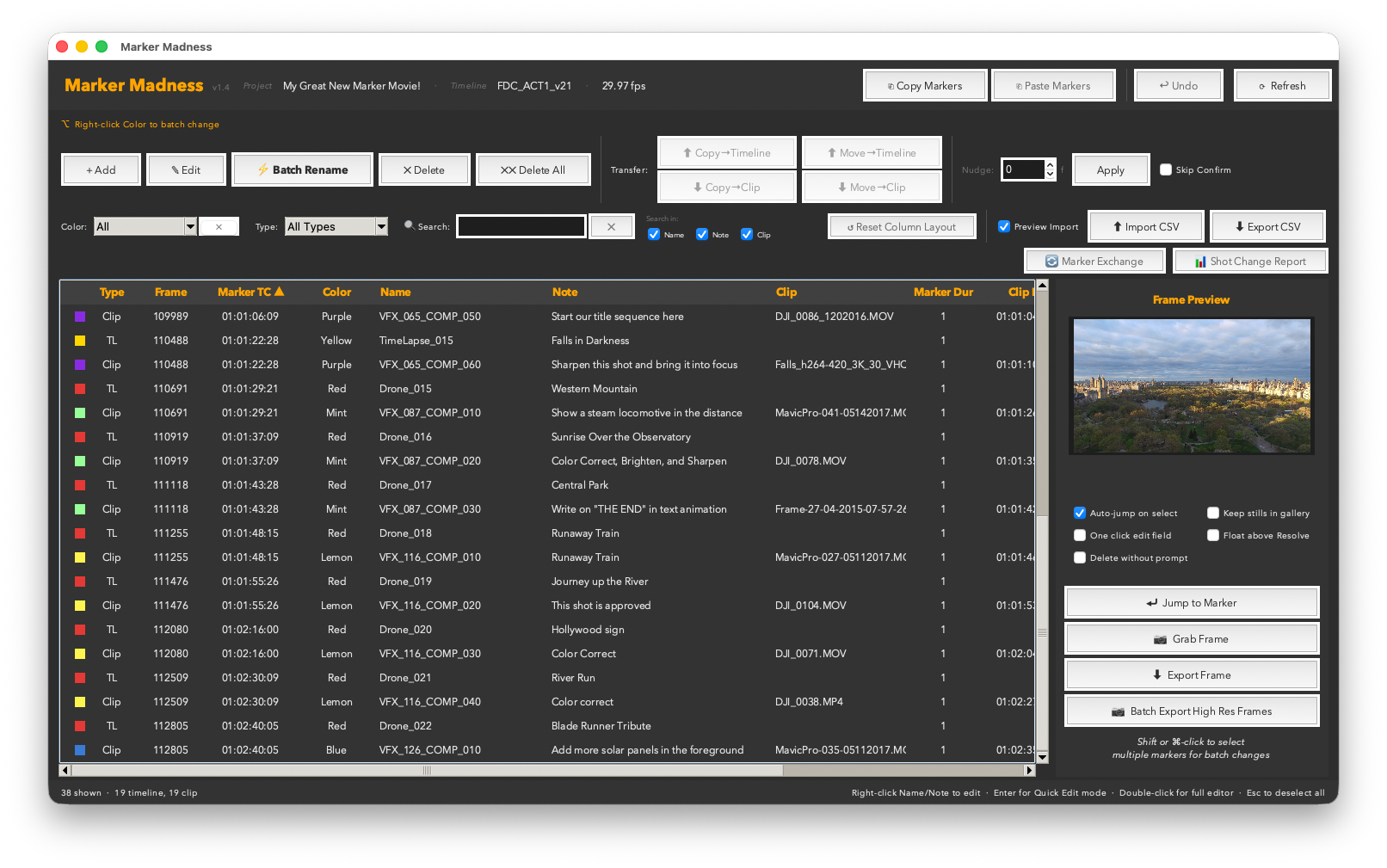
You dropped a hundred markers across a timeline. Some are on clips, some are on the ruler, some are named, some aren't. You need to find the red ones, rename them all, nudge them two frames earlier, export a CSV with thumbnail frames, and do it before lunch.
Marker Madness puts every marker in your timeline — clip markers and timeline markers alike — into a single, searchable, sortable table you can actually work with. Filter by color, track, or keyword, batch rename with find/replace, nudge by frames, copy markers across timelines — or even across projects — and paste onto the exact track you choose. Export to CSV or HTML. Grab still frames. Generate VFX shot change reports between editorial versions. It's everything Resolve should have built into the markers panel.
Version 1.3 added full bidirectional Marker Exchange with Adobe Premiere Pro and Avid Media Composer. Export your Resolve markers as a Premiere-readable CSV or an Avid locator file, then import them back with a single click — colors mapped automatically, markers landing on the timeline ruler ready to place.
Version 1.4.1 adds the Quick Edit Bar — a floating strip above the table for one-click color filter and marker recoloring without opening a panel — plus a configurable thumbnail grab delay for batch exports on high-resolution timelines, and selection retention so your picks stay highlighted when you tab back from Resolve.
Version 1.5 adds Media Pool mode — a Timeline ⇄ Media Pool toggle that turns Marker Madness loose on source clip markers. Select clips in the Media Pool (the same selection that loads the source viewer) and batch recolor, rename, edit, and delete their markers across every selected clip at once — changes appear in the source viewer instantly. Dropped a stack of markers in the source viewer and wish they weren't all the default color? Now it's one recolor away.*
Version 1.6 connects markers to clip metadata. Flag any markers as VFX shots, then push their names and notes straight into each source clip’s VFX Shot # and VFX Notes fields — where Data Burn-In can read them on export. It runs the other way too: fill in the Metadata panel and pull it back onto your markers. A VFX filter scopes the whole app, so a vendor-only CSV or HTML report is two clicks. And because metadata lives on the source clip, a plate cut in several times can only hold one shot number — so Marker Madness reports those collisions instead of letting the last write win.
* Media Pool mode works within Resolve's API limits: there is no way for a script to read or move the source viewer's playhead, or grab its frames. So Jump to Marker, Add at Playhead, Batch Stamp, frame grabs/exports, the Transfer buttons, Nudge, and CSV/Exchange import stay Timeline-mode features — the buttons say so politely rather than failing. If Blackmagic opens up those APIs, these come to Media Pool mode too.
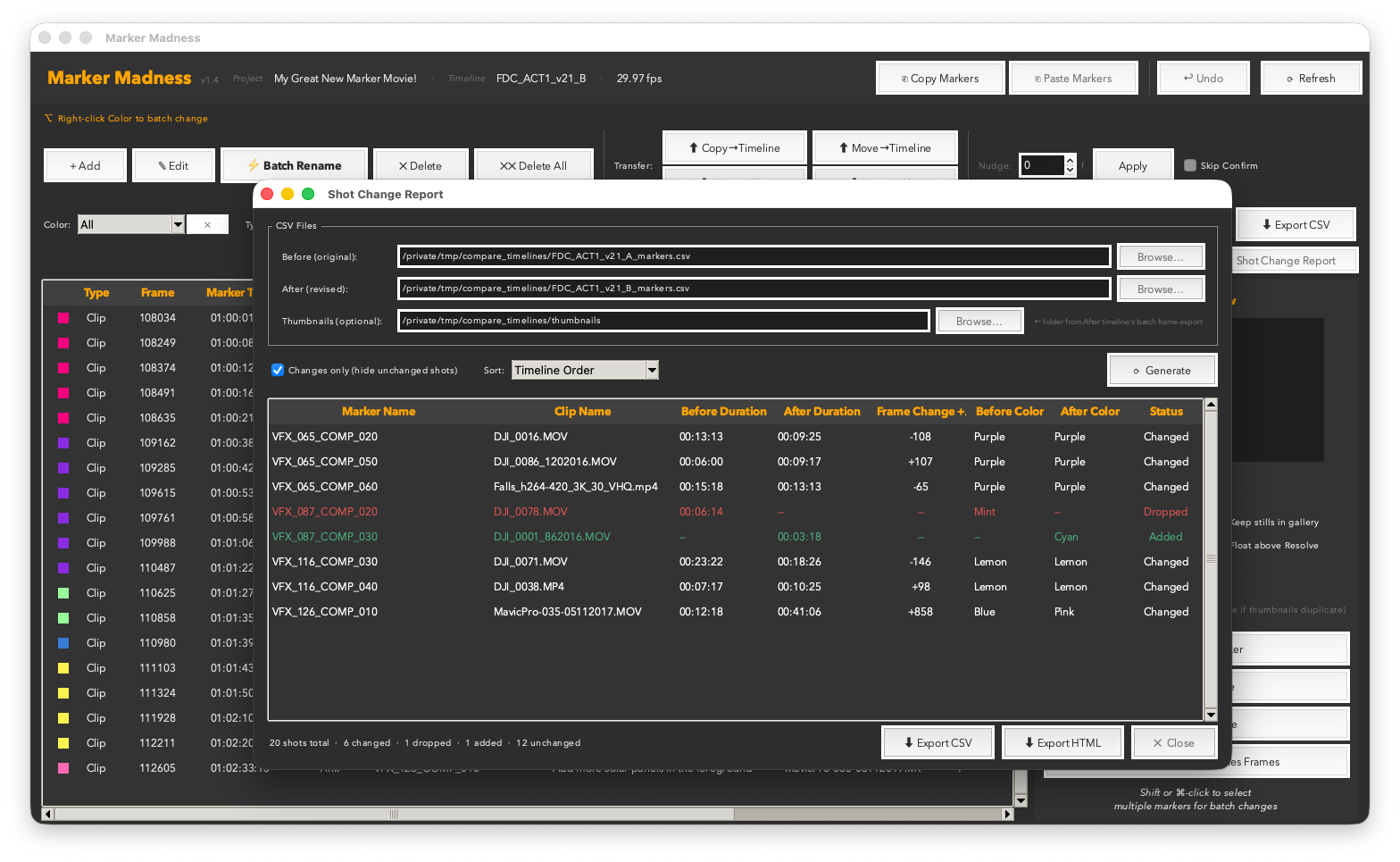
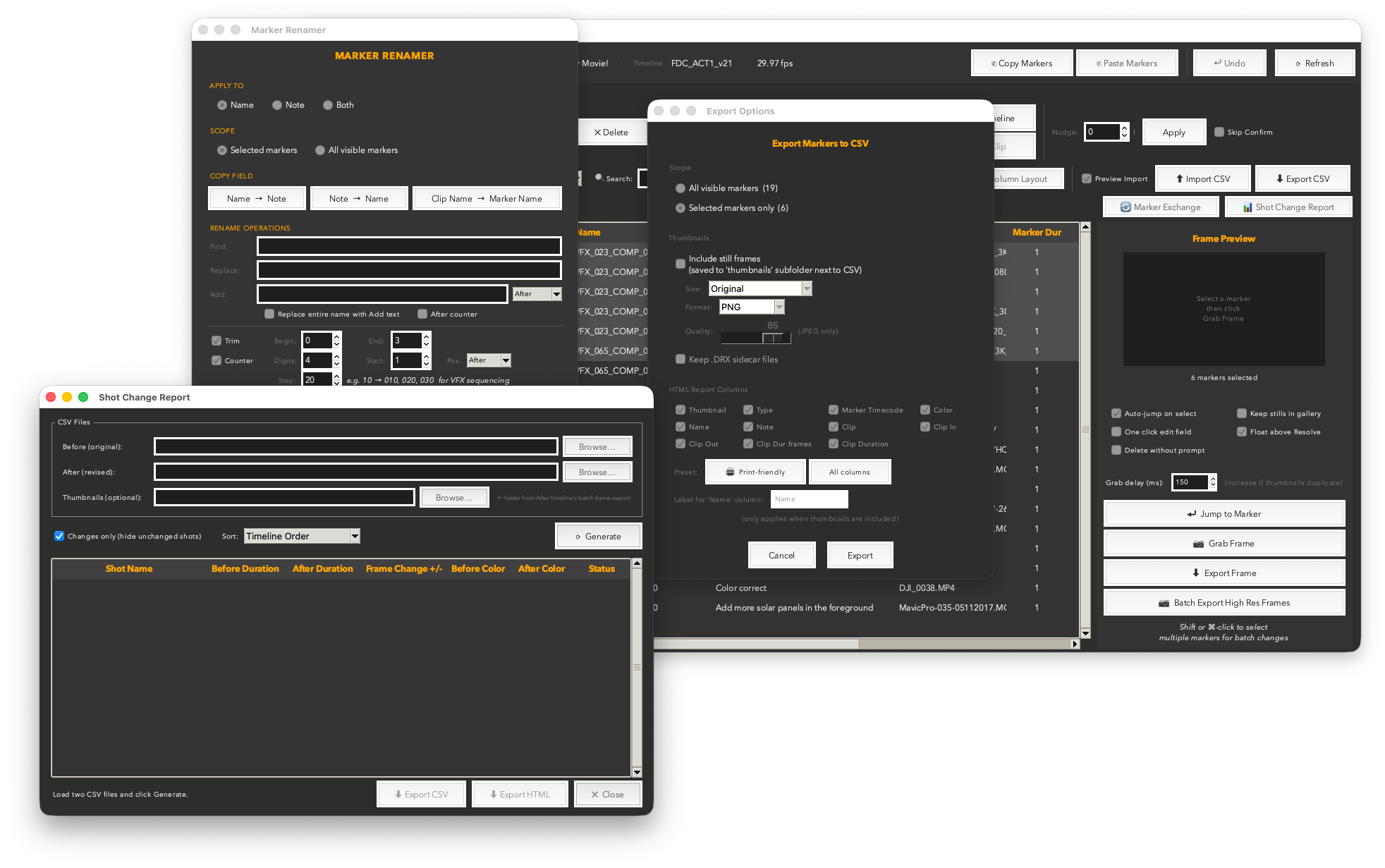
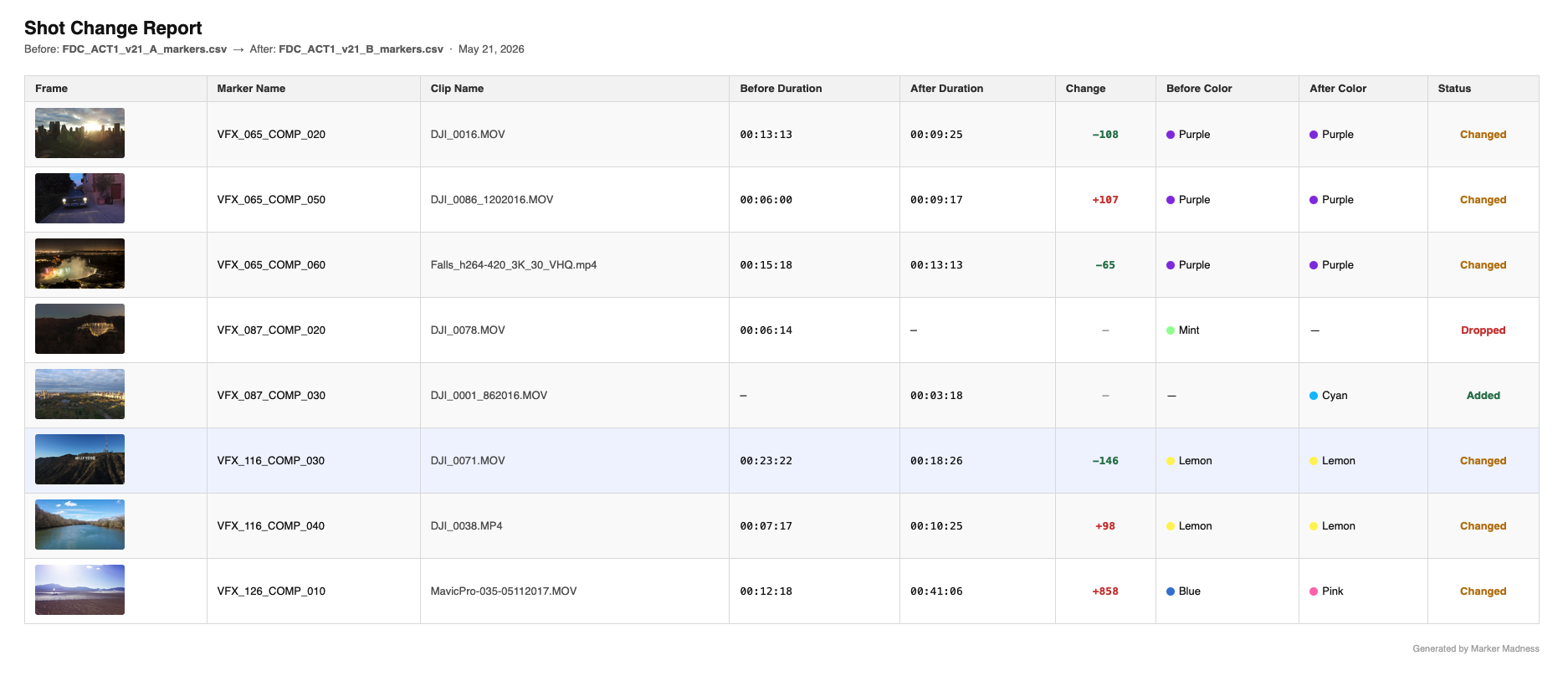
The exported Shot Change HTML Report — frame thumbnails, before/after durations, frame delta, and Added / Changed / Dropped status. Ready to open in any browser or share with production.
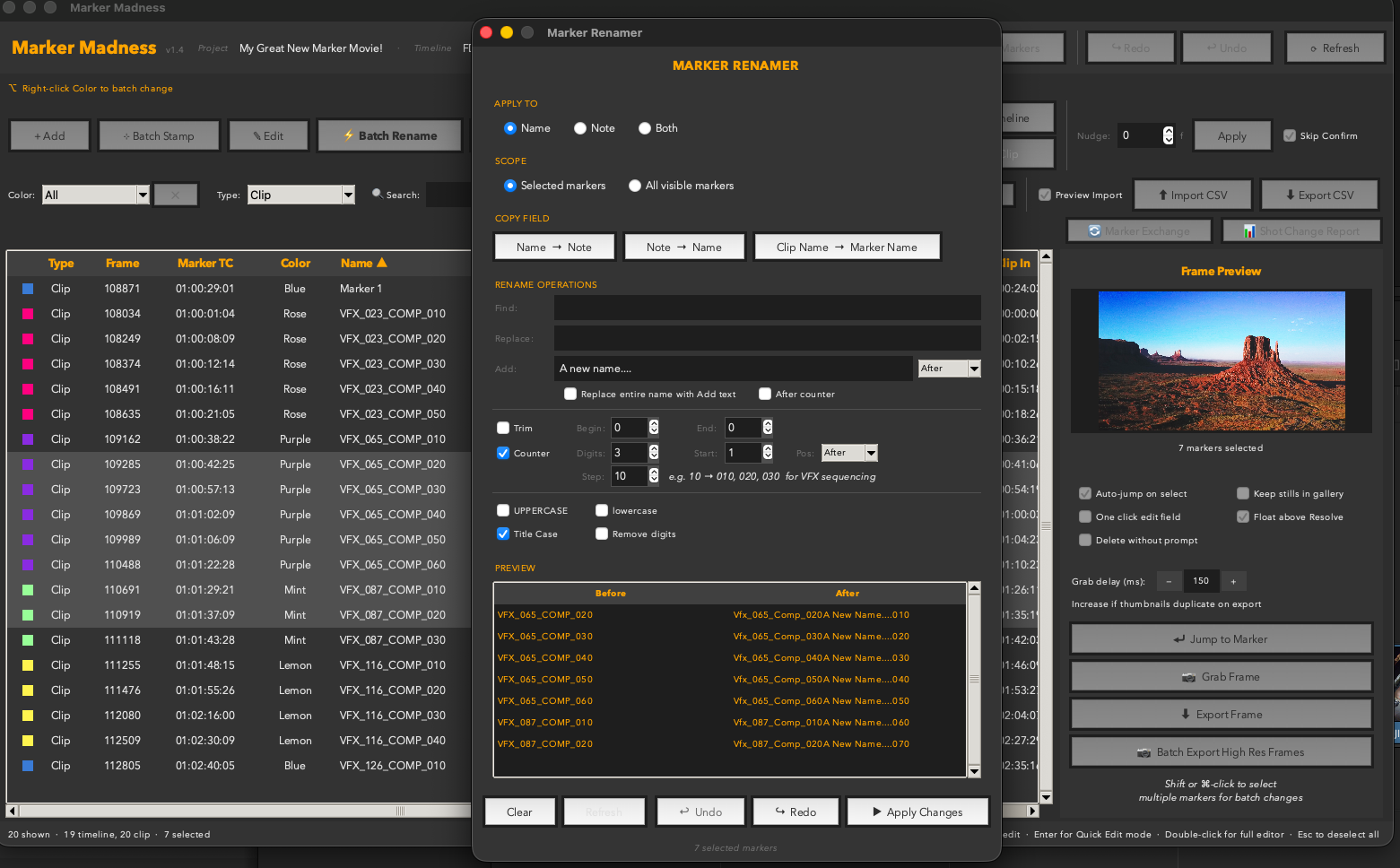
010, 020, 030. Perfect for VFX shot numbering.ShotName_010_VFX in one pass.A single .py file. Drop it in your Resolve scripts folder and it appears under Workspace → Scripts → Utility.
Works with DaVinci Resolve 18+ — free version and Studio both fully supported.
Requires Python 3 — free from python.org/downloads. Prefer to get it through Resolve? The Resolve console (Workspace → Console) links to the same Python 3 installer when Python isn’t detected.
For Danielle — the editorial assistant who once went down a very dark path on a large Resolve project, wrestling markers with nowhere to turn. You're why this exists. Now there's no corner you can't get out of.
VFX Shot # / VFX Notes for Data Burn-In, or pull metadata back onto markers — filling markers that already exist, creating ones that don’t, or both. A new VFX column and filter scope the table, CSV, HTML report and batch rename. Because metadata belongs to the source clip, a plate used several times with different shot numbers is reported as a collision rather than silently overwritten. Batch Rename gained a Version suffix (_v1, _v01, -v003), always appended last. The Counter’s Start is now the first number rather than a multiplier. Fixed: renaming, recoloring, nudging or transferring a marker no longer discards its stored data. Clip Renamer Pro
 Track Command
 Reel Time Plus