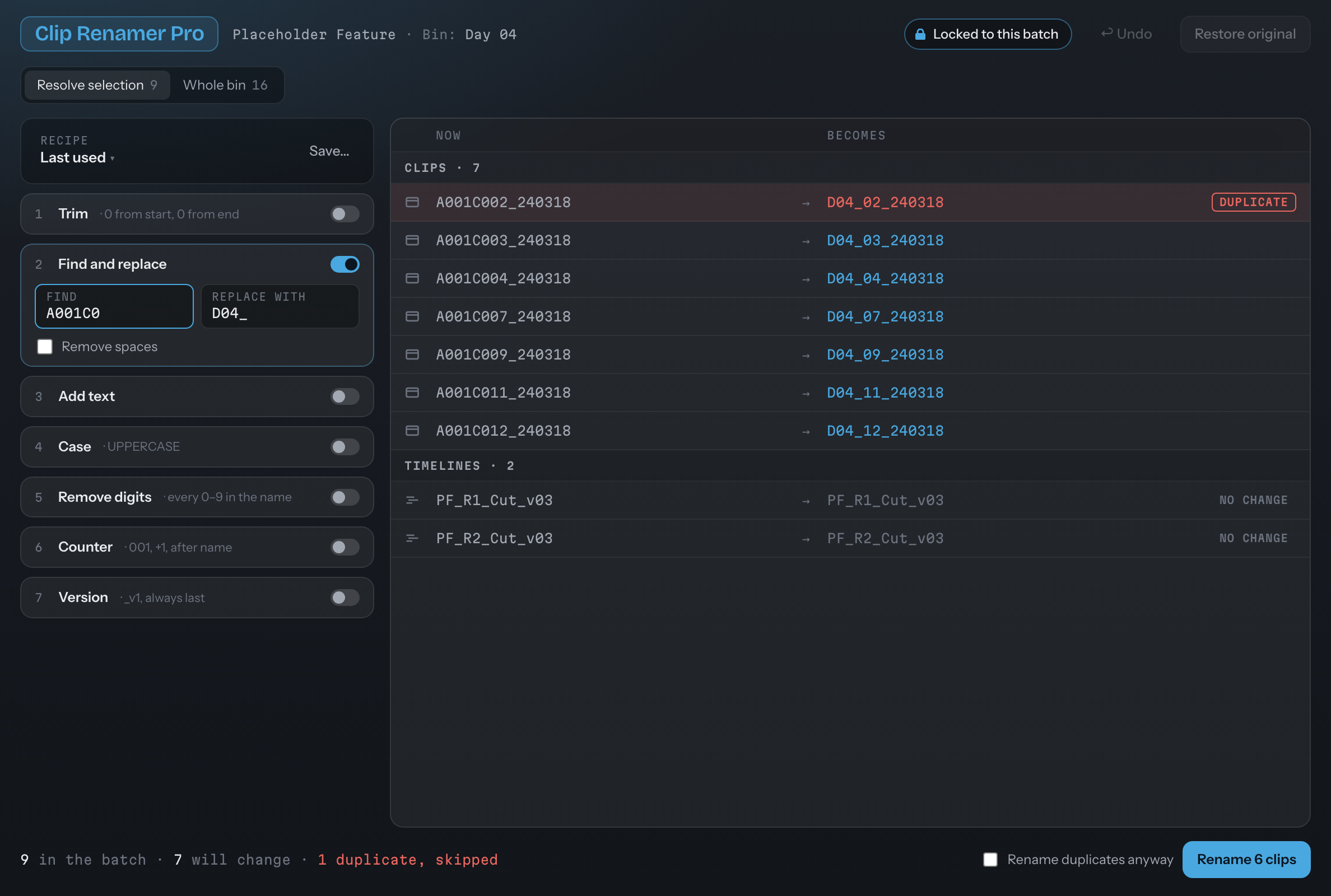
Build the name. Check it. Apply it.
Build the name from steps.
Seven steps run in this order: Trim, Find and replace, Add text, Case, Remove digits, Counter and Version. Switch on the ones you need. A step you switch off keeps its values for next time.
- Add text goes before the name, after the name, after the counter, or instead of the name.
- Counter: start, step and digits, an optional separator between the name and the number (such as _ or -), and a Continue from the highest number in this bin button for the next batch.
- Version: a tag and a number, always last, such as _v001.
- Find and replace has a Remove spaces tick.
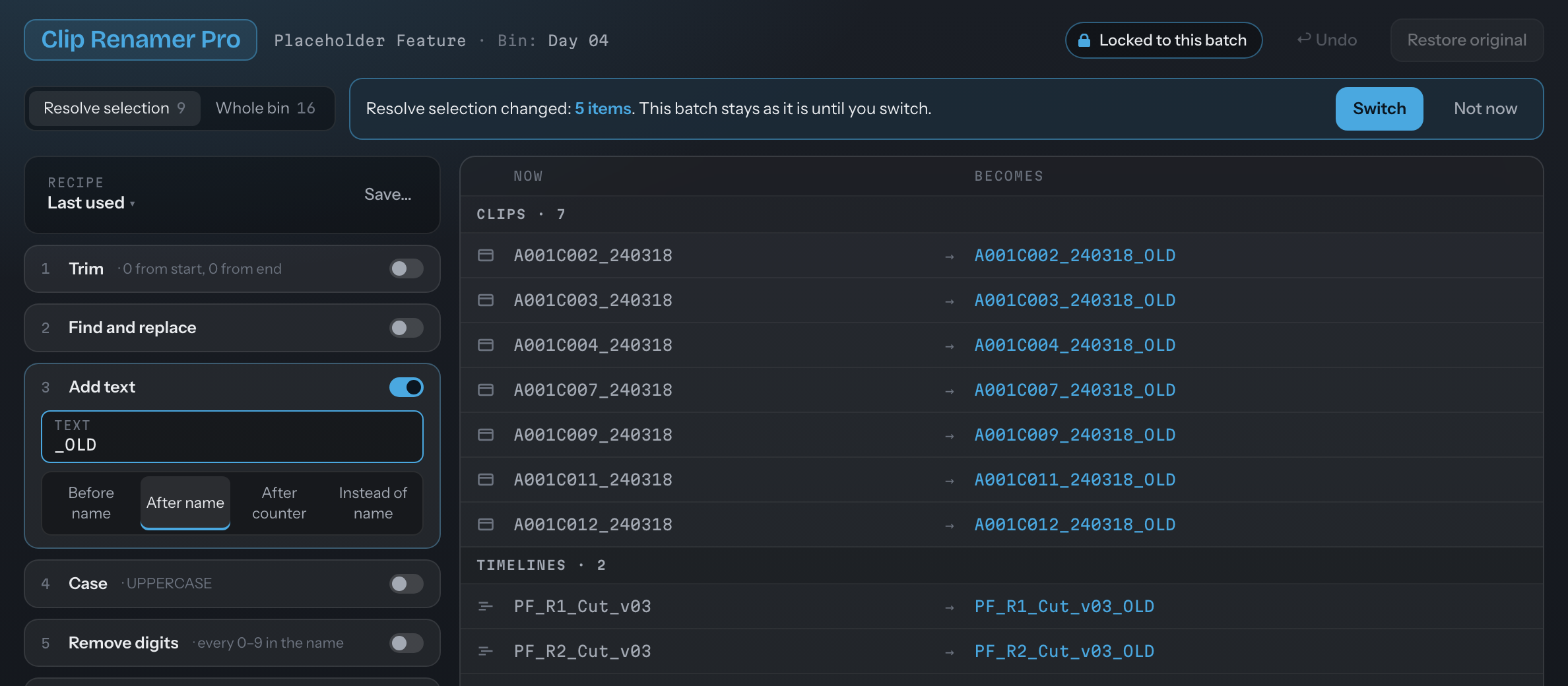
Add text _OLD after the name. The four places are Before name, After name, After counter and Instead of name.
See every change before it happens.
The preview shows what each clip is called now beside what it becomes, and it updates as you type. Clips come first, then timelines, sharing one counter.
- Duplicates: a name that would collide is flagged DUPLICATE and skipped, unless you tick Rename duplicates anyway.
- Tags: NO CHANGE for a name that stays as it is, and CAN'T RENAME for a timeline Resolve doesn't hand over.
- The button counts: Rename 6 clips, Rename 2 timelines or both, and Nothing to rename when there is nothing to do.
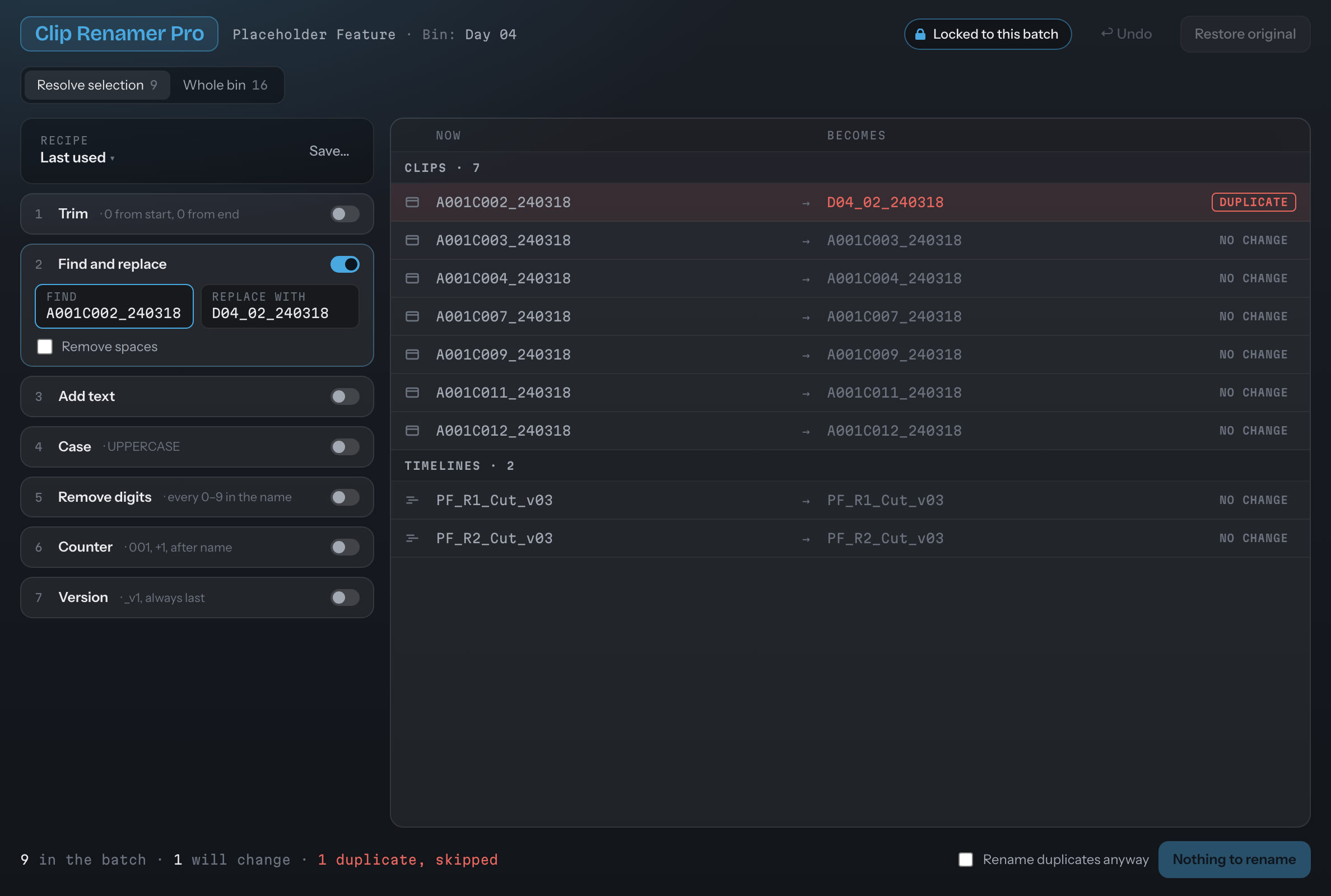
A name that would collide is flagged DUPLICATE and skipped. Tick Rename duplicates anyway to include it.
Follows Resolve, until you change something.
Resolve selection takes whatever is selected in the Media Pool and keeps up with it. The moment you edit a step, tick a row or pick a recipe, the batch locks to what it was.
- Locked to this batch: if your selection in Resolve changes, a bar says so and offers Switch or Not now. Nothing moves under you.
- Whole bin lists every clip and timeline in the current bin. Tick the ones that belong in the batch.
- Switch projects in Resolve and the batch resets and the Undo history clears, with a note.
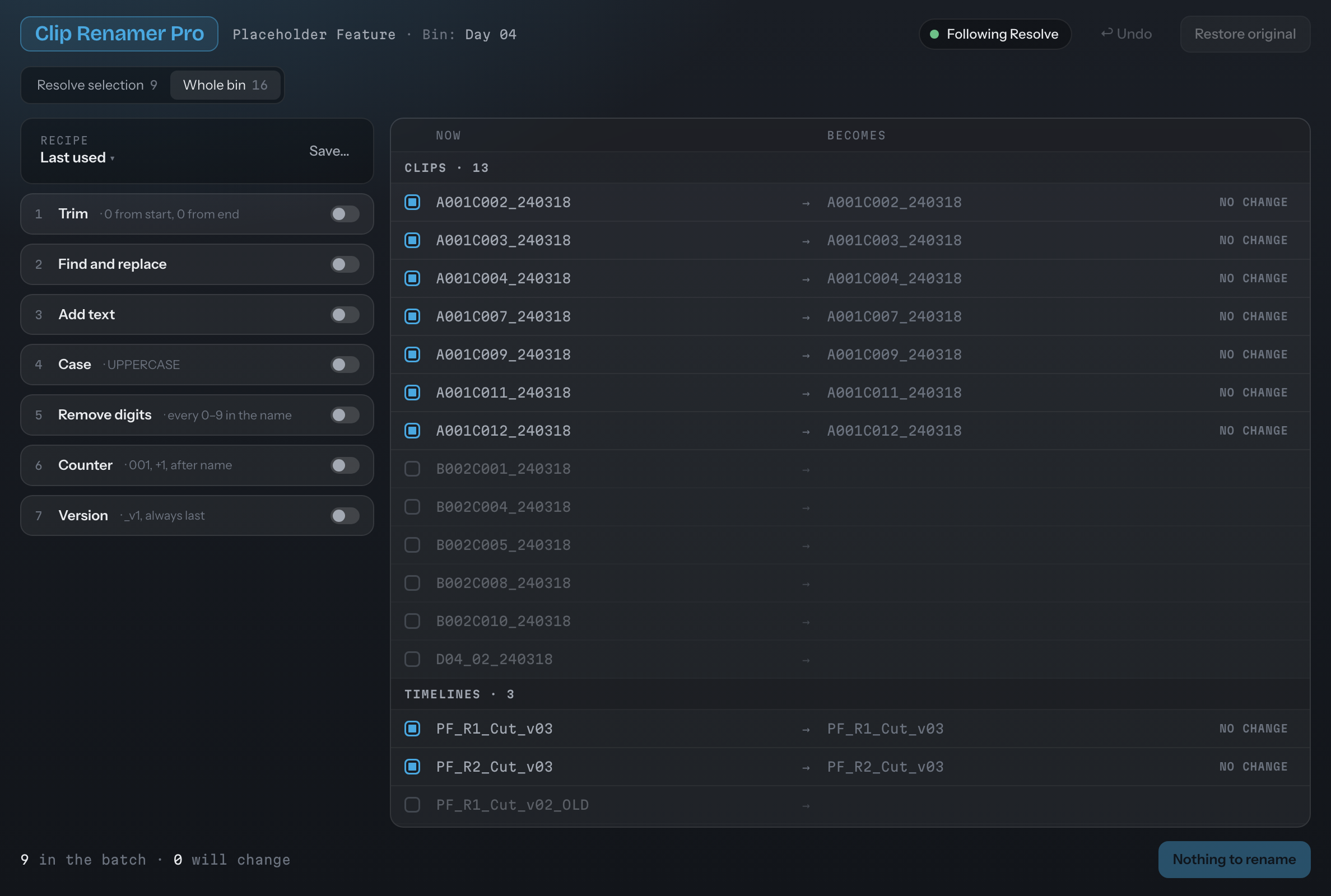
Whole bin: every clip and timeline in the bin listed, and the ticked ones are the batch.

Undo it. Or put everything back.
Rename writes to Resolve and checks every result. A name Resolve refuses shows as FAILED, with the reason. Renamed rows flash green and say RENAMED.
- Undo reverses the last Rename, up to ten deep.
- Restore original puts every name changed in this session back as it started, after one confirm.
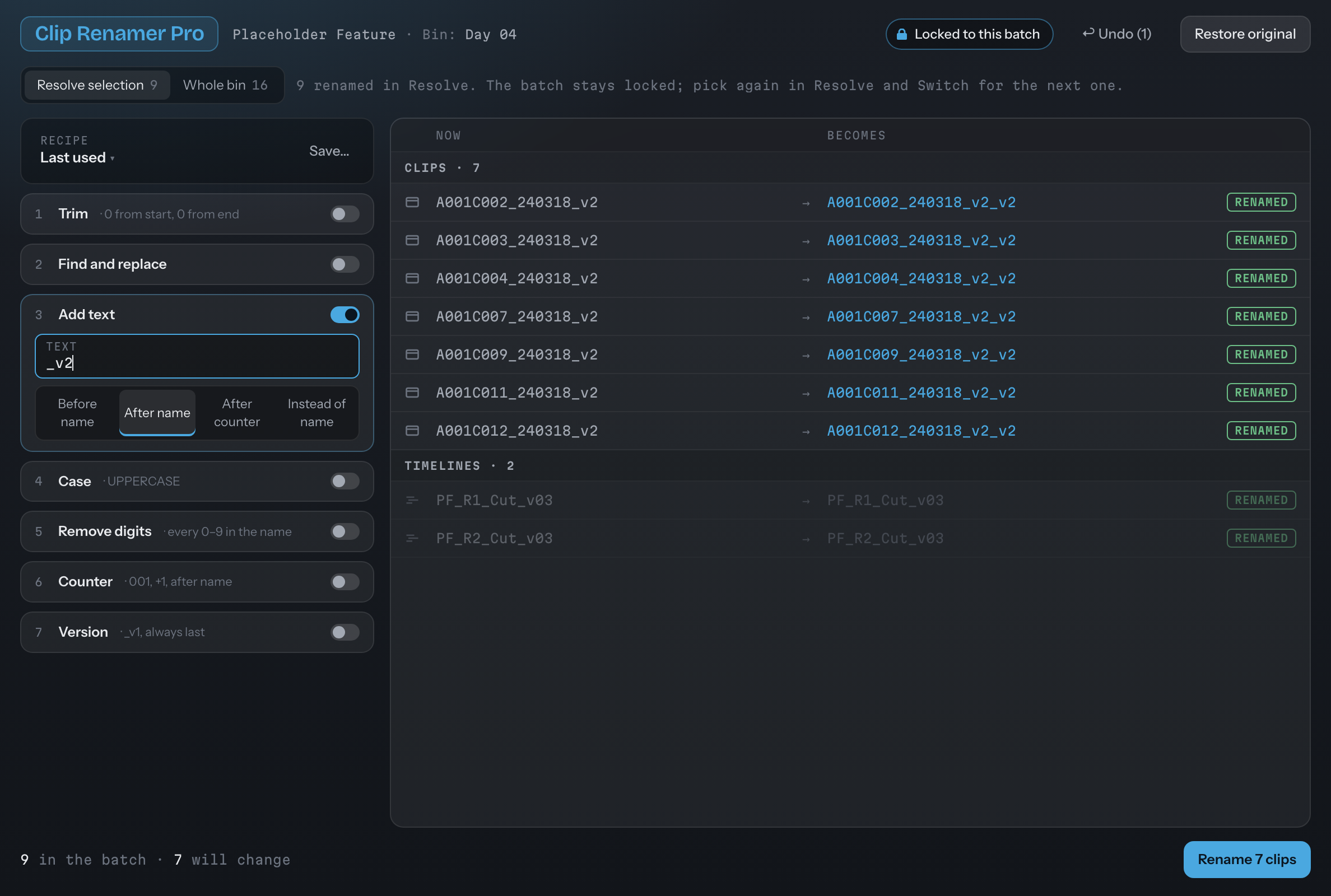
After Rename: every clip marked RENAMED, with Undo and Restore original ready at the top.

Save the steps. Load them next time.
Save the current steps as a recipe, pinned to the project if you like. The menu lists this project's recipes first, then all the others, then your last-used steps.
- Loading a recipe replaces all the steps and locks the batch. Edit it and it reads (edited).
- Remembered: your last steps come back when you reopen the app.
- Never silent: if your settings can't be saved, you are told.
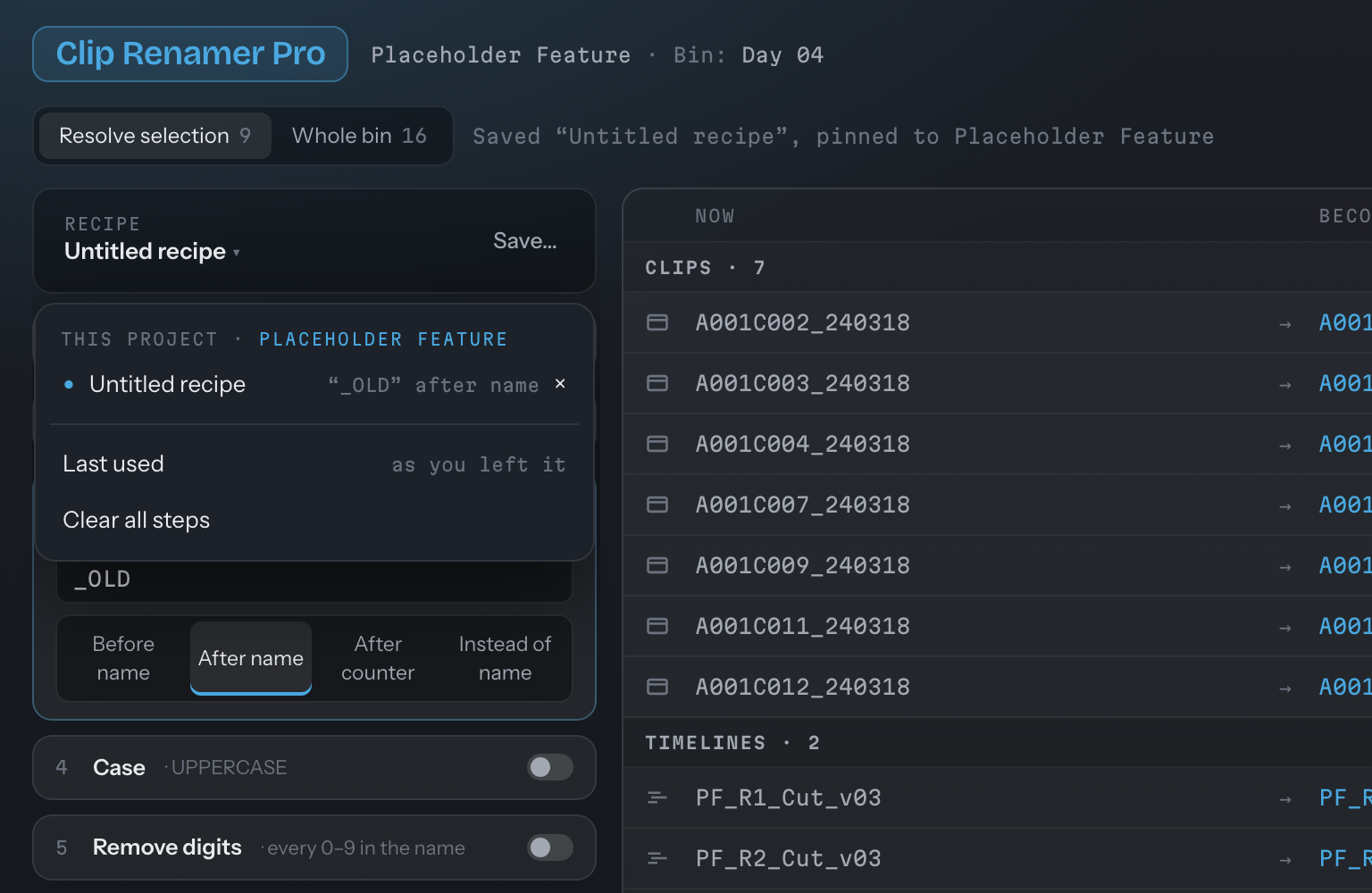
The recipe menu: this project's recipe pinned at the top, then Last used and Clear all steps.
What changed since Clip Renamer Pro 2.2.5.
- One app, not a scriptClip Renamer Pro is now one of five tools in the Resolve Tools app, beside DaVinci Resolve Studio 21.1 or later. The Scripts-menu version stays on the classic site for Resolve 21.0 and earlier.
- Same rename engineThe steps run through the same rename logic as 2.2.5, and the 2.0 results are checked against it in tests.
- Follow and lockThe batch follows your Resolve selection until you change something. Then it holds still, and offers Switch when Resolve moves on.
- Failures are reportedIf Resolve refuses a name, the row says FAILED and why, and Undo only reverses what actually changed.
- Recipes and VersionRecipes pinned to a project, and a Version step, are in 2.0.
- Sentence caseSentence case isn't in 2.0 yet; the classic version still has it.
The full guide for Clip Renamer Pro 2.1 is on its way. Until it lands, the guide for the 1.x tool (Clip Renamer Pro 2.2.5) is still up: classic guide (1.x).
Resolve Tools 2.1 for Mac and Windows
One app, five tools, free. On a Mac, open the .dmg and drag Resolve Tools into Applications. On Windows, run the installer (no administrator needed). Then in Resolve set Preferences › System › General › External scripting using: Local. Requires DaVinci Resolve Studio 21.1 or later, and macOS 12 or later or Windows 10/11 (64-bit).
This build isn't signed yet, so macOS asks you to choose Open Anyway and Windows asks you to choose Run anyway the first time. It's free, made with care, and only goes online if you press Check for updates. The one-time steps for each are on the front page.
Using Resolve 21.0 or earlier? The classic Clip Renamer Pro is still here: Clip Renamer Pro 1.x.