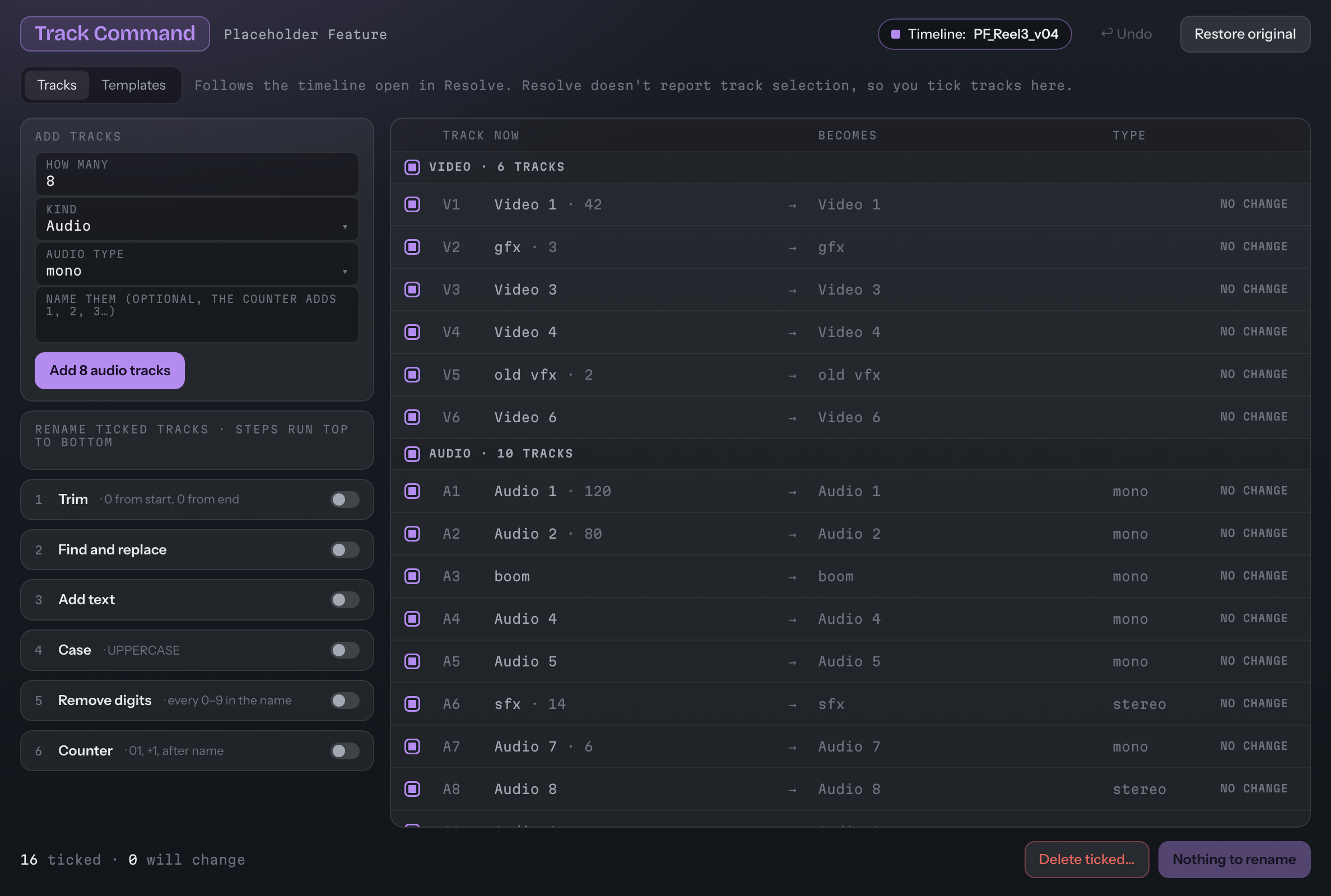
Your track stack, under control.
Add tracks and name them in the same pass.
The Add tracks card takes how many, which kind and an optional name. With a name filled in, the new tracks are called name1, name2 and so on, and they go at the end.
- Audio type: mono, stereo, the surround layouts and Adaptive, in one grouped menu.
- The track table: V1 and A3, the name now, the name it becomes, how many clips are on the track, and the audio type.
- You tick the tracks. Every track starts ticked. Resolve doesn't report which tracks you have selected, so the ticks live here.
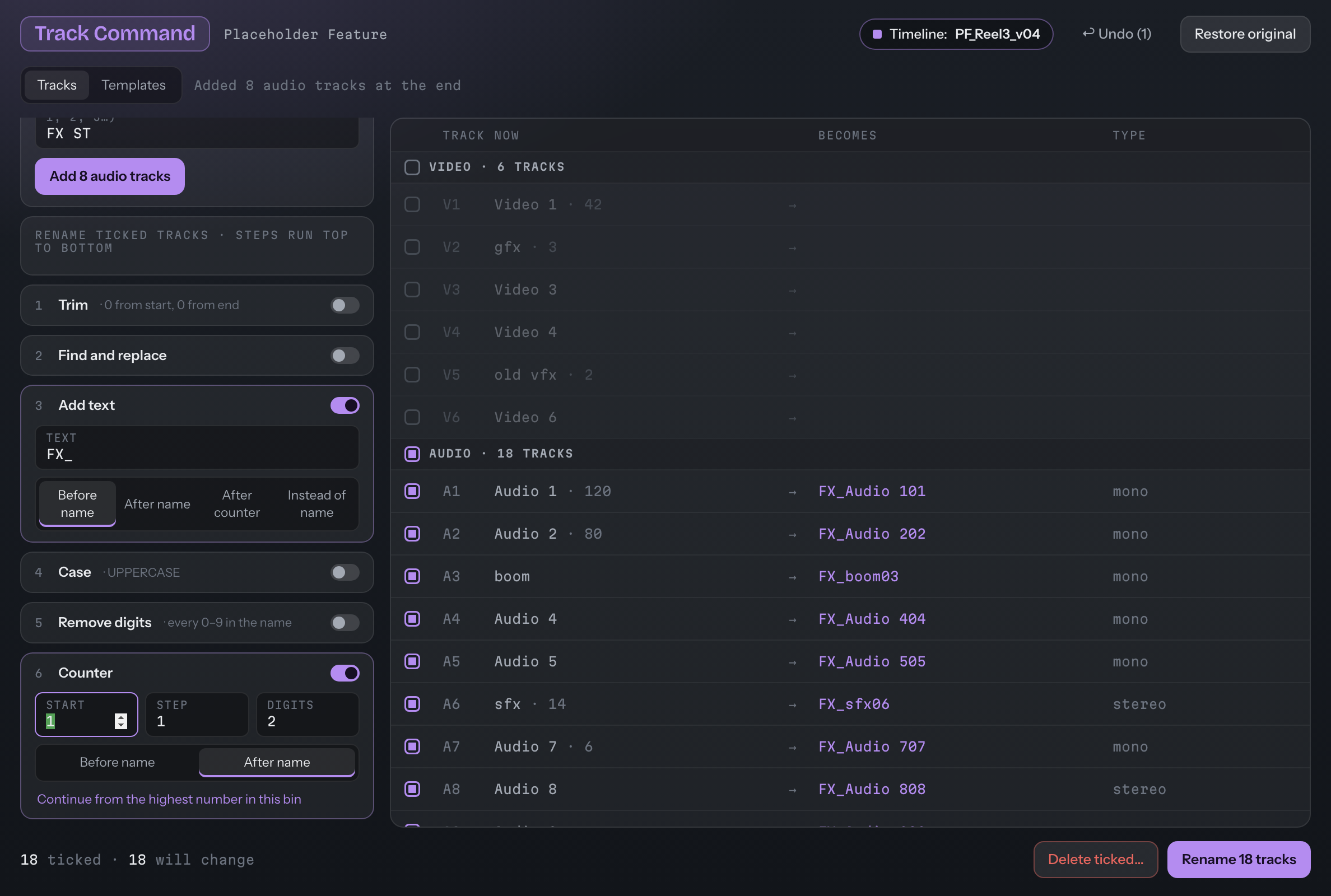
Eight audio tracks added, and the ticked tracks previewed with FX_ before the name and a counter after it.
Six steps, the same engine as Clip Renamer Pro.
Trim, Find and replace (with Remove spaces), Add text, Case, Remove digits and Counter, run top to bottom on the ticked tracks. The counter runs audio first and then video, defaults to two digits, and can put a separator between the name and the number.
- Undo is kept per timeline, so switching timelines in Resolve doesn't lose it. Coming back brings it back.
- Restore original puts the track names back as they were when this session first saw the timeline.
- Follows Resolve: the tool shows the timeline that's open in Resolve, and reloads when its tracks change.
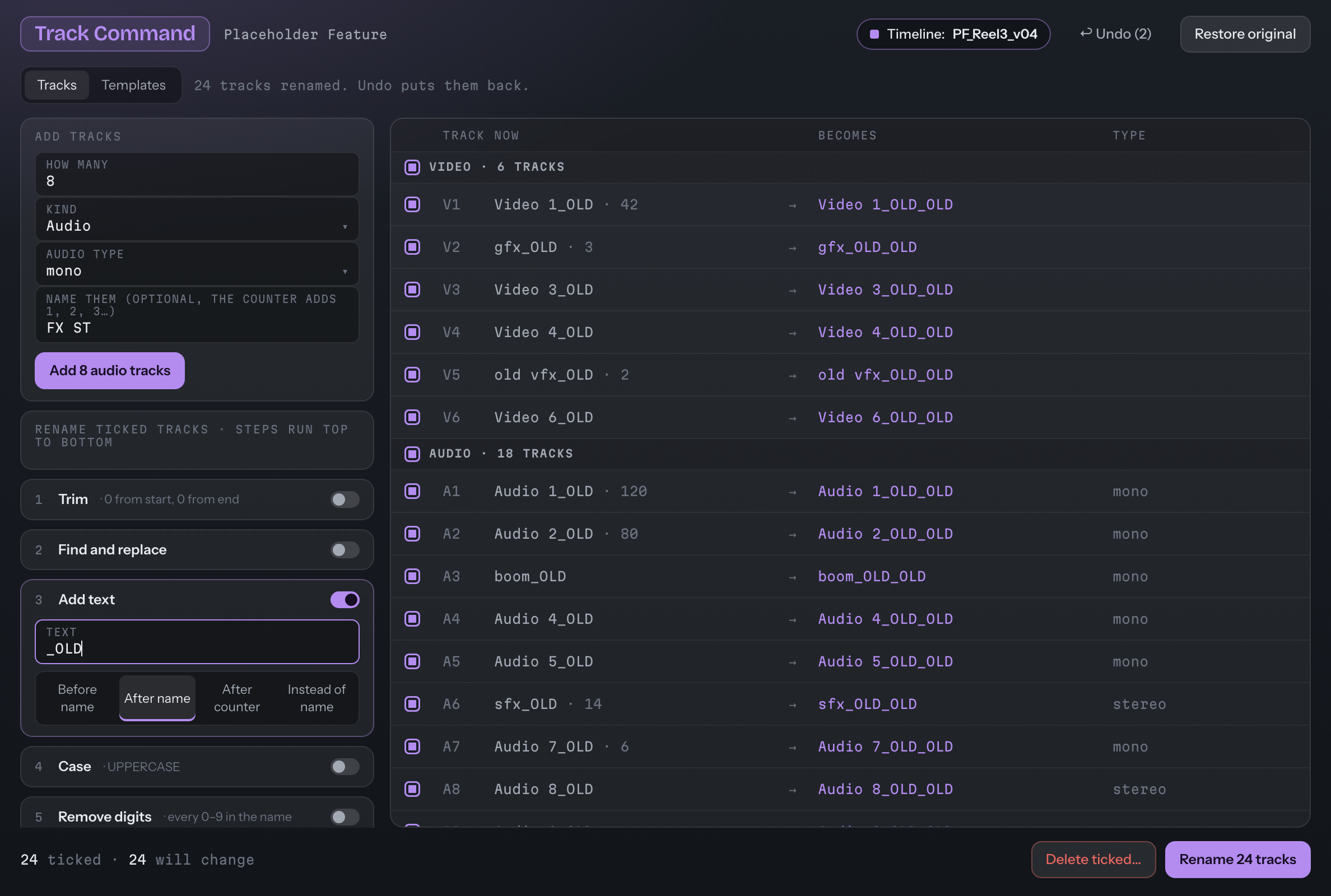
After Rename: 24 tracks renamed, with Undo ready to put them back.
It asks before it takes clips with it.
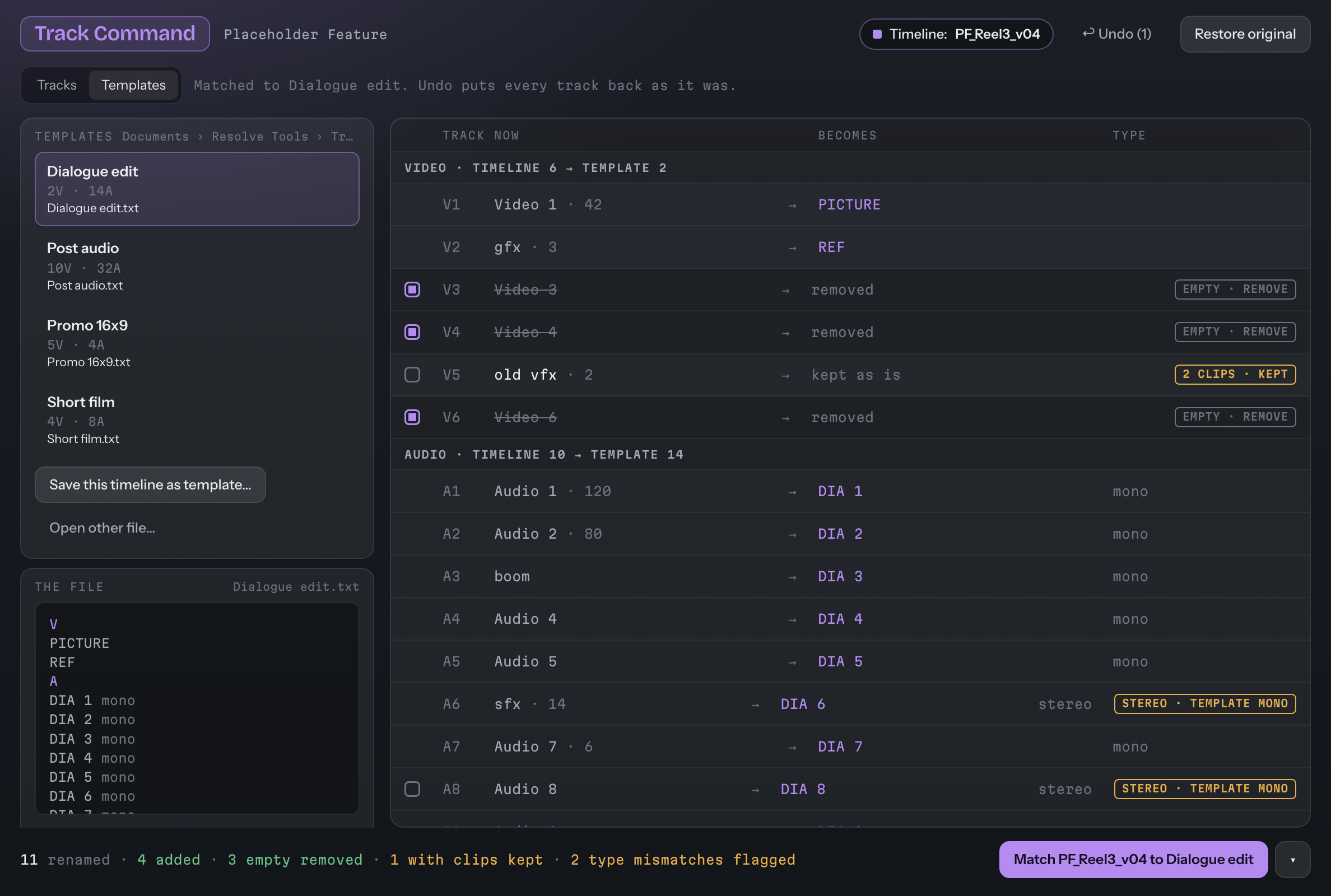
Delete ticked never deletes on the first click. If any ticked track has clips, the confirm says how many tracks and how many clips.
- If they are all empty, it says so: Delete 3 tracks? They are all empty.
- Clips don't come back. Undo can bring back the tracks, but not the clips on them. The confirm and the Undo note both say so.
- Checked again when the delete runs, against the clip count Track Command reads then.
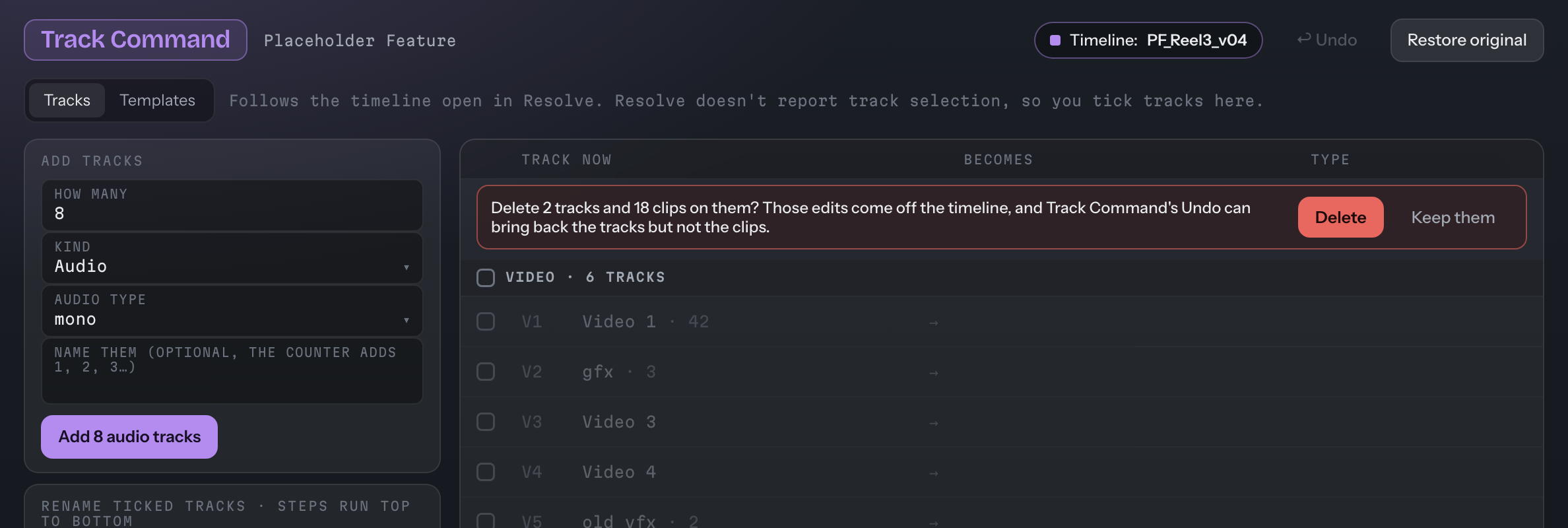
Delete 2 tracks and 18 clips on them? The confirm names the clips before anything comes off the timeline.
Lay out a timeline from a template.
Templates are plain text files in your Documents folder, under Resolve Tools and Track Templates. Save this timeline's layout as one, open any other file, or edit a template in a text editor and see the change when you come back.
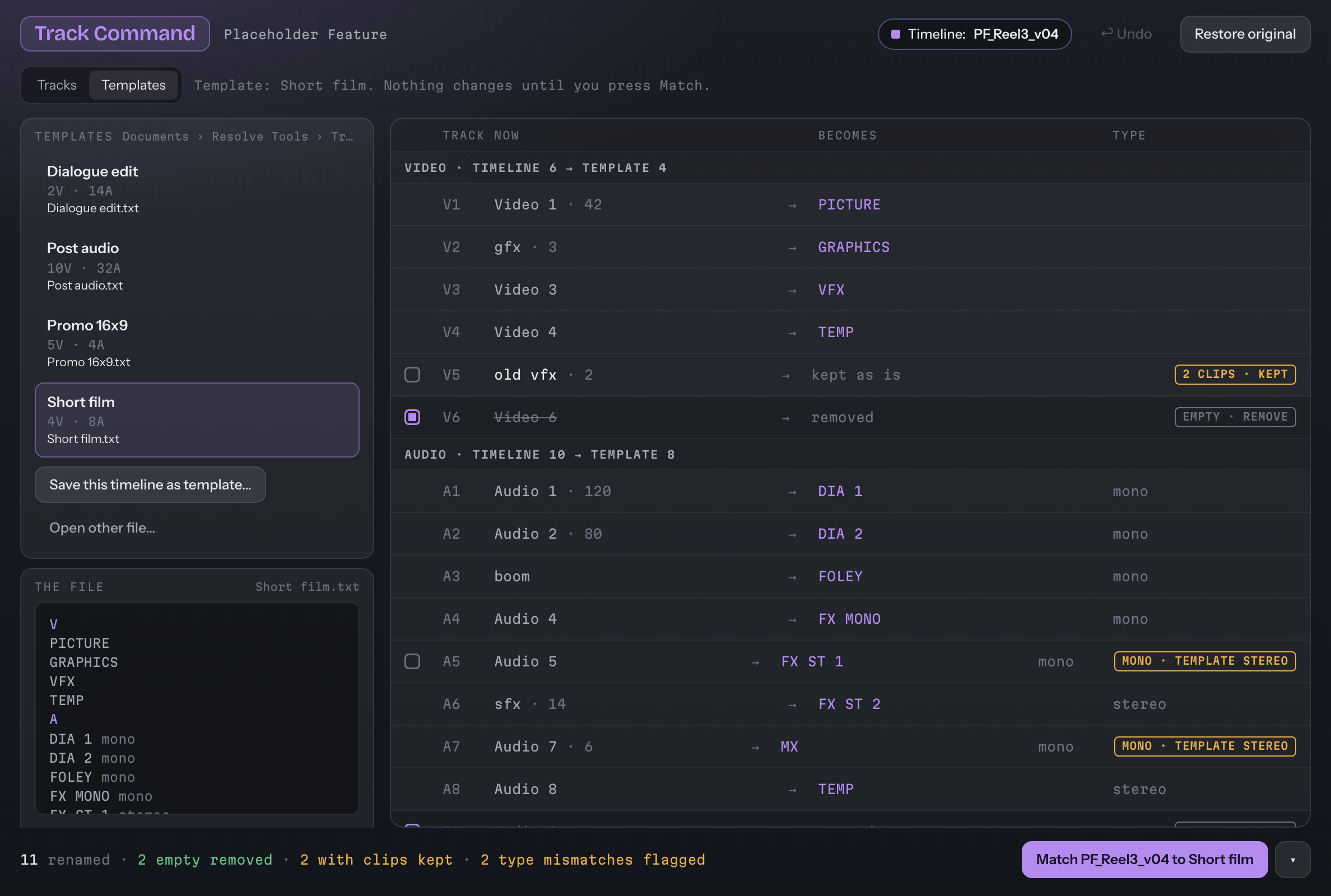
- Match compares the timeline to the template track by track and previews every row before anything happens.
- What Match does: renames the tracks that differ, adds the template's extra tracks at the end, and removes extra tracks that are empty.
- Tracks with clips are kept. An extra track with clips stays as it is. Ticking it asks again, and names the clips.
- Audio type: a different type is flagged. On a track with clips only the name changes.
- The ▾ menu: add the template's tracks after the existing ones, or create a new timeline from the template.
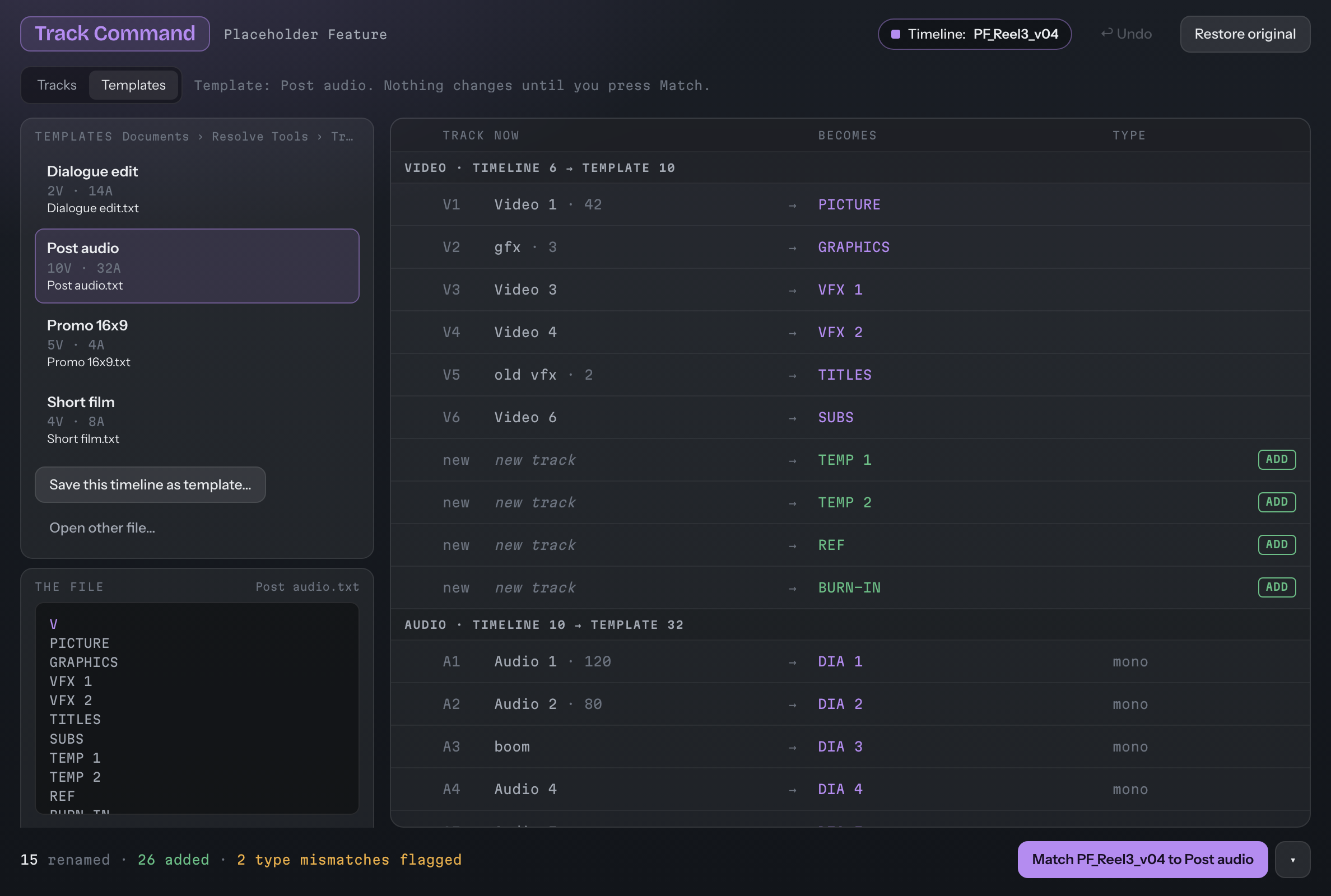
Post audio matched against the open timeline: 15 renamed, 26 added, 2 type mismatches flagged, and nothing applied yet.
What changed since Track Command 1.2.2.
- One app, not a scriptTrack Command is now one of five tools in the Resolve Tools app, beside DaVinci Resolve Studio 21.1 or later. The Scripts-menu version stays on the classic site for Resolve 21.0 and earlier.
- Remove spacesFind and replace has a new Remove spaces tick. The other rename steps behave as they did.
- Templates preview firstMatch shows every rename, addition and removal before it changes anything, and a track with clips is never removed without a confirm that names them.
- Names while addingYou can name new tracks as you add them, with a counter.
- Undo per timelineUndo is kept for each timeline, so switching timelines in Resolve doesn't lose it.
The full guide for Track Command 2.1 is on its way. Until it lands, the guide for the 1.x tool (Track Command 1.2.2) is still up: classic guide (1.x).
Resolve Tools 2.1 for Mac and Windows
One app, five tools, free. On a Mac, open the .dmg and drag Resolve Tools into Applications. On Windows, run the installer (no administrator needed). Then in Resolve set Preferences › System › General › External scripting using: Local. Requires DaVinci Resolve Studio 21.1 or later, and macOS 12 or later or Windows 10/11 (64-bit).
This build isn't signed yet, so macOS asks you to choose Open Anyway and Windows asks you to choose Run anyway the first time. It's free, made with care, and only goes online if you press Check for updates. The one-time steps for each are on the front page.
Using Resolve 21.0 or earlier? The classic Track Command is still here: Track Command 1.x.