Everything you do with a marker, in one place.
Click a name. Type.
Every marker on the open timeline is in one list: the ruler markers and the clip markers on every video and audio track. Double-click a name, note or duration and type. The change is written to Resolve when you leave the cell, and it goes on Undo.
- Keys: Enter moves down the same column, Shift-Enter up, Tab goes to the next field, Esc stops and keeps what you typed.
- Colour: click the colour square for Resolve's 16 marker colours. If several markers are ticked, they all change.
- Inspector: it follows what you've ticked. The whole timeline when nothing is, the marker's name, note and duration when one is, and a rename with a live preview when several are.
- Follows Resolve: the list refreshes by itself within about a second and keeps your ticks. A Timeline | Media Pool switch reads a Media Pool clip's markers instead.
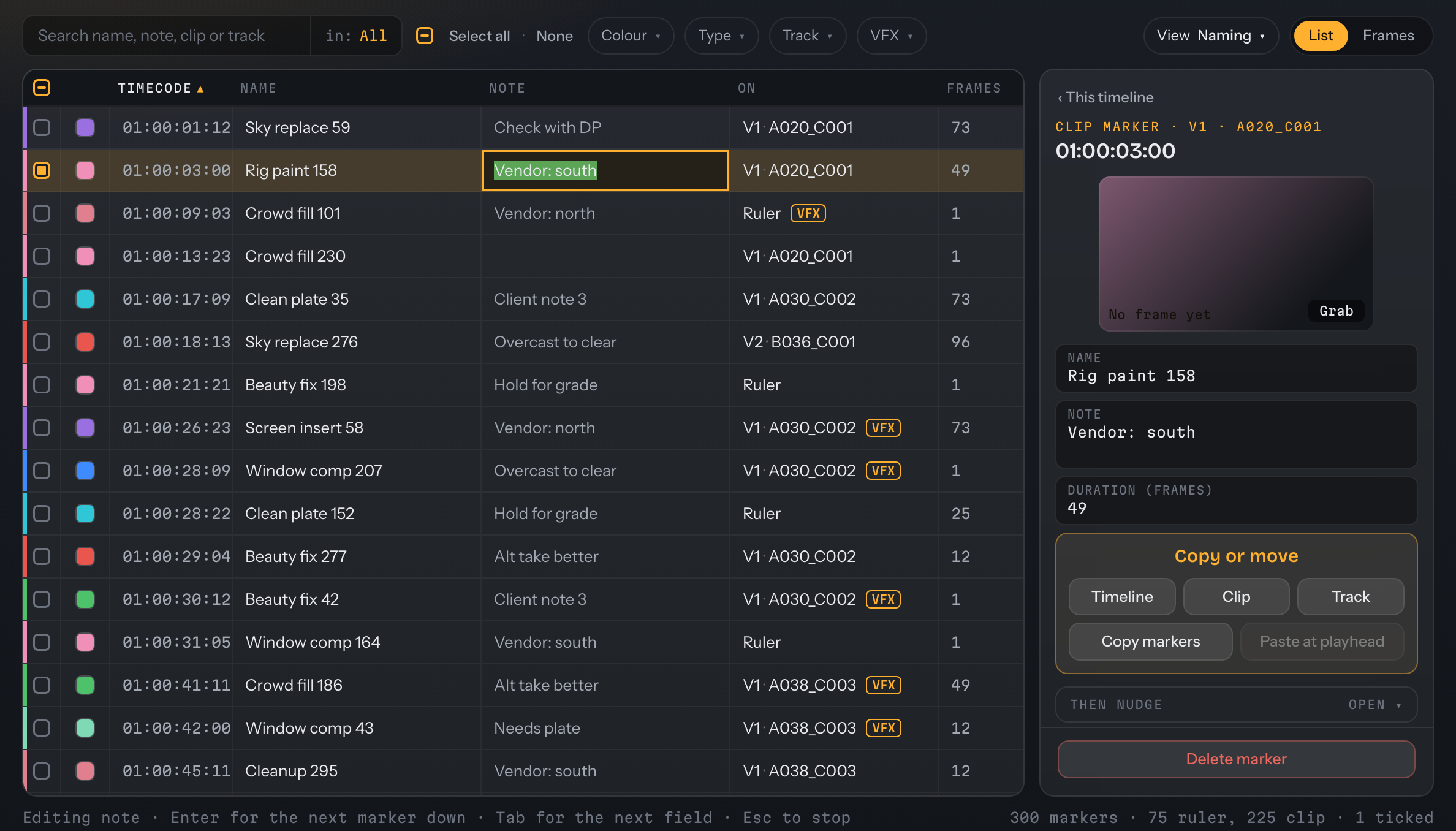
Editing a note in the list. The cell is live, and the Inspector shows the same marker.
Select the way you already do.
Selection works the way you expect from any list. Click a row to select it, ⌘ / Ctrl-click adds or removes one row, Shift-click takes the run from where you started, and ⌘ / Ctrl-click then takes rows back out of that run.
- Everything: ⌘A / Ctrl+A selects every marker shown (after the filters and the strip's range), ⇧⌘A / Ctrl+Shift+A selects none, Esc clears.
- Select all · None: a control in the list header, and its tick box shows empty, some or all.
- Keyboard: the arrow keys move the current row and Shift with them extends the run.
- Tick boxes and the strip: the tick boxes are still there, and dragging across the strip ticks a whole stretch. Frames view selects the same way.
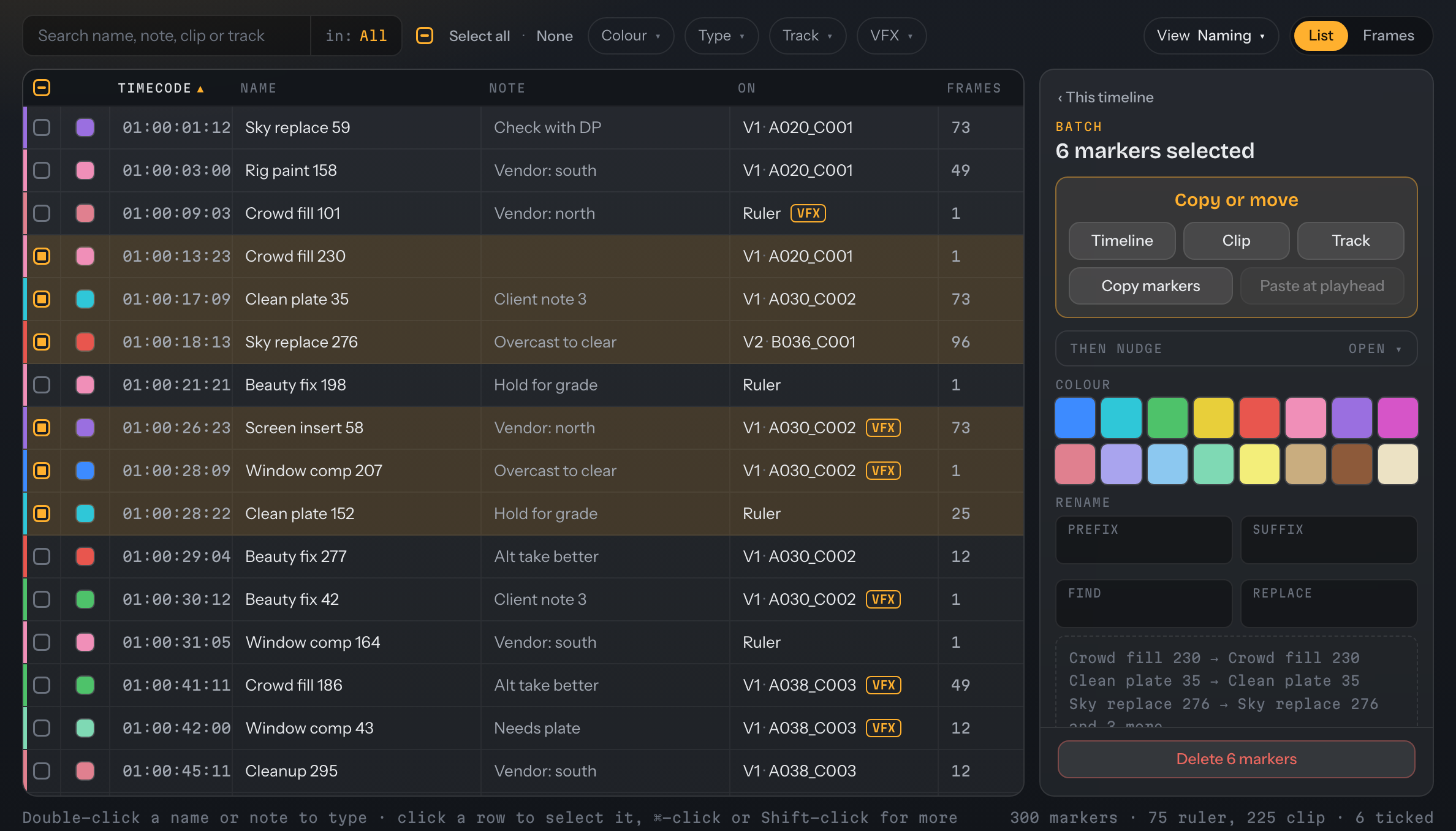
Six markers selected with Shift-click and ⌘ / Ctrl-click. The Inspector offers Copy or move, Rename and Delete 6 markers.
Find the ones you mean.
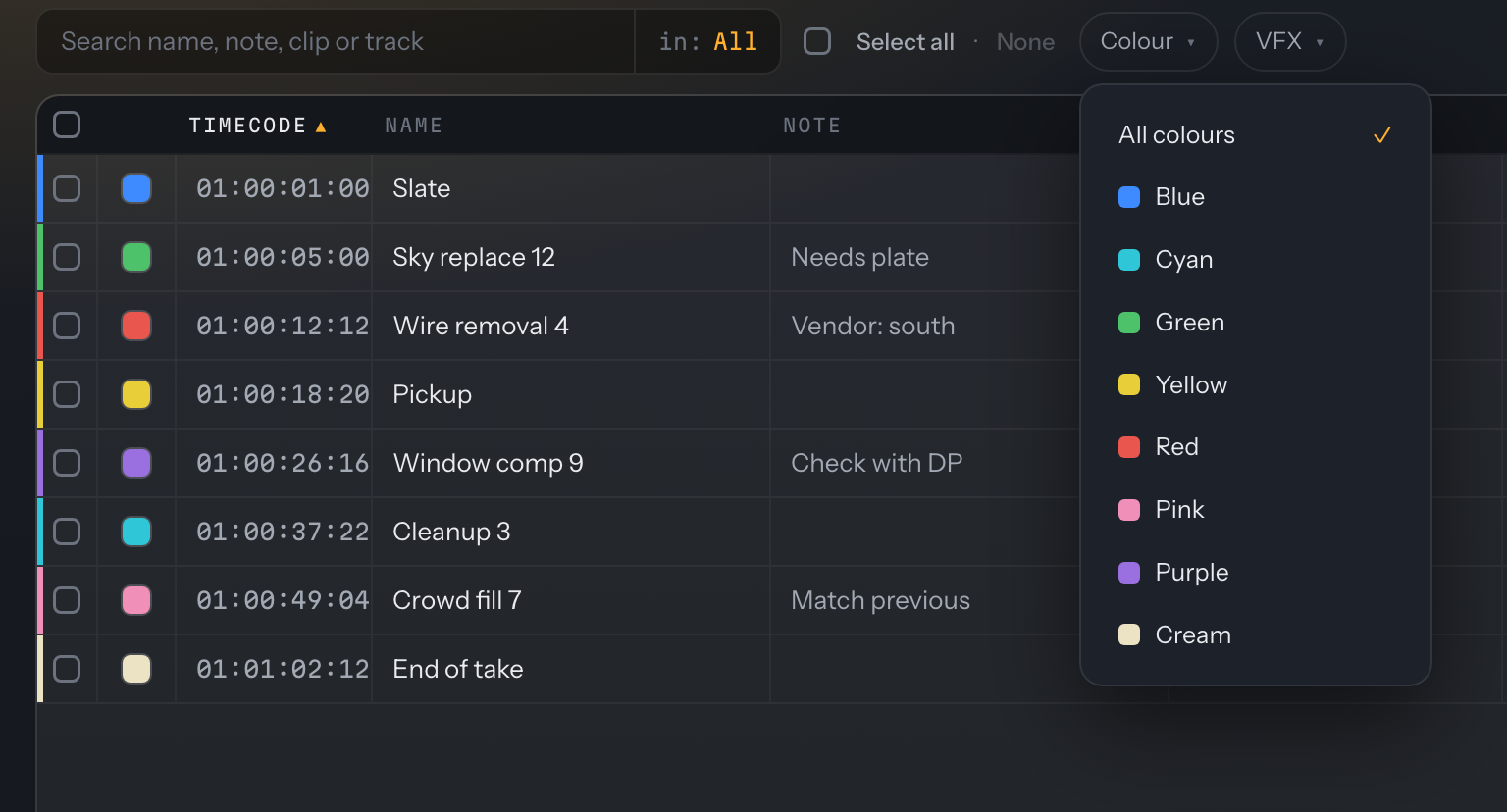
The search looks in name, note, clip and track together and highlights what matched in every row. in: All narrows it to the fields you choose, and Select these N ticks every match.
- Chips: Colour, Type, Track and VFX filter the list.
- Colour lists only the colours in use. You never pick a colour that isn't on the timeline.
- The strip fades: markers the search or filters hide fade on the strip rather than disappear.
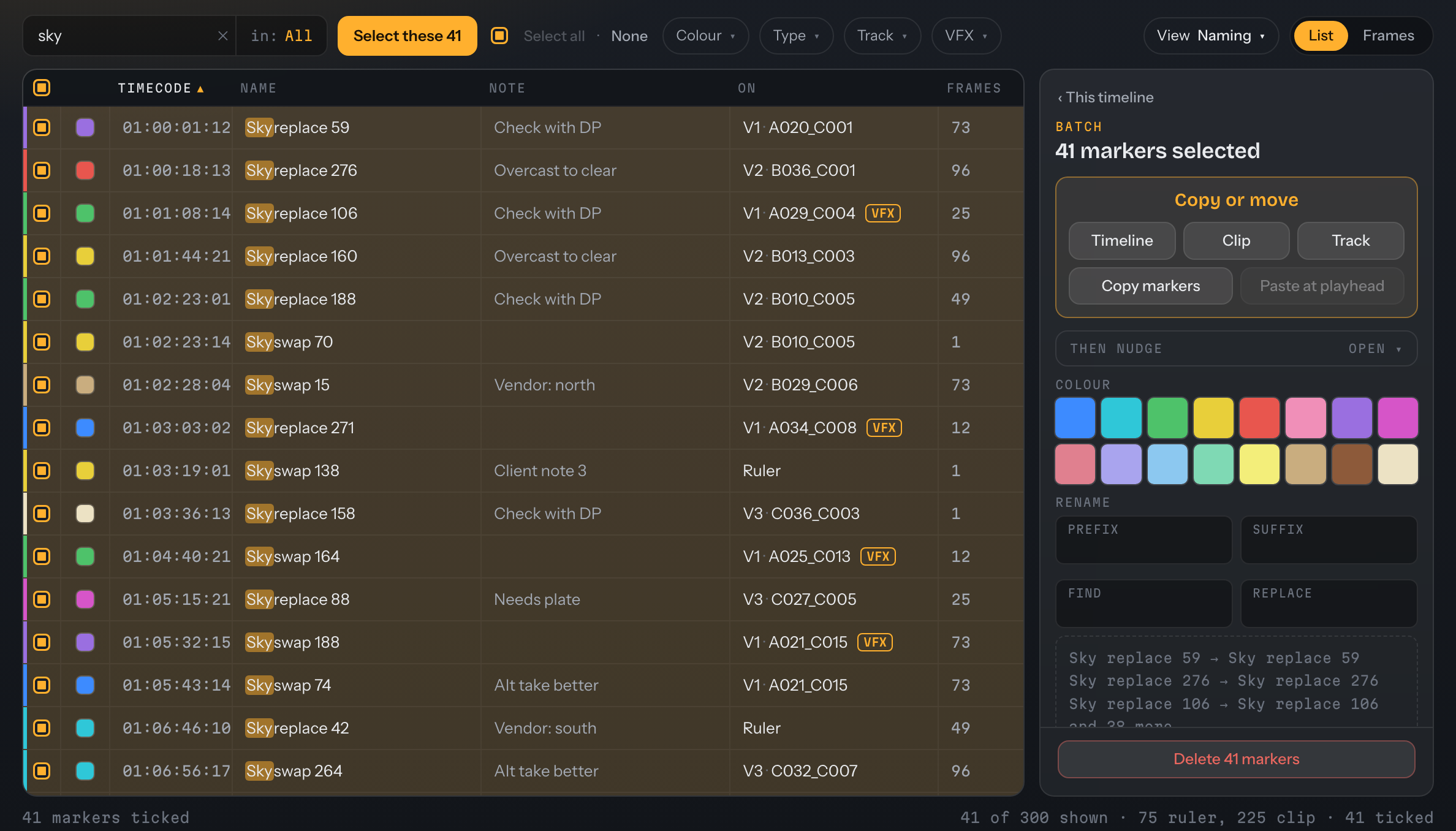
Searching for sky: the matches are highlighted in every row, Select these 41 ticked them, and the Inspector offers the batch tools.
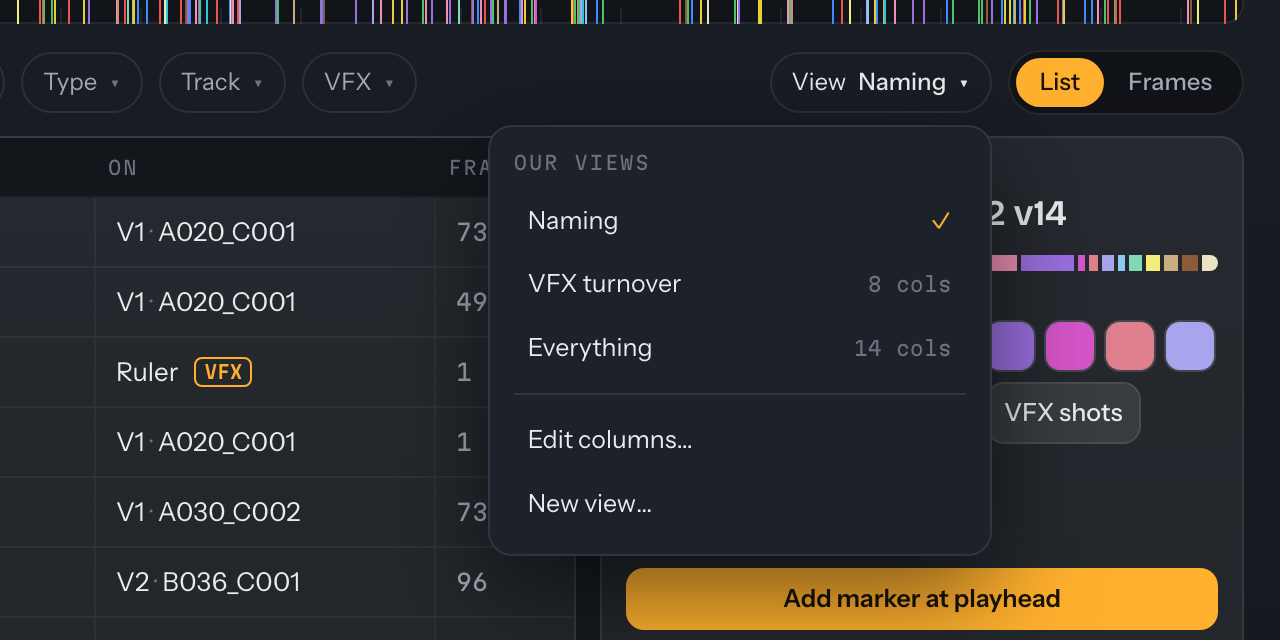
The columns you need, in the order you need.
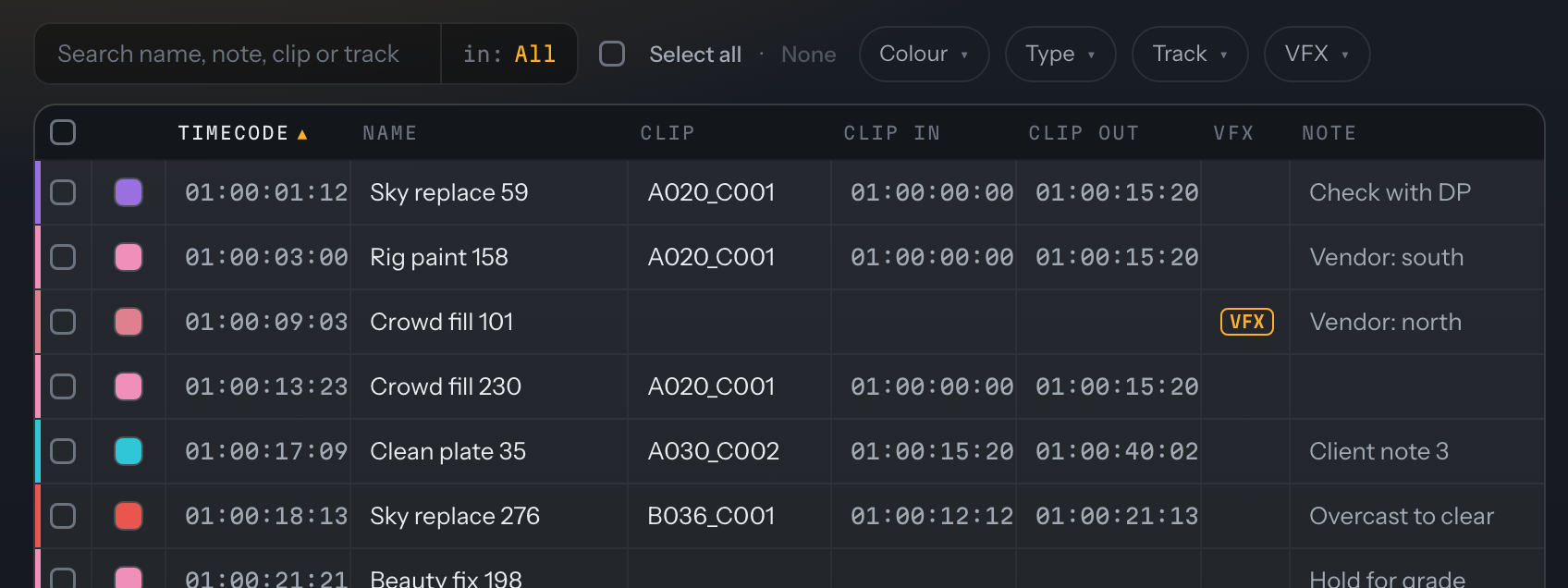
Three views are built in: Naming (colour, timecode, name, note, on, frames), VFX turnover (colour, timecode, name, clip, clip in, clip out, VFX, note) and Everything, with all 15 columns. What doesn't fit is named in a +N hidden chip, never a sideways scrollbar.
- Your own views: save, rename and delete them. The three built-in ones can't be overwritten.
- Sort by header: click a column header to sort, click again to reverse. The arrow shows which. Track sorts the ruler first, then V1, V2 and on, then the audio tracks, with V11 after V7.
- Back to cut order: click the Timecode header. The sort is remembered, and it never changes what is selected.
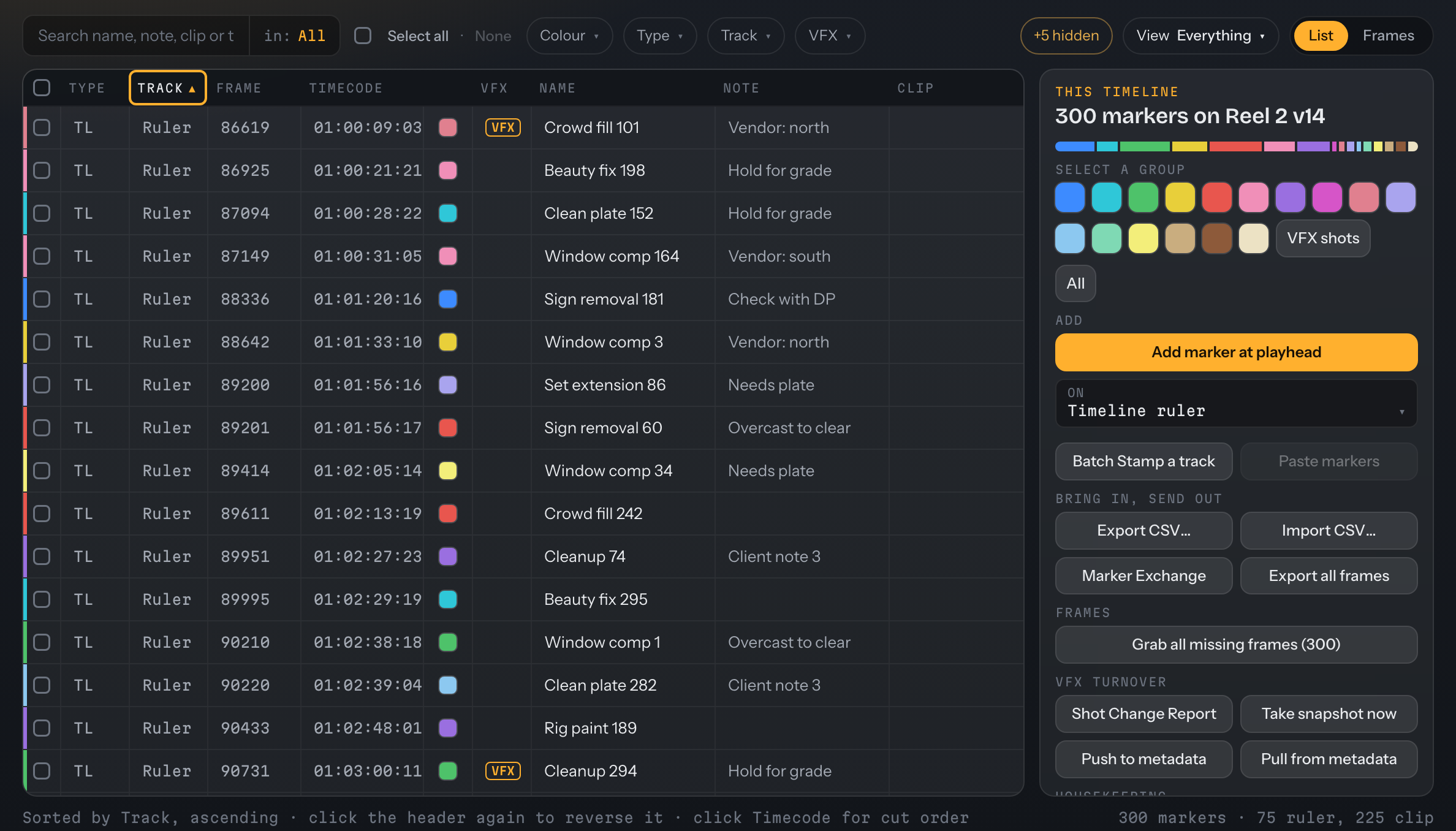
The Everything view sorted by Track: ruler markers first, then the clip tracks. The Track header shows the arrow, and +5 hidden names the columns that didn't fit.
The whole timeline, in one line.
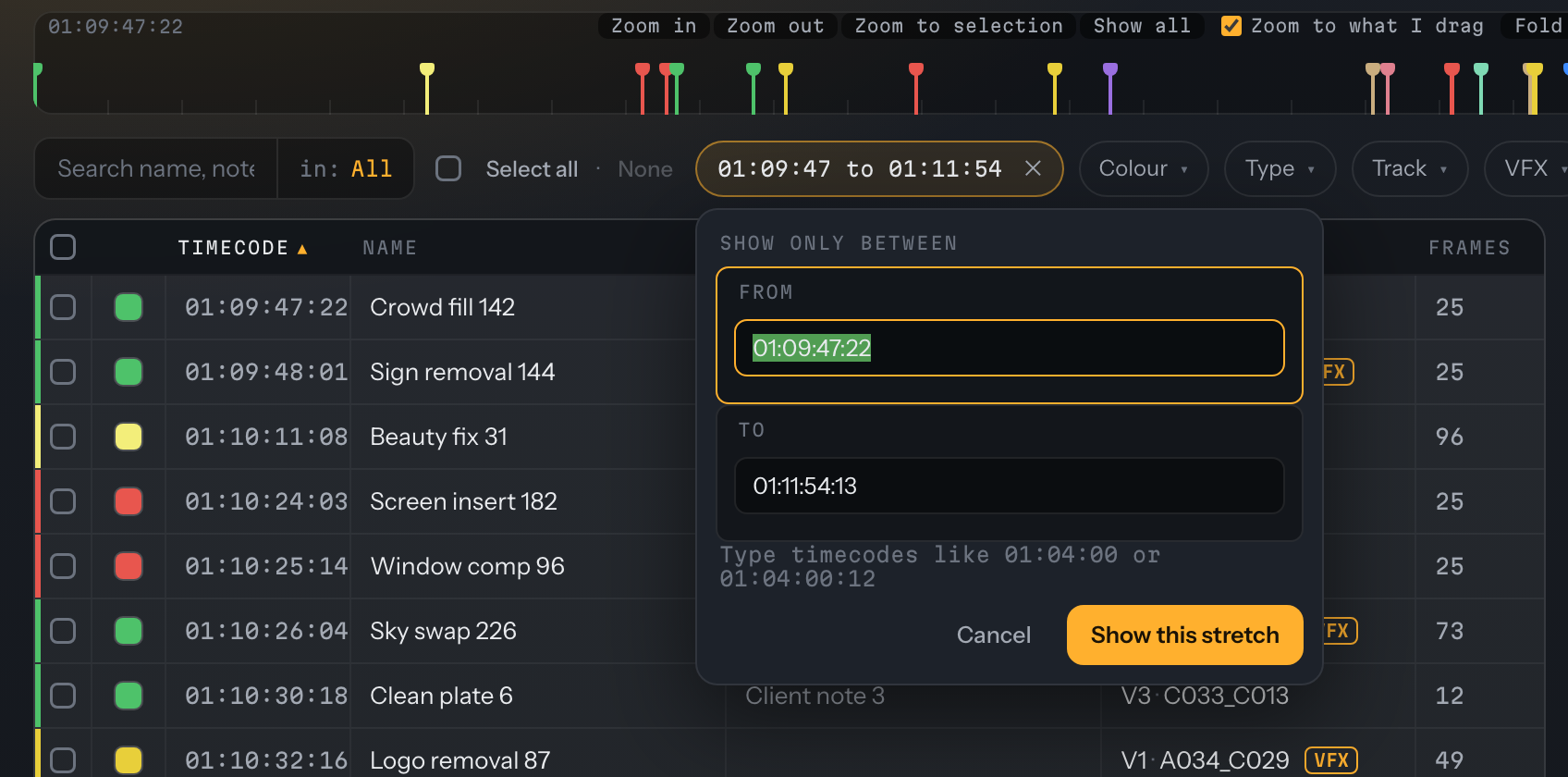
A strip of every marker runs across the top. Drag across it to tick a stretch and zoom to it (Zoom to what I drag is on by default), or use Zoom in, Zoom out, Zoom to selection and Show all.
- One stretch: the strip and the list always show the same stretch. A range chip such as 01:09:47 to 01:11:54 says which. ✕ clears it, and you can click it and type the two timecodes.
- Flags: click one to tick that marker and move Resolve's playhead there. Click empty space to move the playhead.
- Fold it away when you need the room. It remembers.
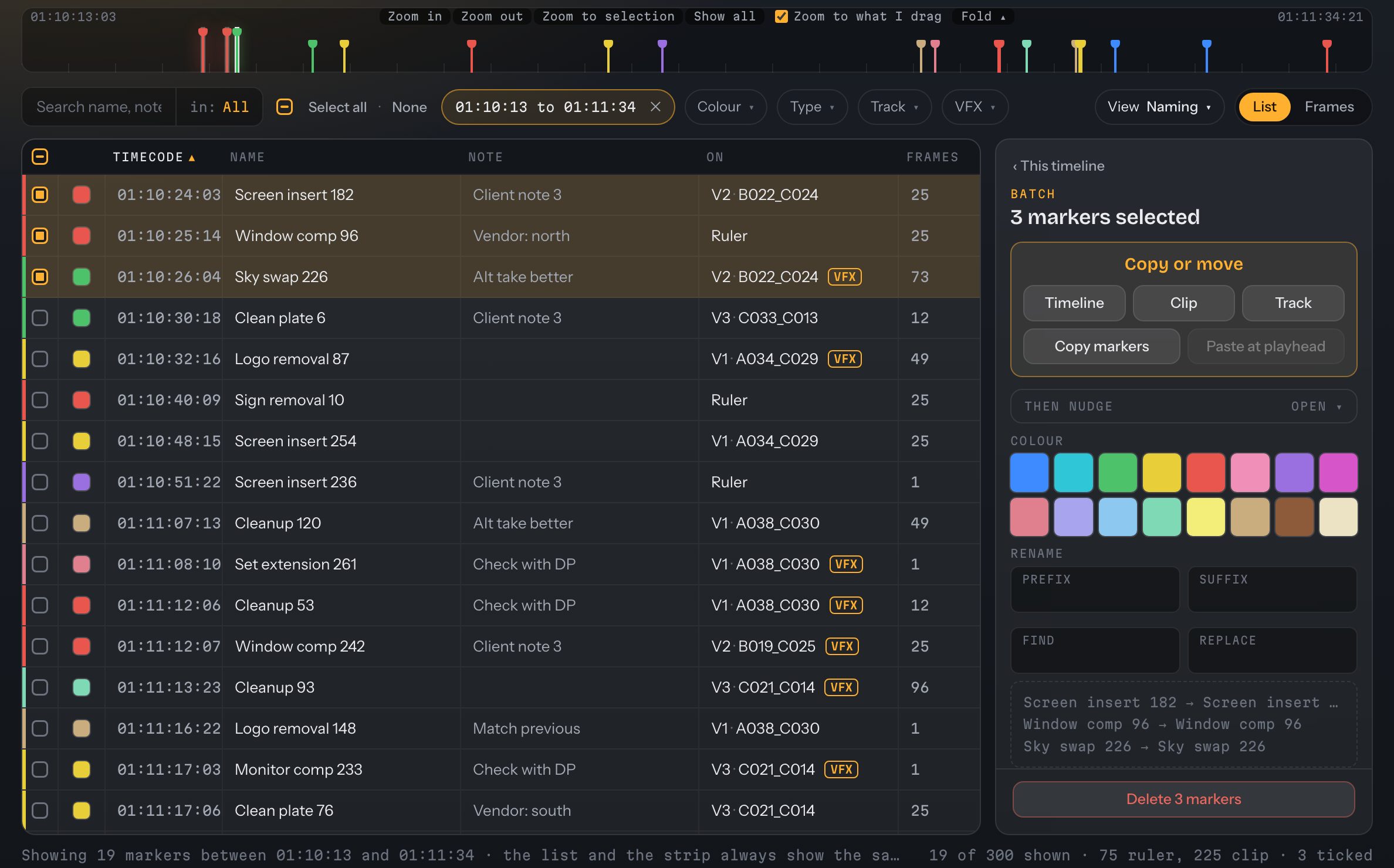
The strip zoomed to 01:10:13 to 01:11:34. The list follows and shows the 19 markers in that stretch, with 3 selected.
Name every shot in one pass.
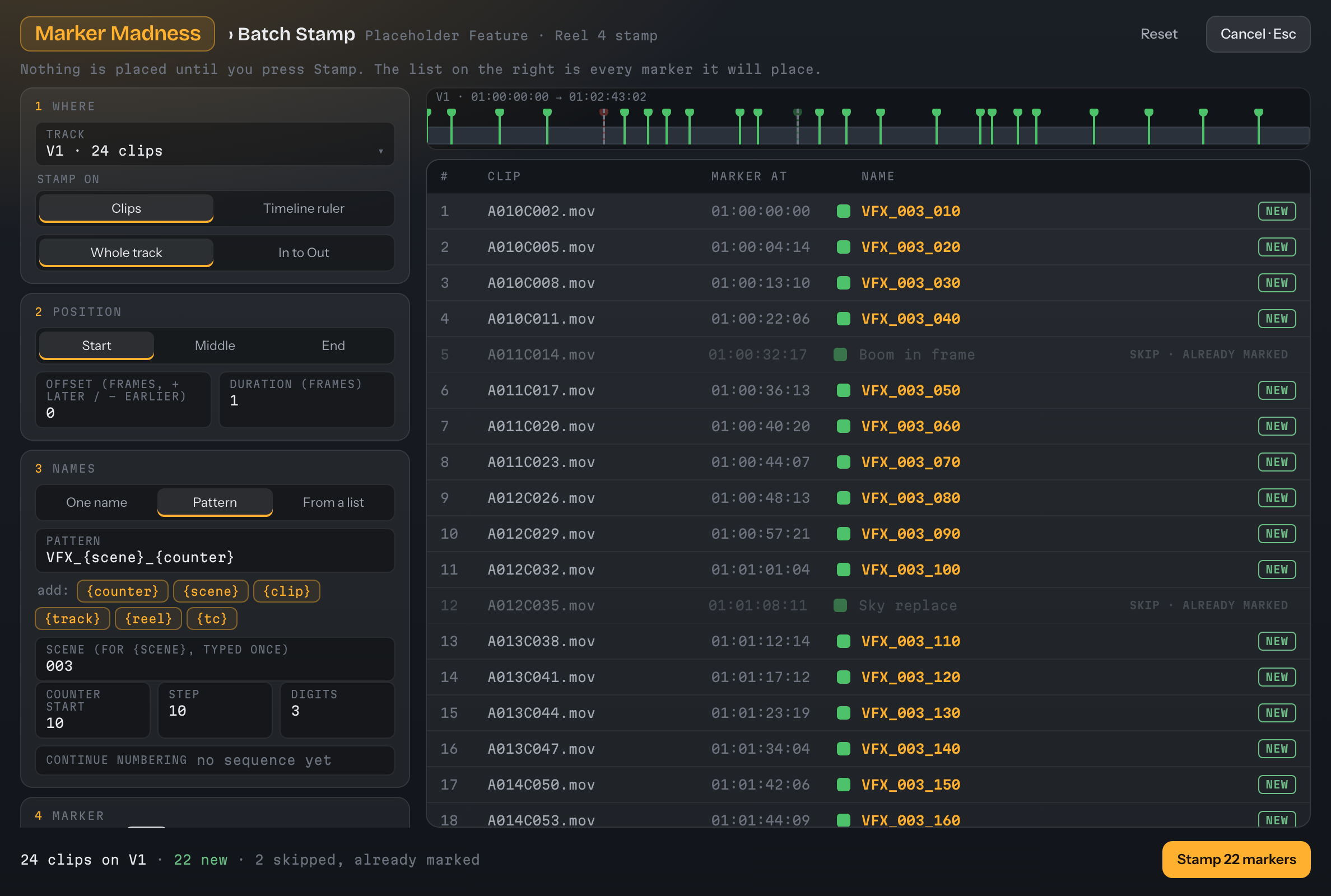
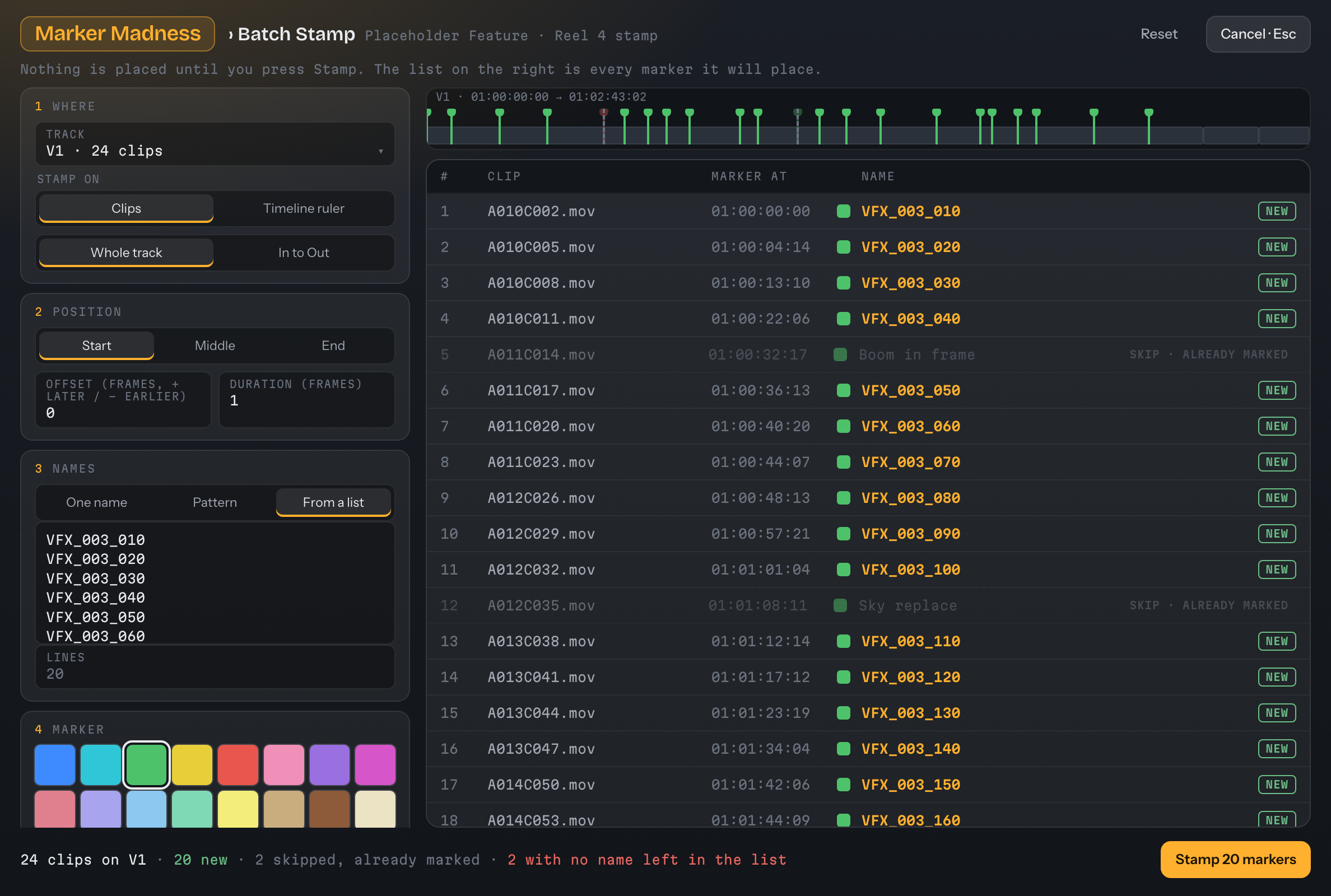
Pick a track and Batch Stamp puts a marker on each clip, on the clips themselves or on the timeline ruler. The list on the right shows every marker it will make before anything is written.
- Where and when: a track, whole or In to Out. Start, Middle (the default) or End of each clip, with an offset.
- Names: one name, a pattern with {counter}, {scene}, {clip}, {track}, {reel} and {tc}, or a pasted list. If the list runs short, the leftover clips are skipped and flagged. It never makes names up.
- Clashes: skip a clip that already has a marker there, or replace it.
- One Undo removes the whole stamp.
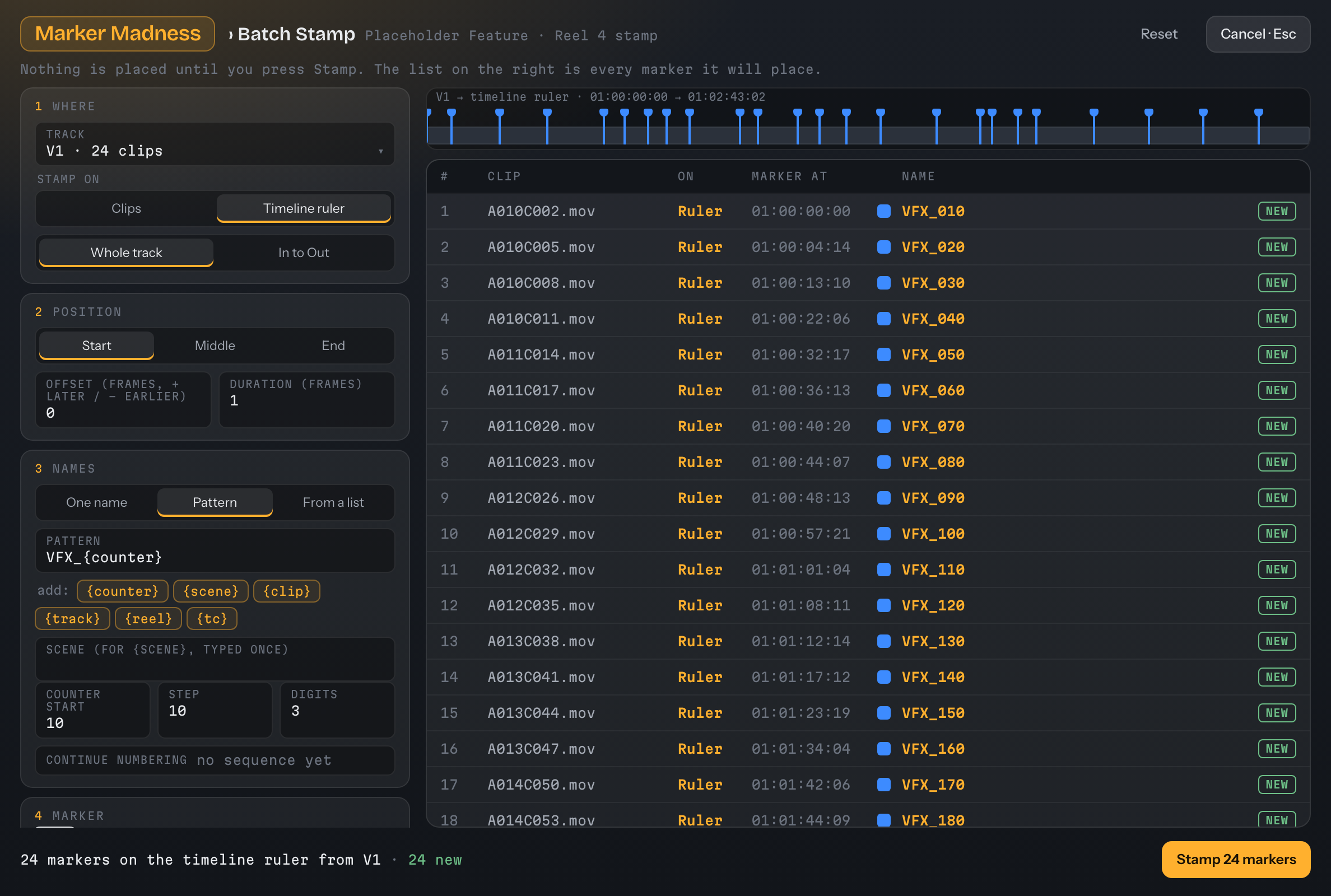
Stamp on: Timeline ruler. 24 markers on the ruler from V1, each previewed with its clip, place and name before you press Stamp.
Move markers where they should go, and know what will land first.
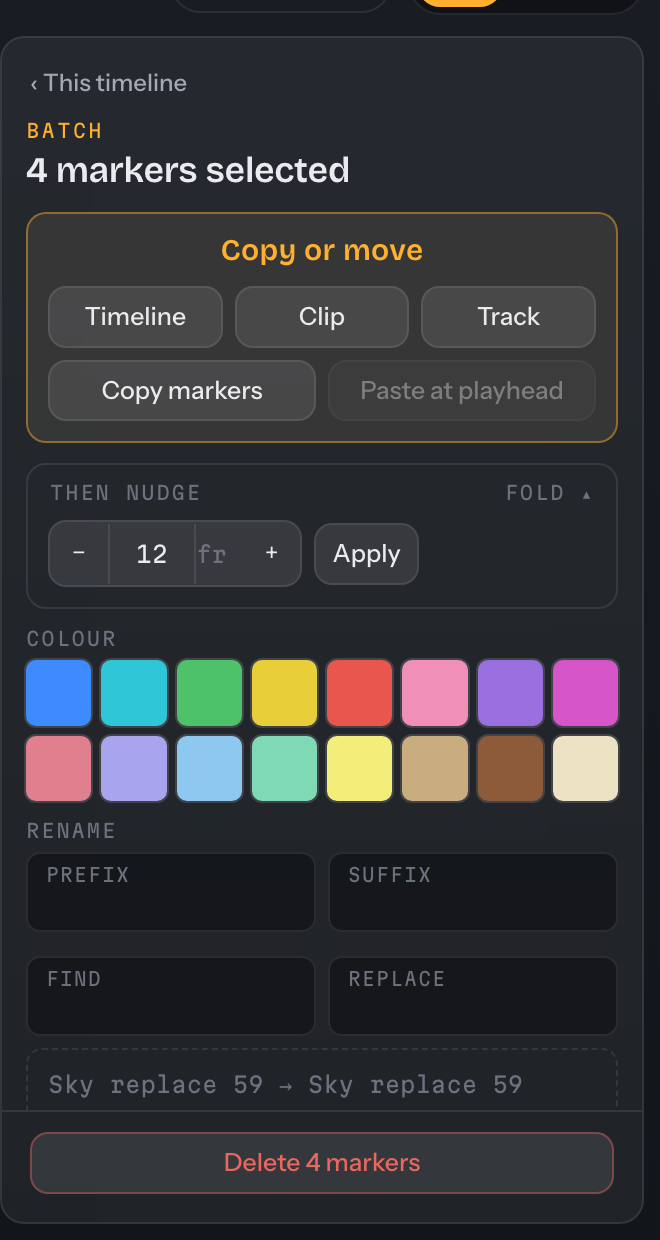
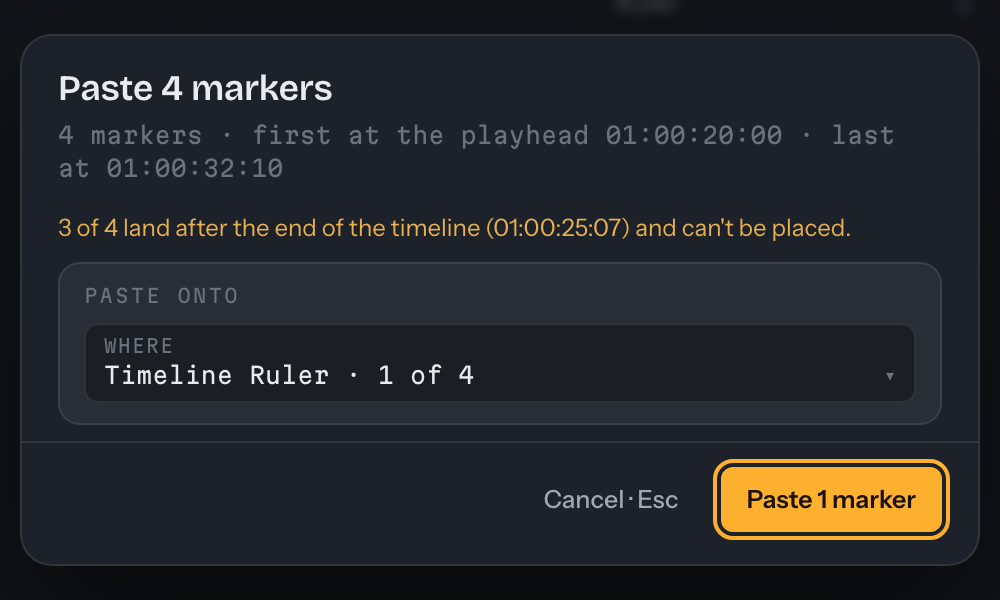
The Copy or move block sits at the top of the Inspector. Timeline, Clip or Track opens a card with a Copy | Move choice, the destination, and exactly what will happen. Copy markers and Paste at playhead are in the same block.
- The card counts: per track, as in V1 · 3 of 4 have a clip. It warns about markers that have nowhere to go, and the button says what it will do, such as Move 3 markers to V1.
- Paste at playhead explains itself: the first and last frame, how many land after the end of the timeline, how many already have a marker and will be skipped. The Paste button counts what will really land.
- Then nudge: move the ticked markers a number of frames earlier or later, right in the Inspector.
- One Undo for each.
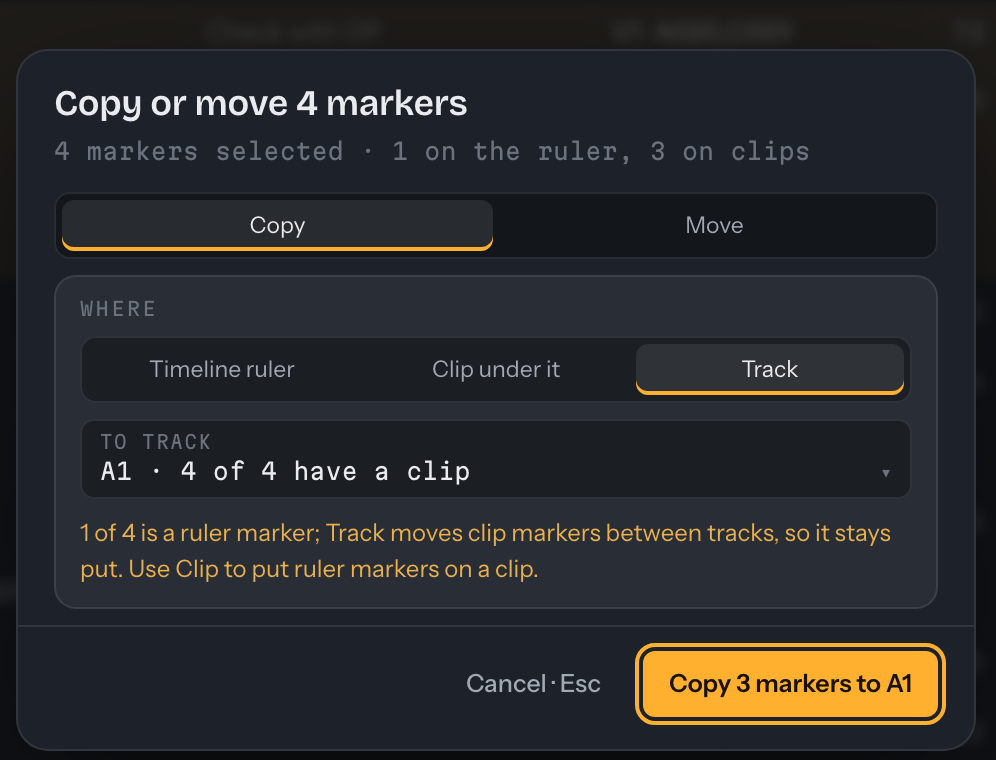
Copy or move 4 markers: where, how many have a clip under them, what stays put, and a button that says Copy 3 markers to A1.
A picture for any marker, when you ask for it.
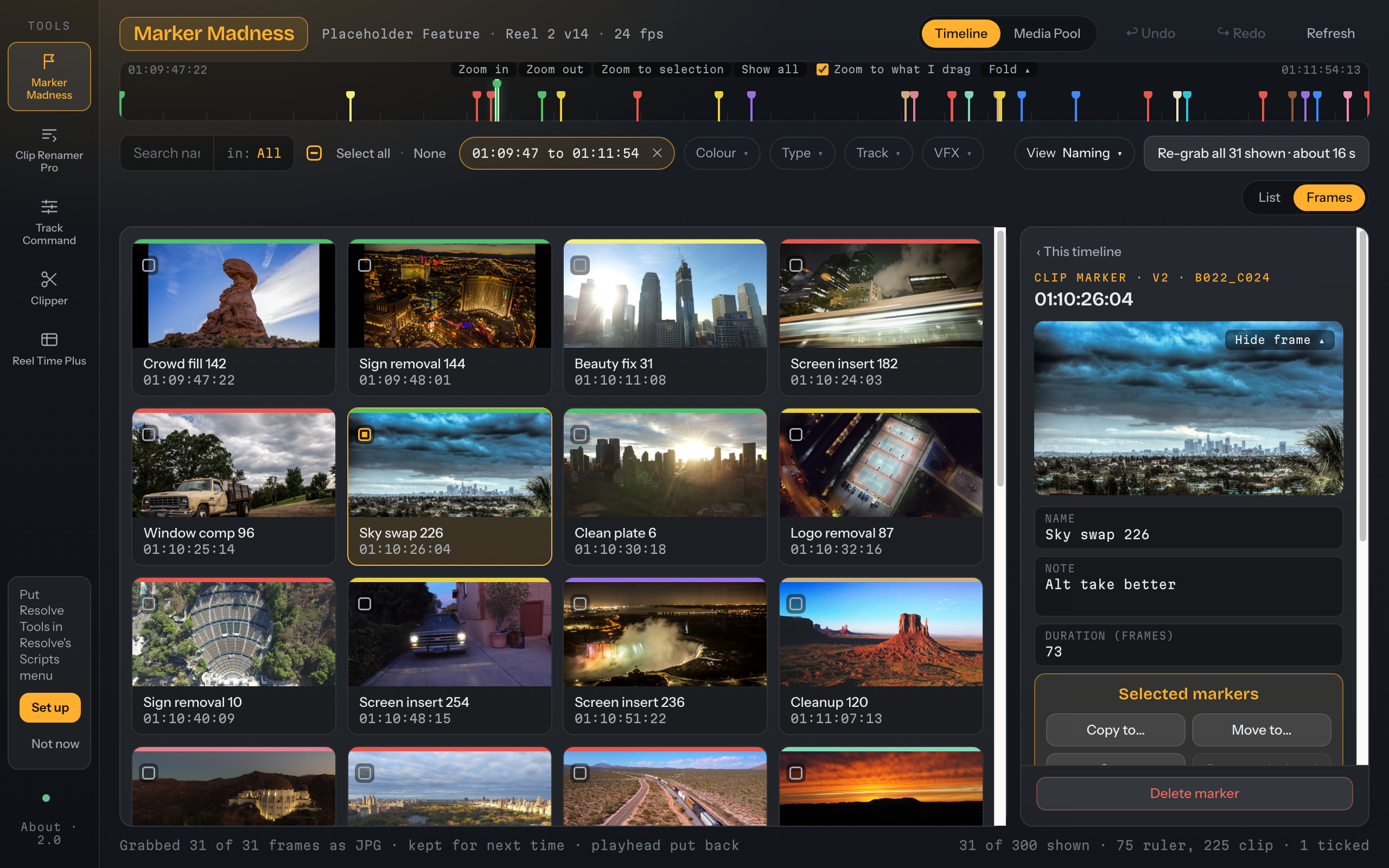
Switch the list to Frames for a grid of tiles, each with the marker's colour, name and timecode. Pictures are grabbed from Resolve only when you press Grab: one tile, the ticked markers, or every one that's missing. Never in the background.
- How it grabs: it steps Resolve's playhead to each marker, checks it landed, takes the frame, shows progress with a Cancel, and puts the playhead back.
- A frame that fails says so on its tile, and the rest carry on.
- Kept: grabbed frames are remembered and shown straight away next time. Move a marker and its old picture is dropped.
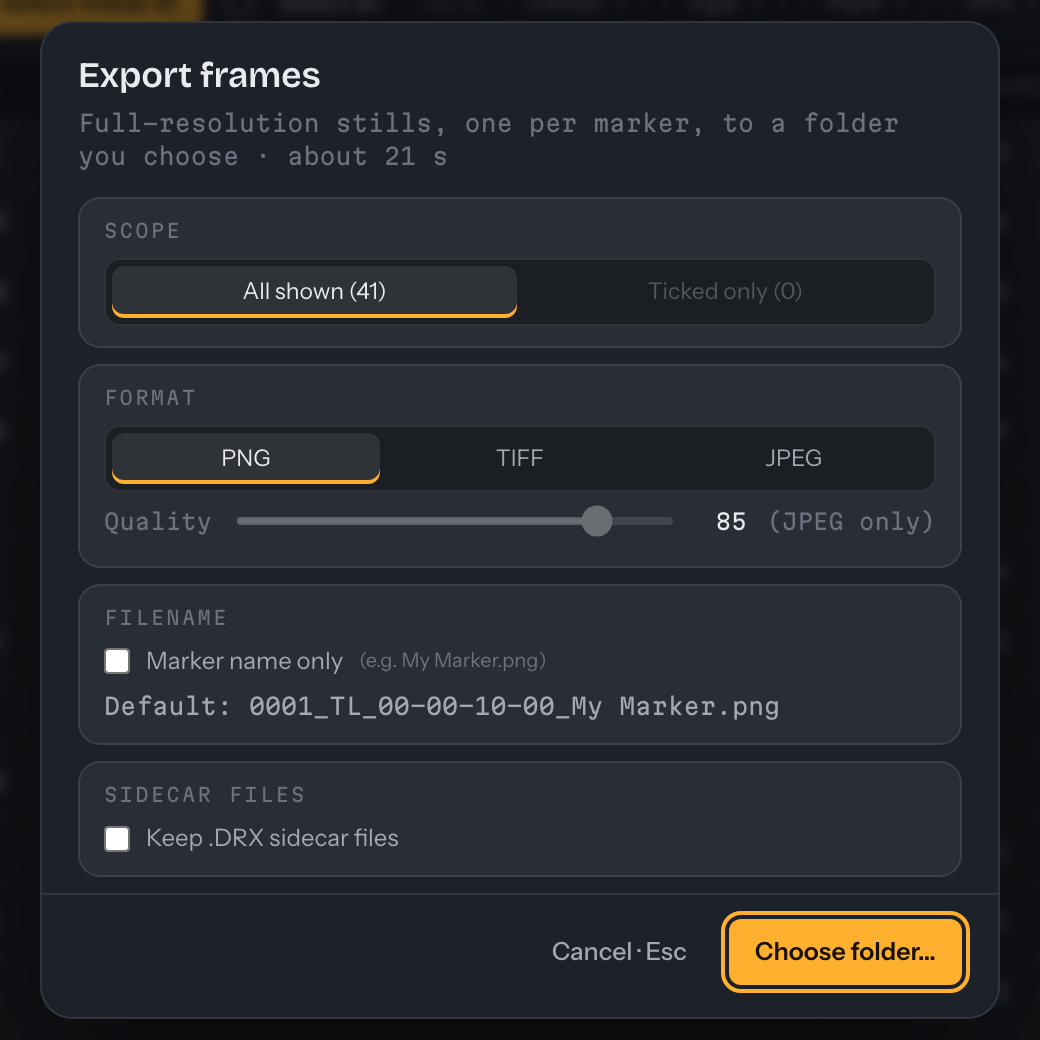
- Export frames writes full-resolution stills as PNG, TIFF or JPEG to a folder you choose.
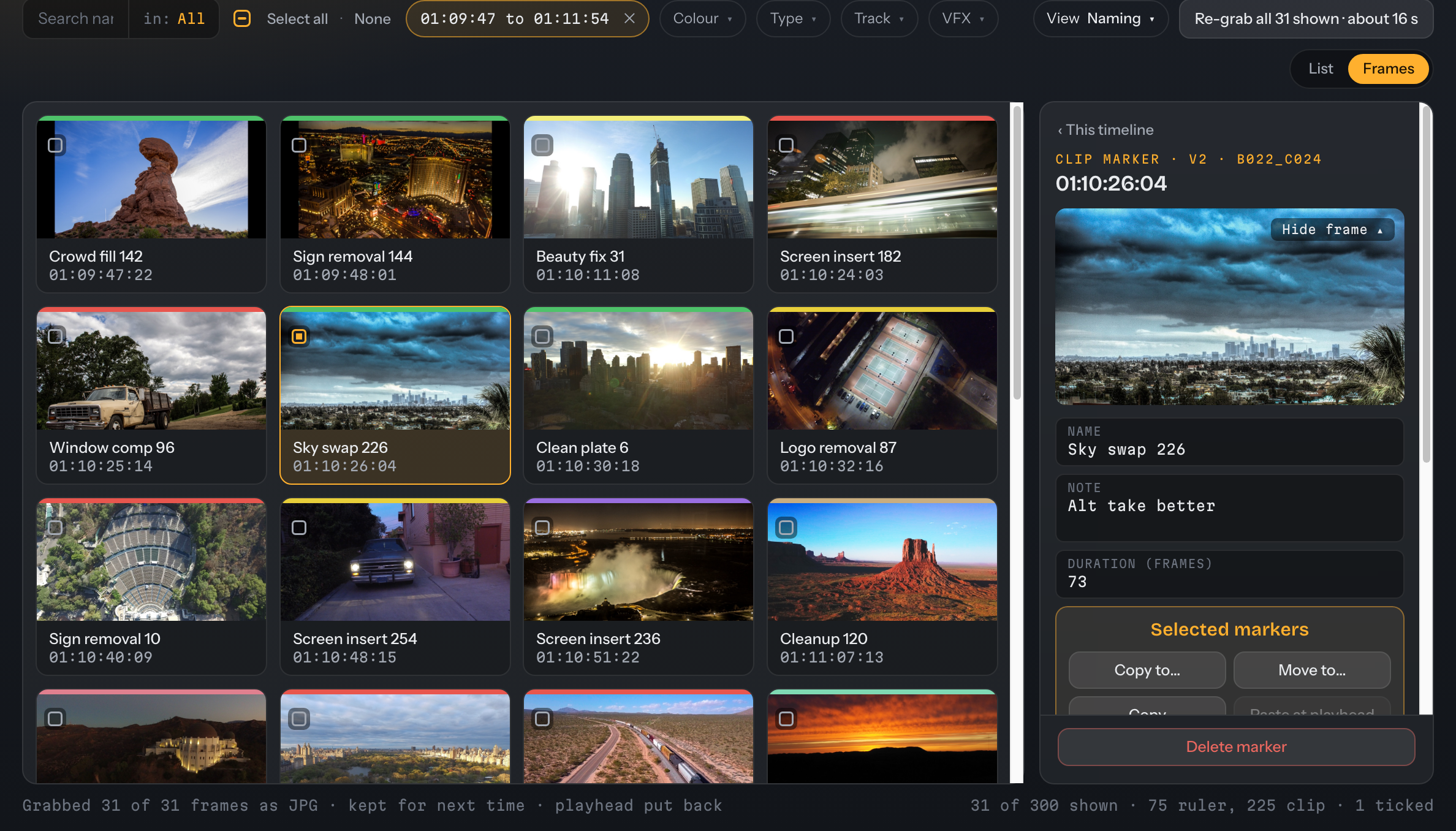
Frames view after a grab: 31 of 31 grabbed, kept for next time, playhead put back.
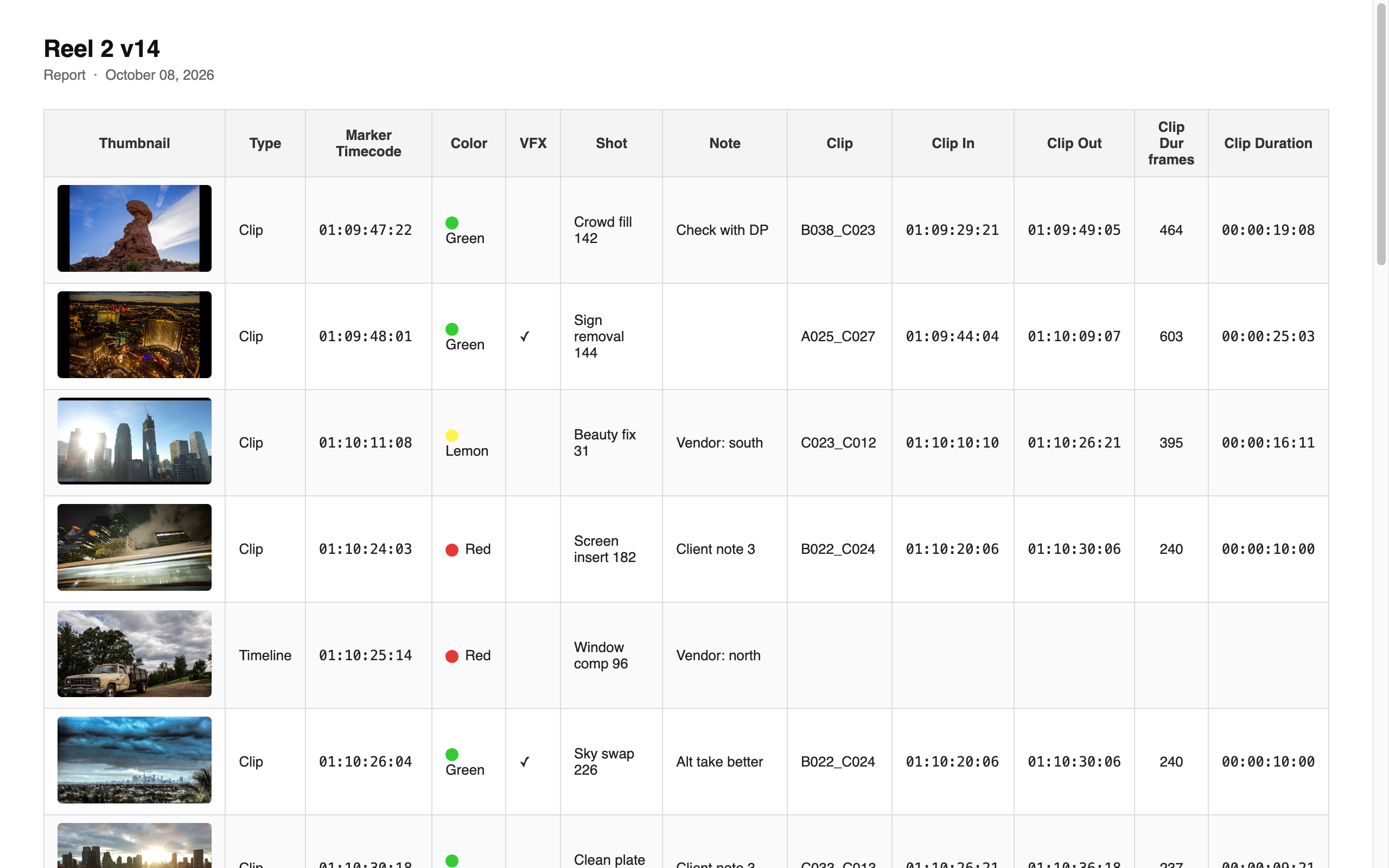
Your markers as a spreadsheet, with a picture of each.
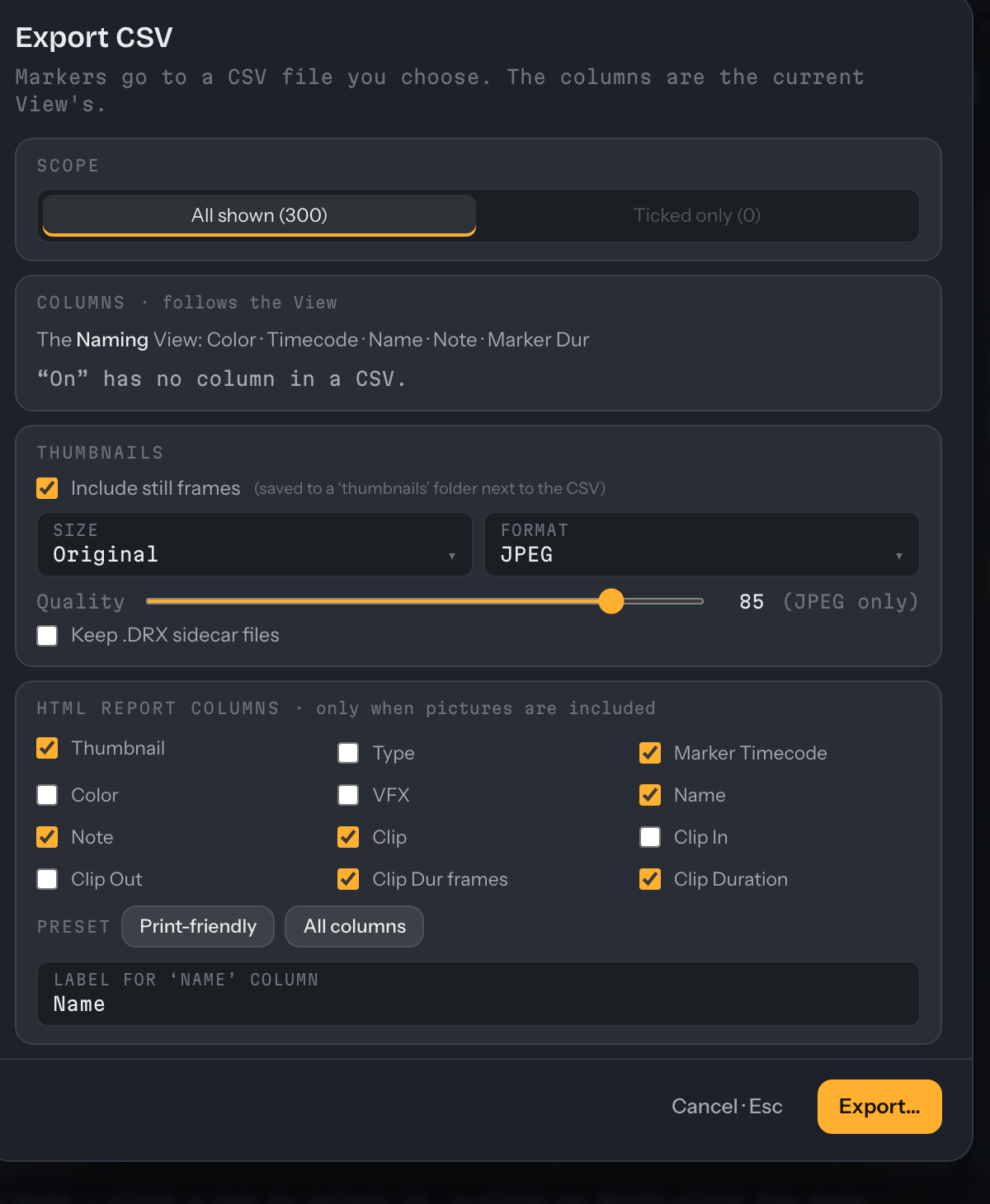
Export CSV writes the markers you can see to a CSV with the same columns as your current view, in the same order. Tick Include still frames and every row gets its own picture, plus an HTML report you can send as it is.
- Your columns: Naming, VFX turnover, Everything, or a view you make yourself. The CSV follows whichever view you're in.
- Thumbnails: Original, 1920, 1280, 960 or 640 px, as PNG, TIFF or JPEG. They go in a thumbnails folder beside the CSV, named number, timecode and marker name, and each row points to its own picture.
- The HTML report: pick its columns, or start from Print-friendly or All columns, and give the Name column the facility's word for it: Shot, VFX #, whatever they use.
- Only what you need: search or filter first, then export everything shown or only what's ticked.
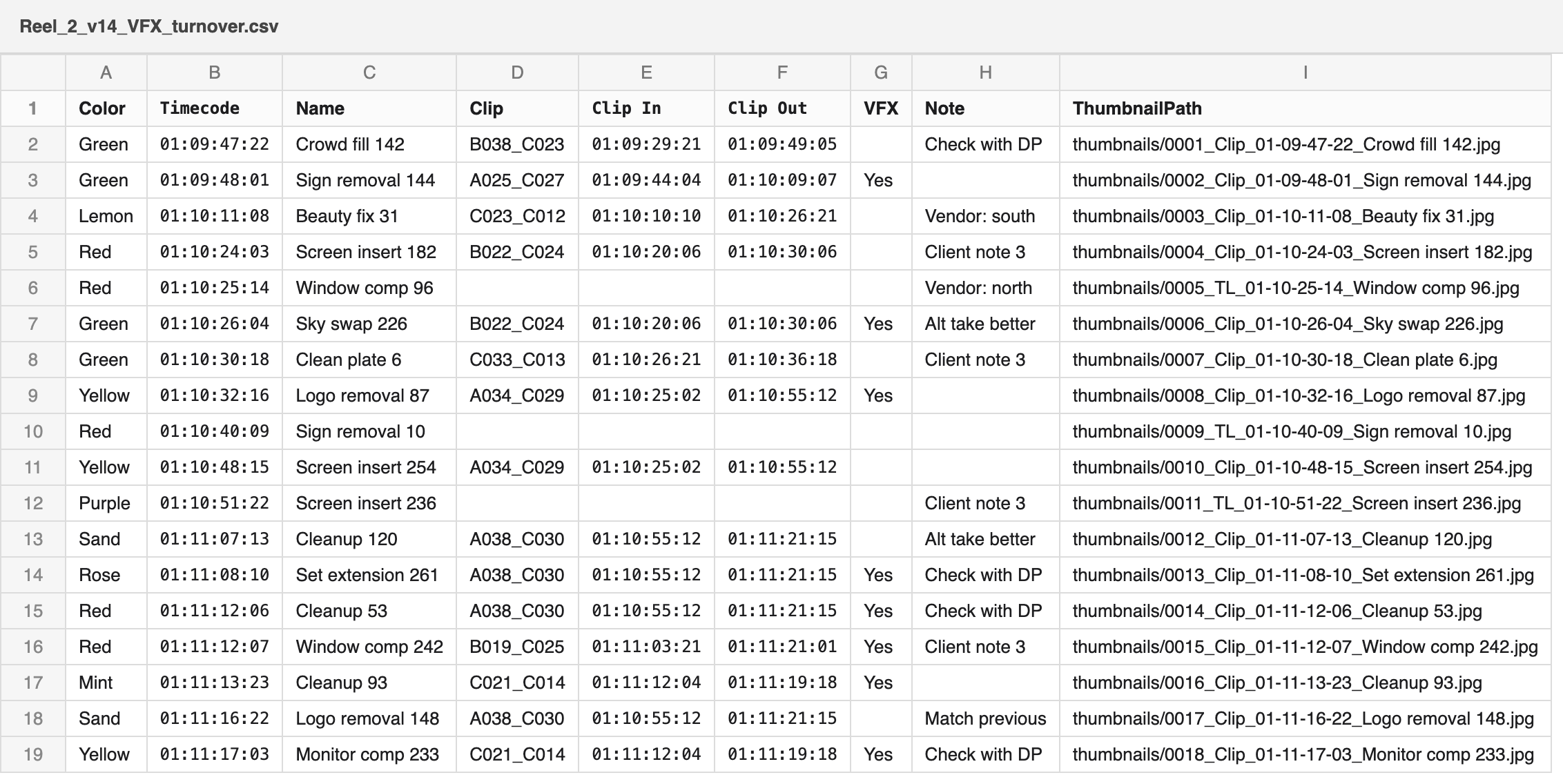
The VFX turnover view as a CSV, with a thumbnail on every row.
To and from the rest of the edit.
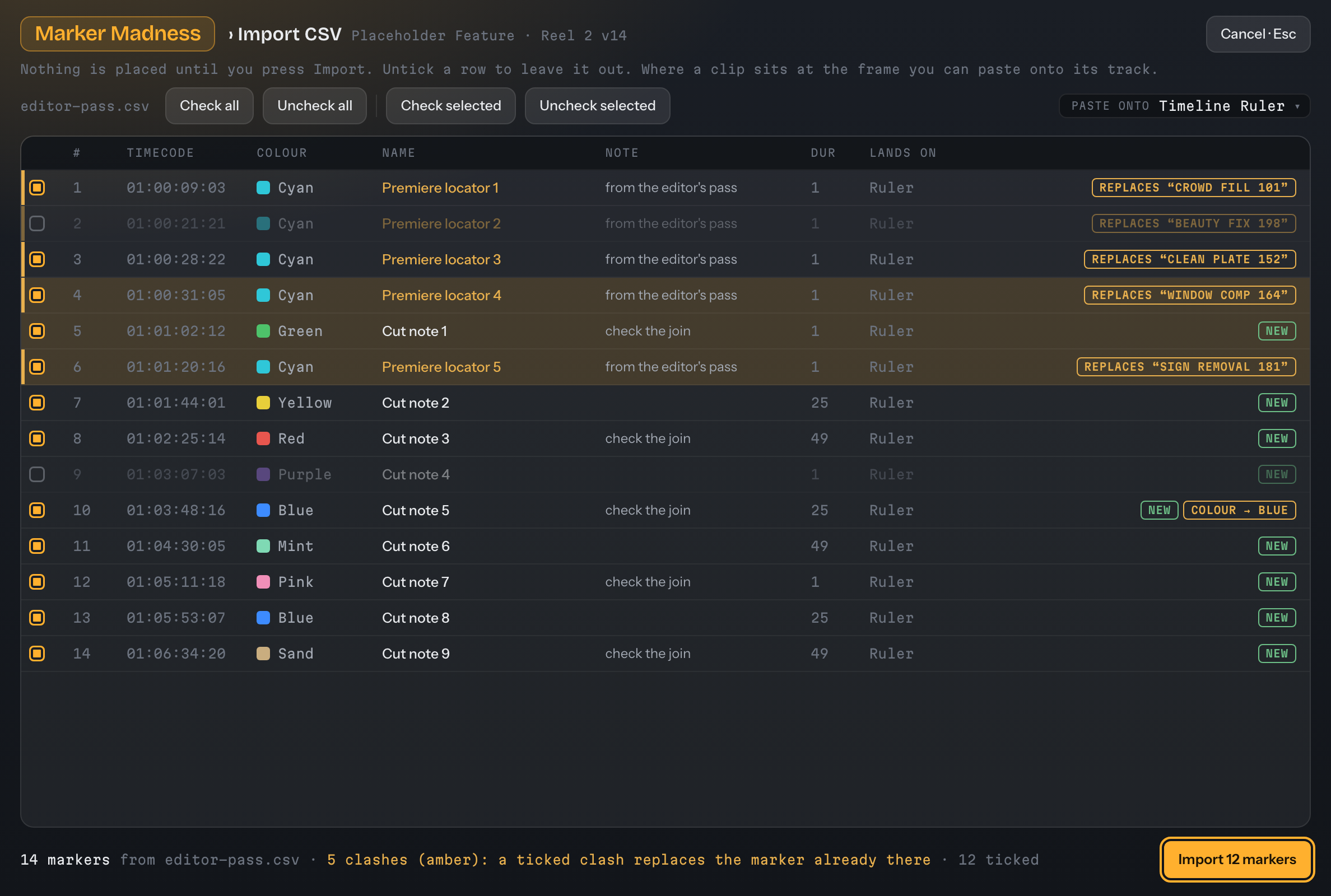
Send markers to Premiere Pro or Avid, and bring theirs in. Import a CSV and see every row, where it lands and what it clashes with before anything is written.
- Marker Exchange: Premiere Pro (CSV) and Avid Media Composer (locators), out and in. The file is shown exactly as it will be written before you export.
- Avid colours: Avid has eight colours and Resolve has sixteen, so the mapping is shown, editable and remembered.
- Scope: everything shown, or only what's ticked.
- One Undo removes an import.
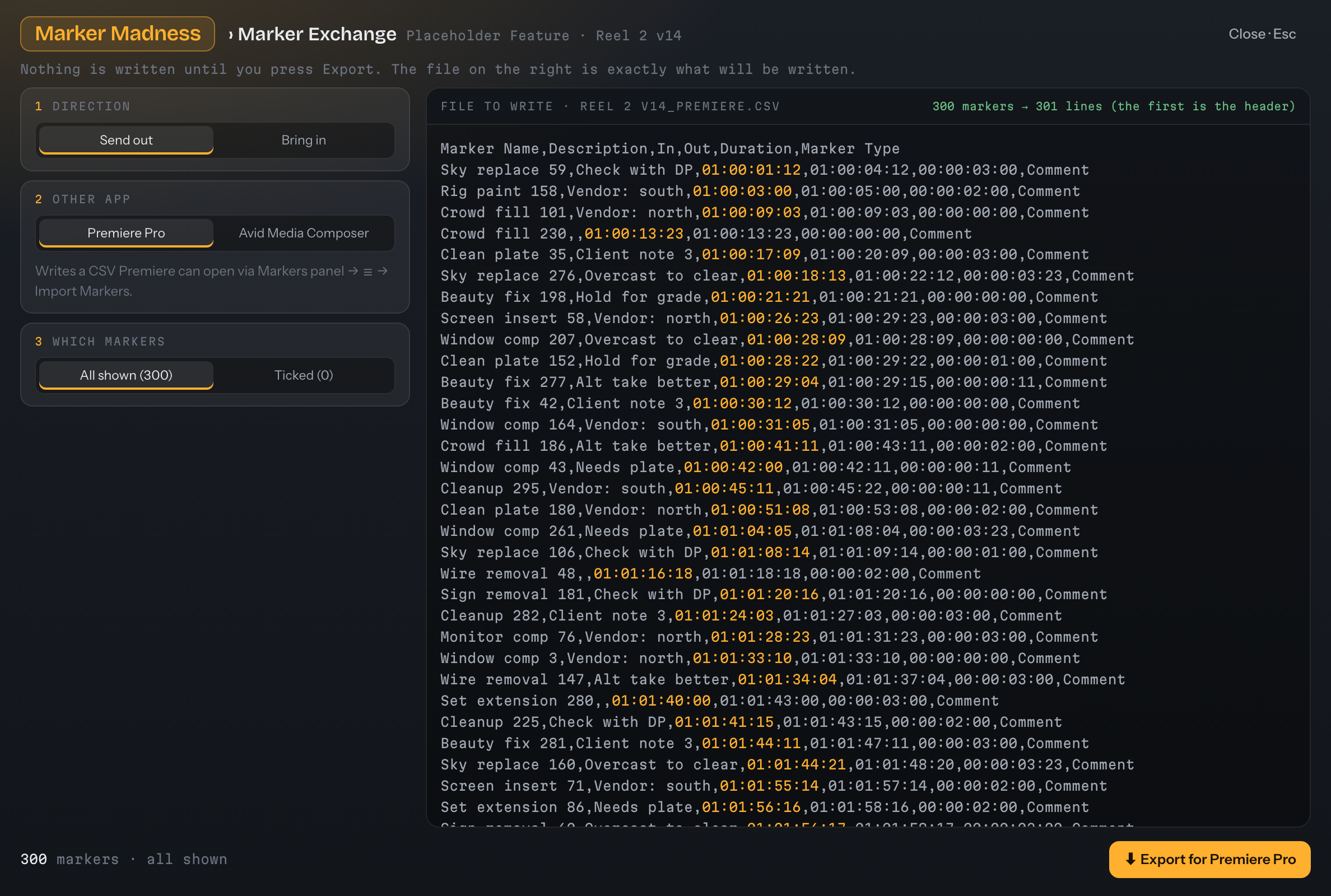
Marker Exchange, Send out to Premiere Pro: 300 markers, 301 lines, shown as they will be written.
What moved since turnover?
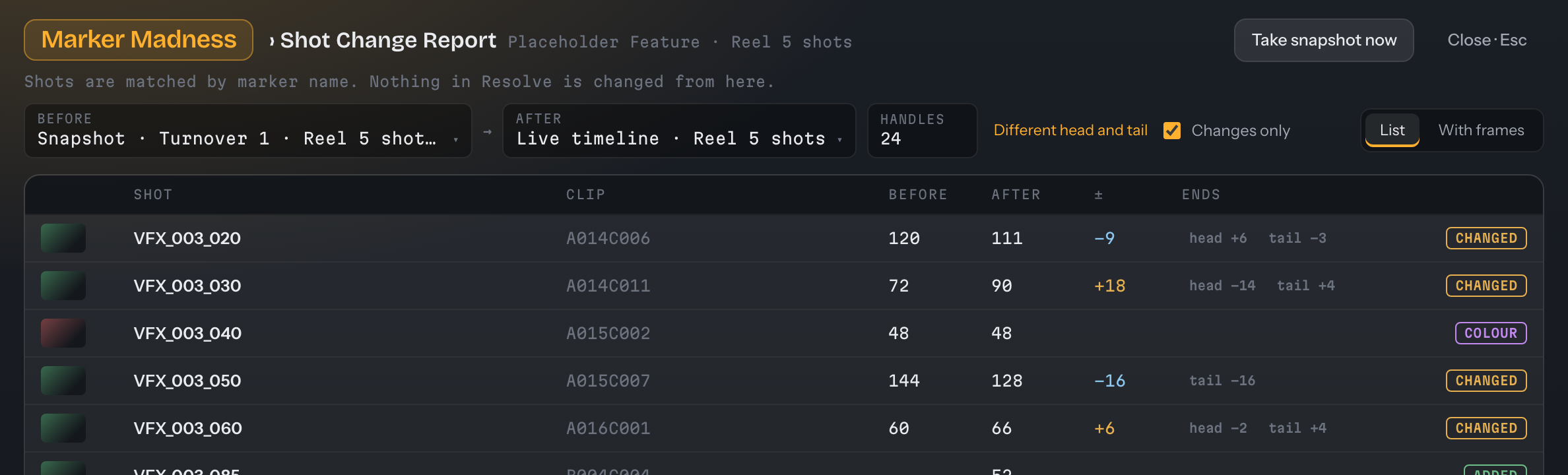
Flag markers as VFX shots, and take a snapshot when you turn a cut over. Later, Shot Change Report compares that snapshot with the live timeline, another snapshot or a CSV, matching strictly by marker name.
- Statuses: Changed, Added, Removed, Colour and Unchanged. For a changed shot it says how many frames the head or tail moved.
- Handles: one number, or different head and tail. A shot that now needs more than your handles shows red.
- Renamed by mistake? when a Removed and an Added shot share the same source clip and range, both rows say so. It flags, it never pairs for you.
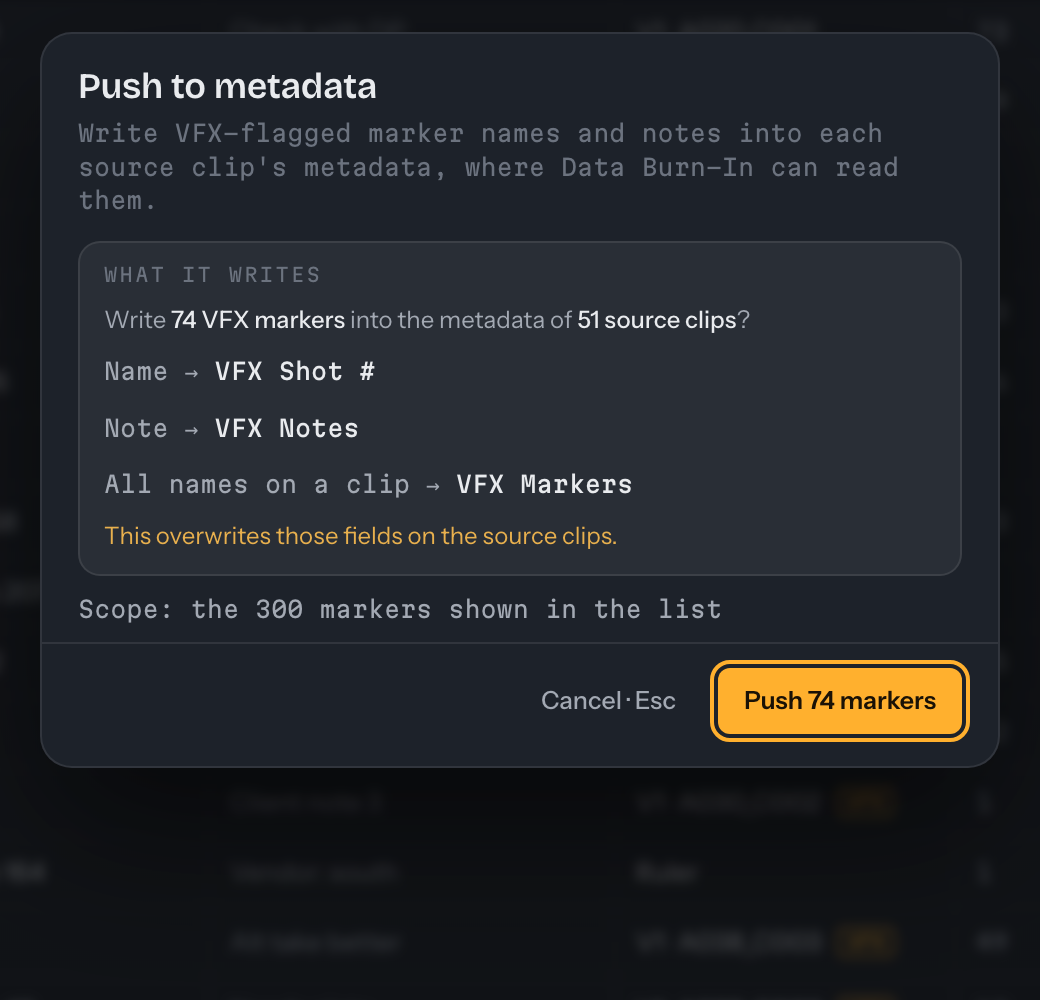
- Push to metadata writes the VFX-flagged names and notes into each source clip's metadata, where Data Burn-In can read them. Pull from metadata goes the other way.
- Export the report as a CSV or an HTML page.
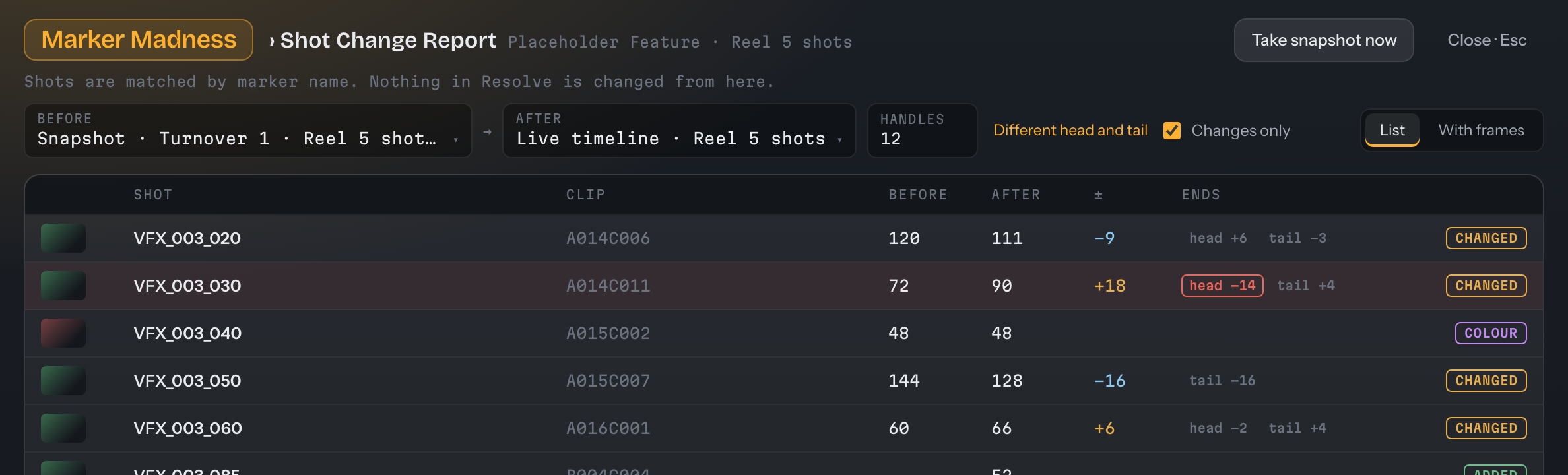
Shot Change Report: Turnover 1 against the live timeline at 12-frame handles. Heads and tails that need more than the handles are red.
What changed since Marker Madness 1.8.4.
- One app, not a scriptMarker Madness is now one of five tools in the Resolve Tools app, which sits beside DaVinci Resolve Studio 21.1 or later and works on whatever you have open. The Scripts-menu version stays on the classic site for Resolve 21.0 and earlier.
- The big jobs came overCSV export and import, Paste, Push and Pull metadata, Export frames, Shot Change Report and Marker Exchange were ported from 1.8.4 with its options and file formats, in the new look.
- The listThere is a strip of the whole timeline, an Inspector that follows your selection, and cards that tell you what will happen before you press the button.
- Batch StampIt is a full workspace now. Middle is the default position, names can use tokens or a list, it can stamp the timeline ruler as well as the clips, and one Undo takes the whole stamp back.
- Turnover and framesShot Change Report keeps snapshots, so you can compare any two moments, and it flags a possible rename. Frames are grabbed on demand, with progress and Cancel.
The full guide for Marker Madness 2.1 is on its way. Until it lands, the guide for the 1.x tool (Marker Madness 1.8.4) is still up: classic guide (1.x).
Resolve Tools 2.1 for Mac and Windows
One app, five tools, free. On a Mac, open the .dmg and drag Resolve Tools into Applications. On Windows, run the installer (no administrator needed). Then in Resolve set Preferences › System › General › External scripting using: Local. Requires DaVinci Resolve Studio 21.1 or later, and macOS 12 or later or Windows 10/11 (64-bit).
This build isn't signed yet, so macOS asks you to choose Open Anyway and Windows asks you to choose Run anyway the first time. It's free, made with care, and only goes online if you press Check for updates. The one-time steps for each are on the front page.
Using Resolve 21.0 or earlier? The classic Marker Madness is still here: Marker Madness 1.x.