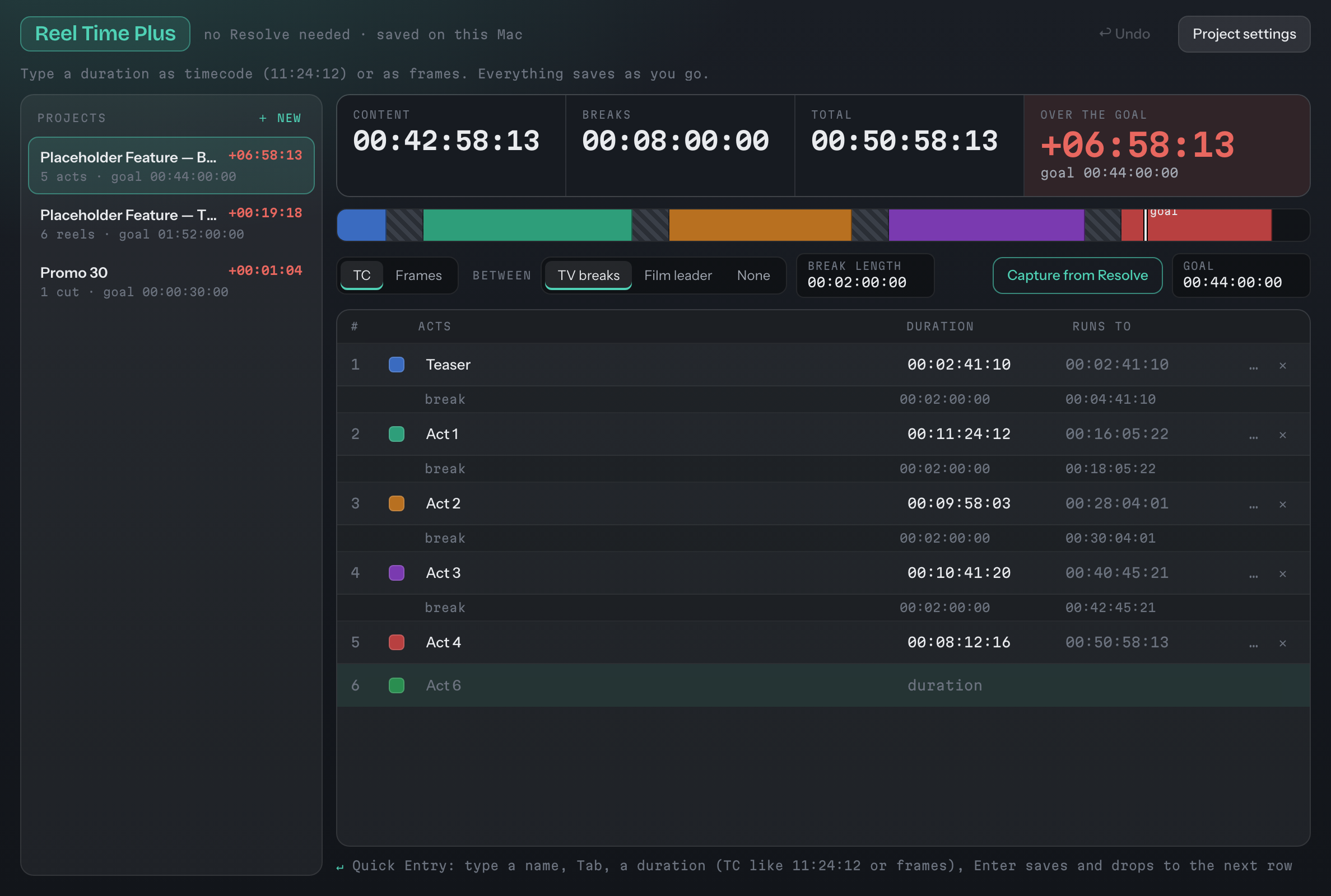
Know the running time before the cut locks.
Content, breaks, total, and how far over you are.
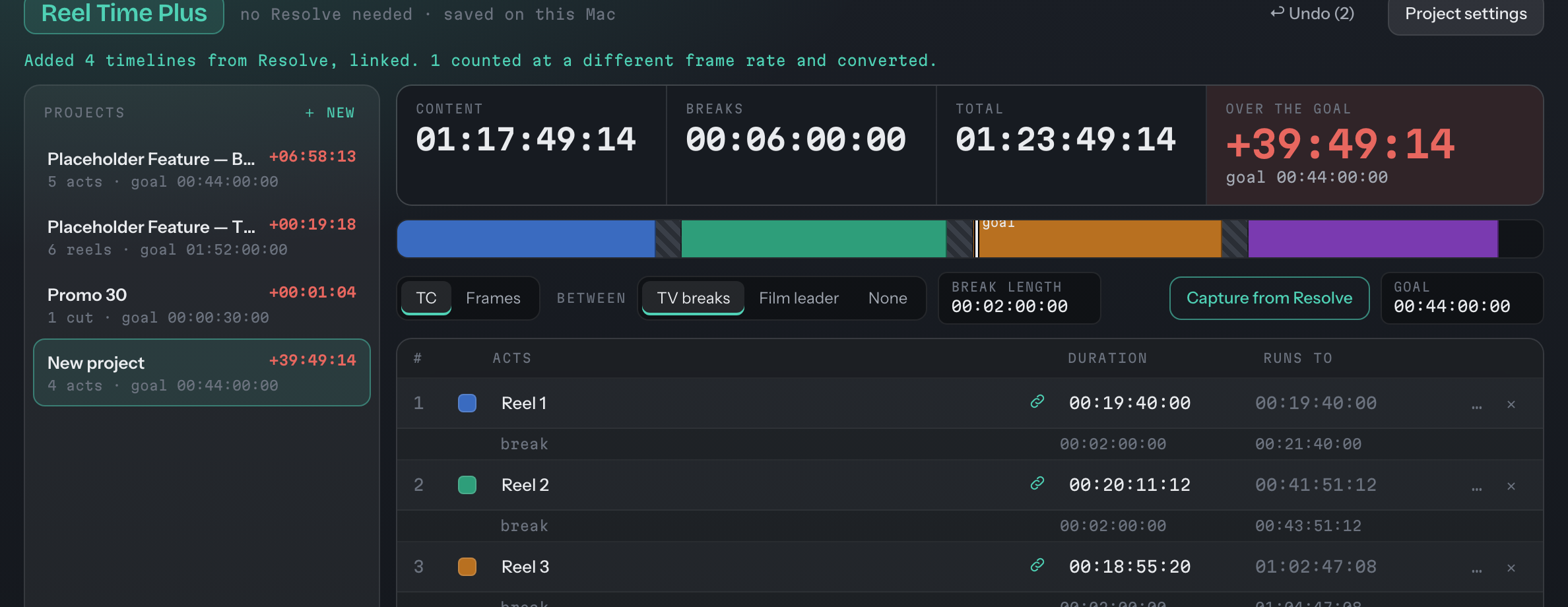
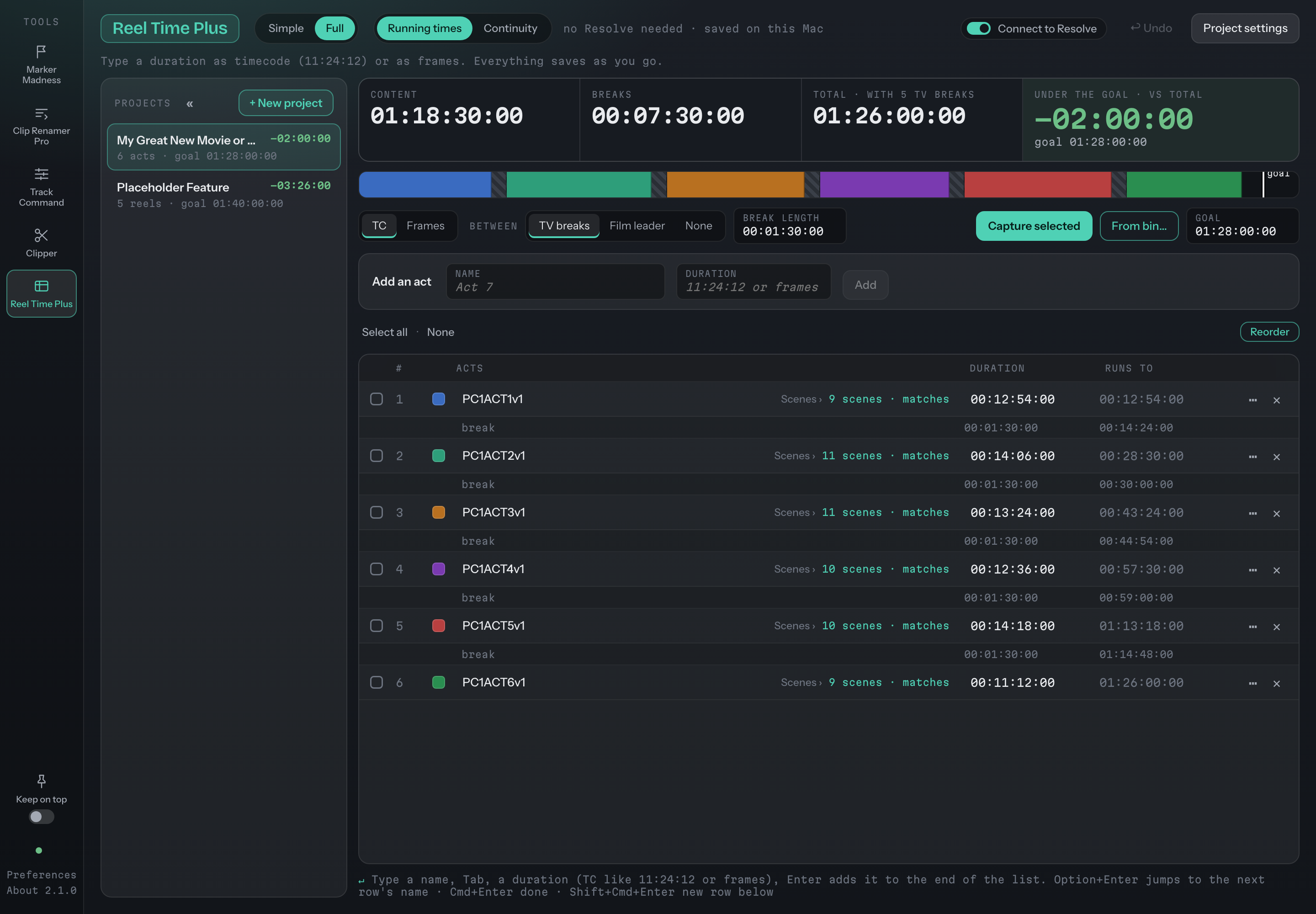
Each project holds its acts or reels, a goal time and a frame rate. The top reads content, breaks, total and the time over or under the goal, red when you are over and green when you are under, with a bar of the segments and the goal line.
- Quick Entry: type a name, Tab, a duration, Enter. It saves and drops to the next row.
- Edit in place: names and durations, a colour for each segment, and ✕ to delete one. Undo goes ten deep.
- On time is called out when the total lands on the goal.
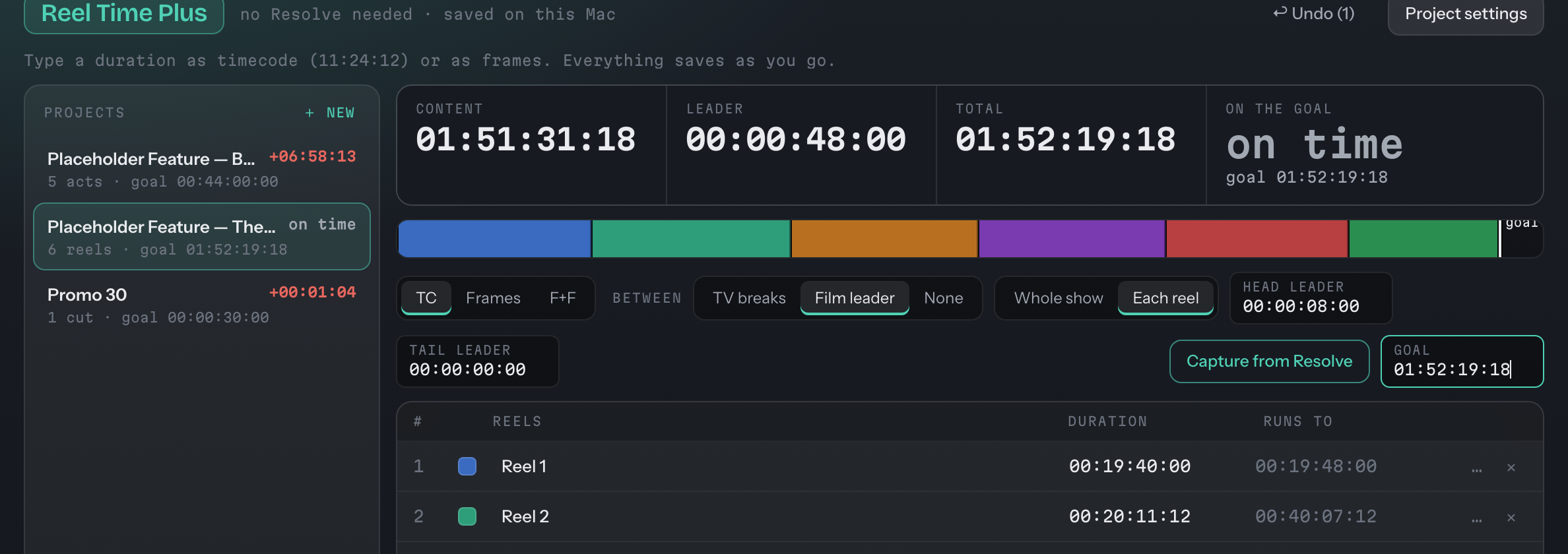
Film leader on each reel, and a total that lands on the goal: on time.
TV breaks or film leader, counted properly.
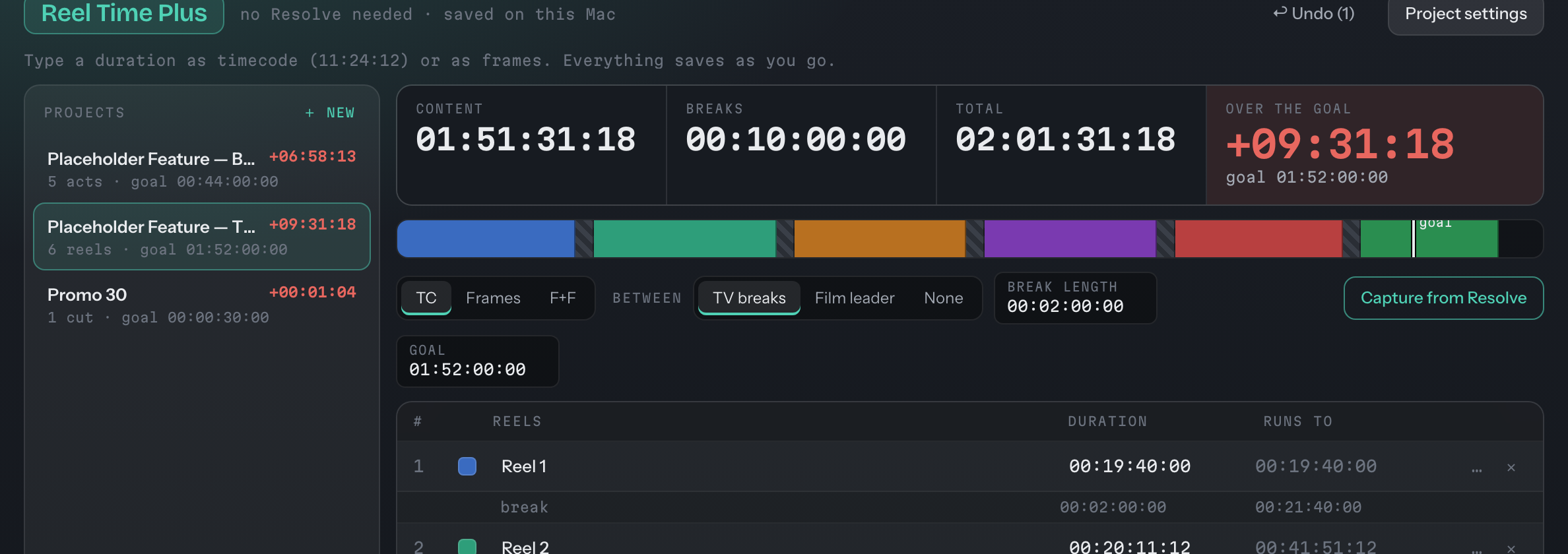
Between segments you can choose TV breaks, film leader, or none. The break or leader length is yours to set, and the total always includes them.
- TV breaks: a break between each pair of segments, each shown as its own row.
- Film leader: one head and tail for the whole show, or head and tail on each reel.
- Film format: digital, 35mm or 16mm, set in the project's settings.
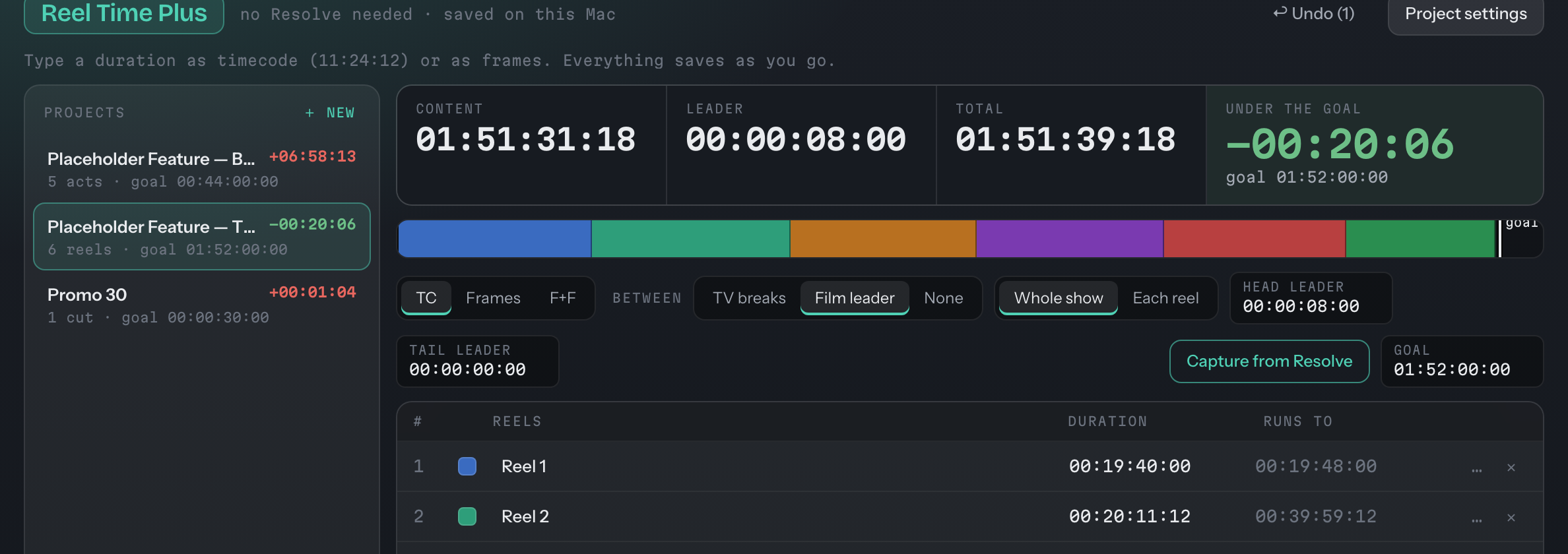
Film leader, whole show: the leader is counted once for the show.
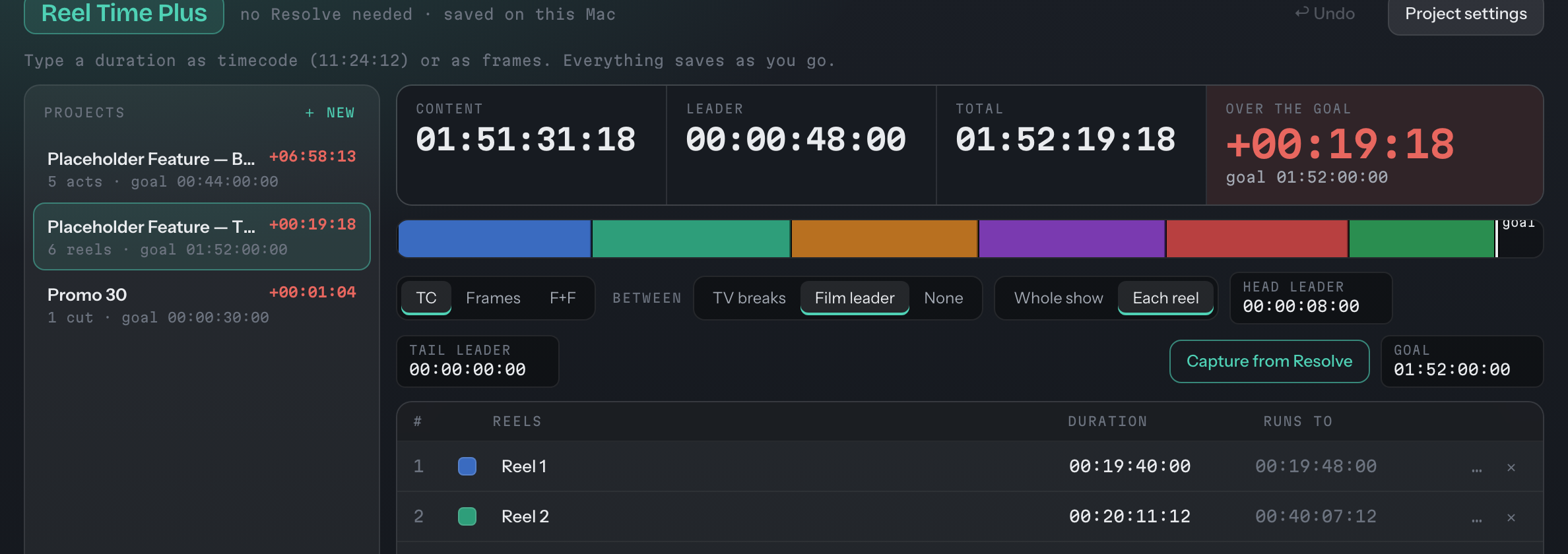
Read it the way the room reads it.
Switch the whole project between timecode and frames. 35mm and 16mm projects add feet + frames.
- Typing a duration: timecode or frames.
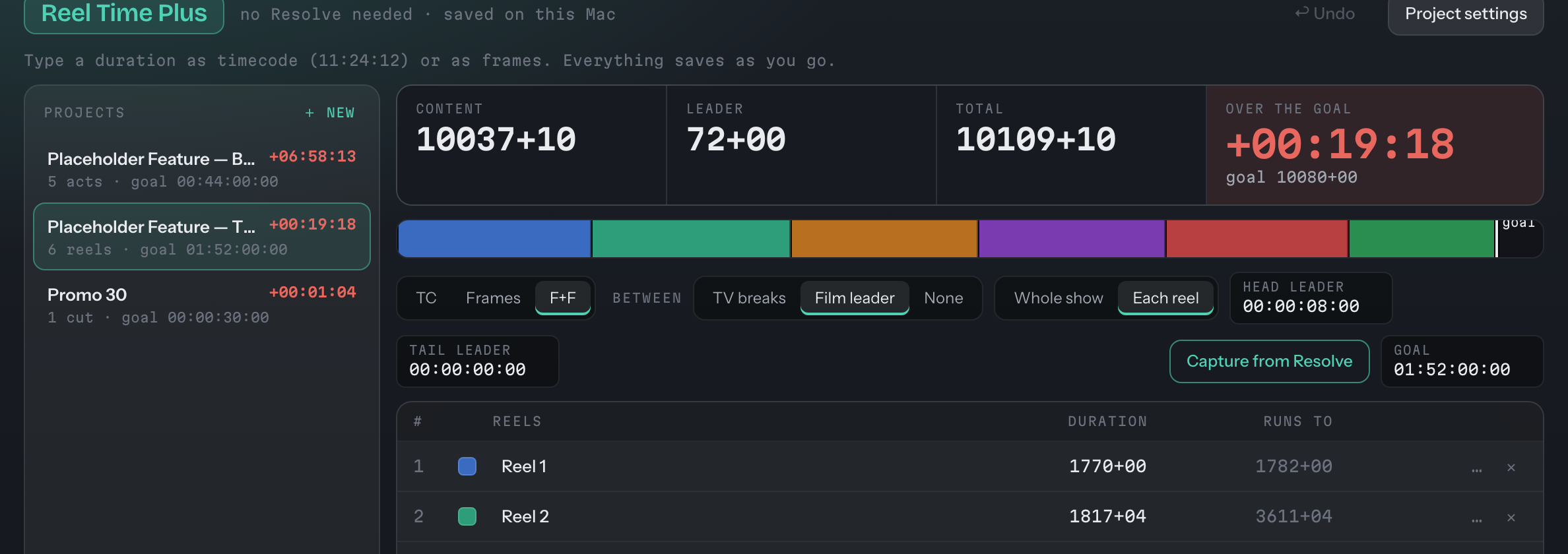
A 35mm show read in feet + frames. The F+F choice appears for 35mm and 16mm projects.
Pull the timelines in. Keep them current.
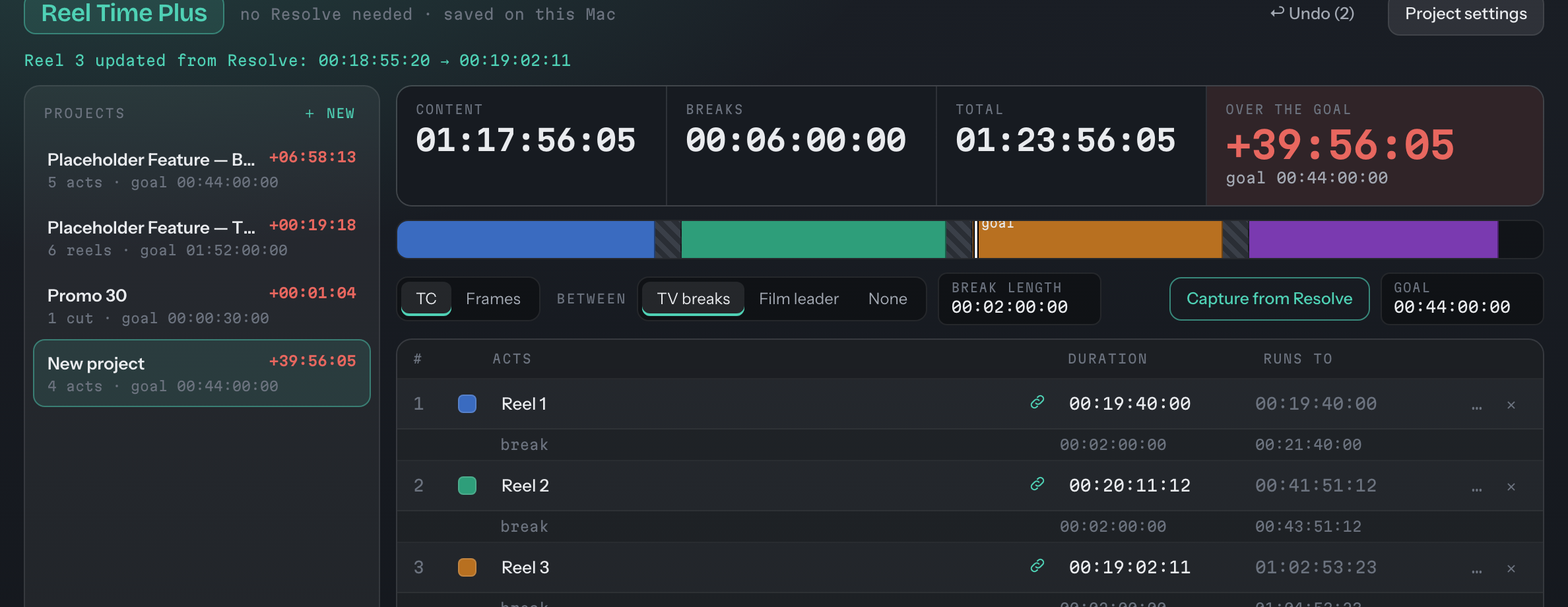
Capture from Resolve lists every timeline in the open project with its duration. Tick the ones you want and they are added as linked segments.
- A different frame rate: the timeline is converted by real time and flagged, as in 25 fps, shows at 24.
- Stays current: linked segments refresh every few seconds while Reel Time Plus is the active tool. A changed duration flashes and the note says what changed.
- A timeline that is gone shows not found in Resolve and keeps its last value. Unlink turns it into a typed segment.
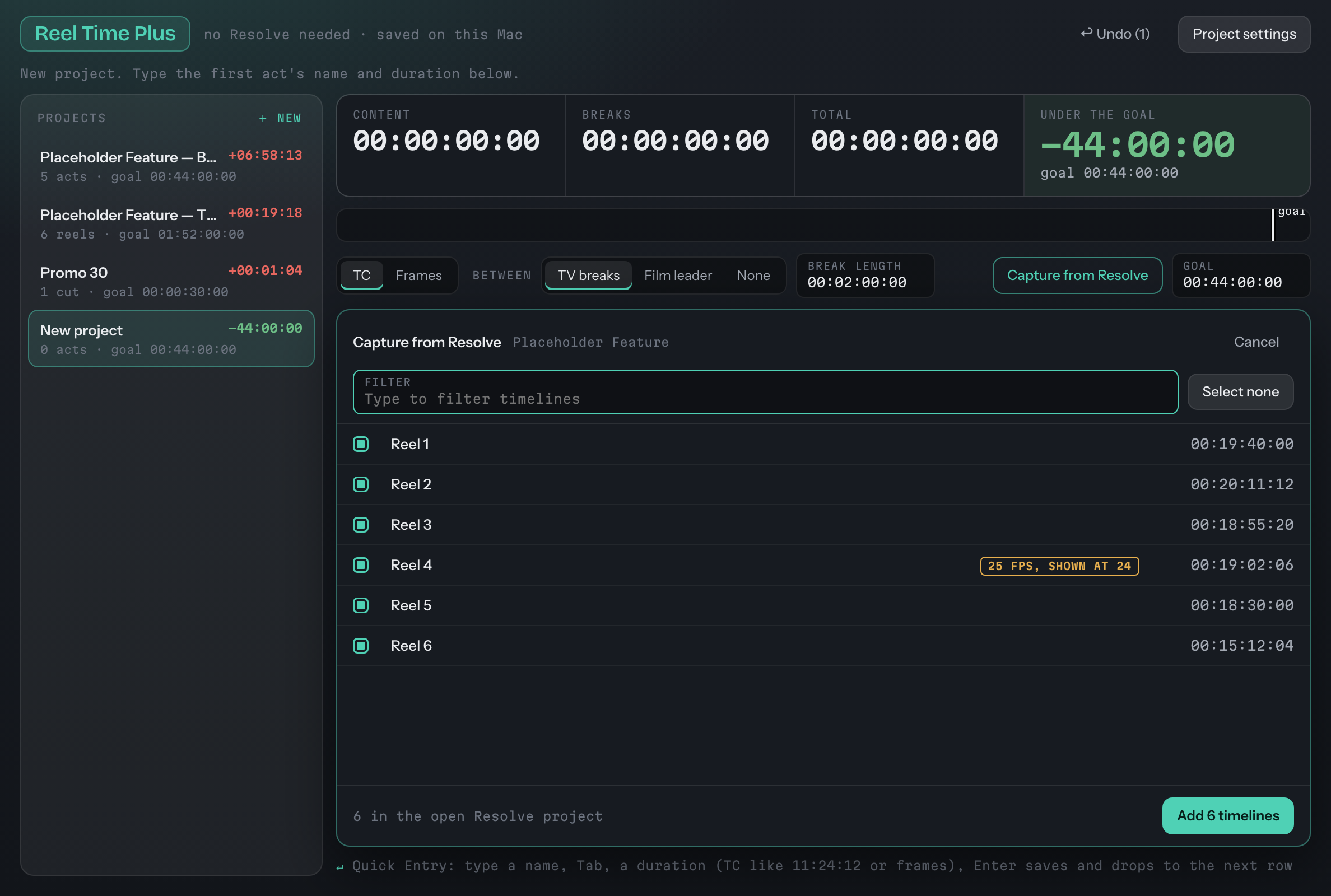
Capture from Resolve: every timeline in the open project with its duration. Reel 4 is at 25 fps and says it shows at 24.
Notes and numbers stay on your computer.
Reel Time Plus doesn't need Resolve for its projects. They are saved on this computer as you go, in the same file format as 1.3, so the classic version can still open them.
- Project settings: name, frame rate (locked once there are segments, to protect your timecode), Acts or Reels, film format, and Delete project.
- Capture needs Resolve. The button is disabled when Resolve isn't open.
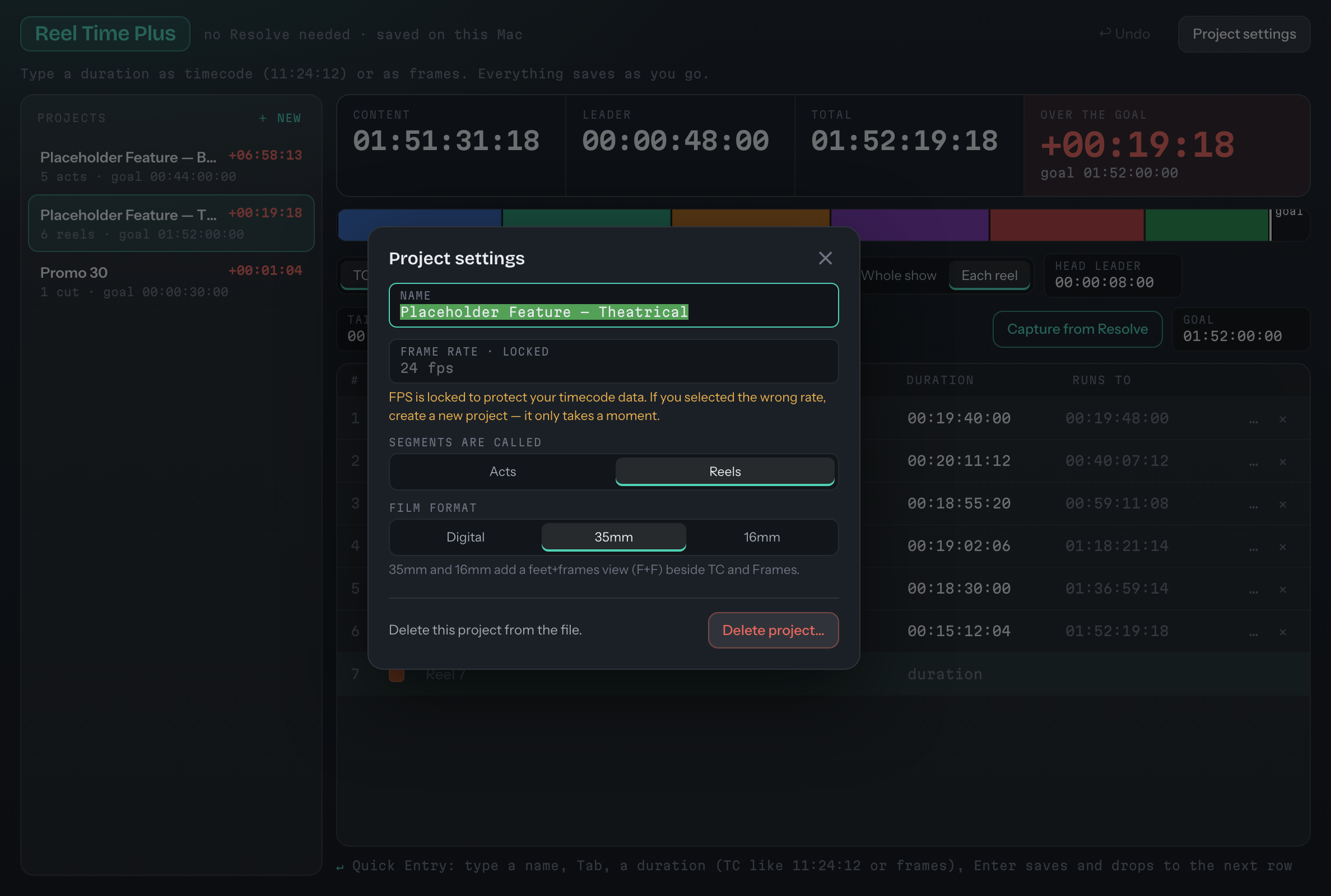
Project settings: frame rate locked to protect your timecode, segments called Acts or Reels, film format.
Scenes inside every act or reel, and a report to hand over.
What is in each scene, and where it starts.
Every act or reel can now hold its scenes, each with a running time, so the list that used to live in a separate spreadsheet stays next to your totals.
- Capture from Resolve: read scene In and Out points, use scene-head markers to find where scenes begin, and link each act to its timeline so it follows the cut.
- Import: bring scenes in from Avid marker exports and from spreadsheets. Premiere marker export is new in this release and has been tried on fewer files, so check the result the first time.
- Make report: a studio-ready workbook plus a PDF for screenings, built from the same numbers as the running times.
- Report style: add your logo, rename the labels, pick the colours and the paper size. The default style needs no setup.
- Simple · Full view: Simple keeps the original reel-times layout; Full shows the scenes.
No extra installs. Make report and Report style are built into the app. Capturing from Resolve needs DaVinci Resolve Studio 21.1 or later; importing, editing and reporting do not.
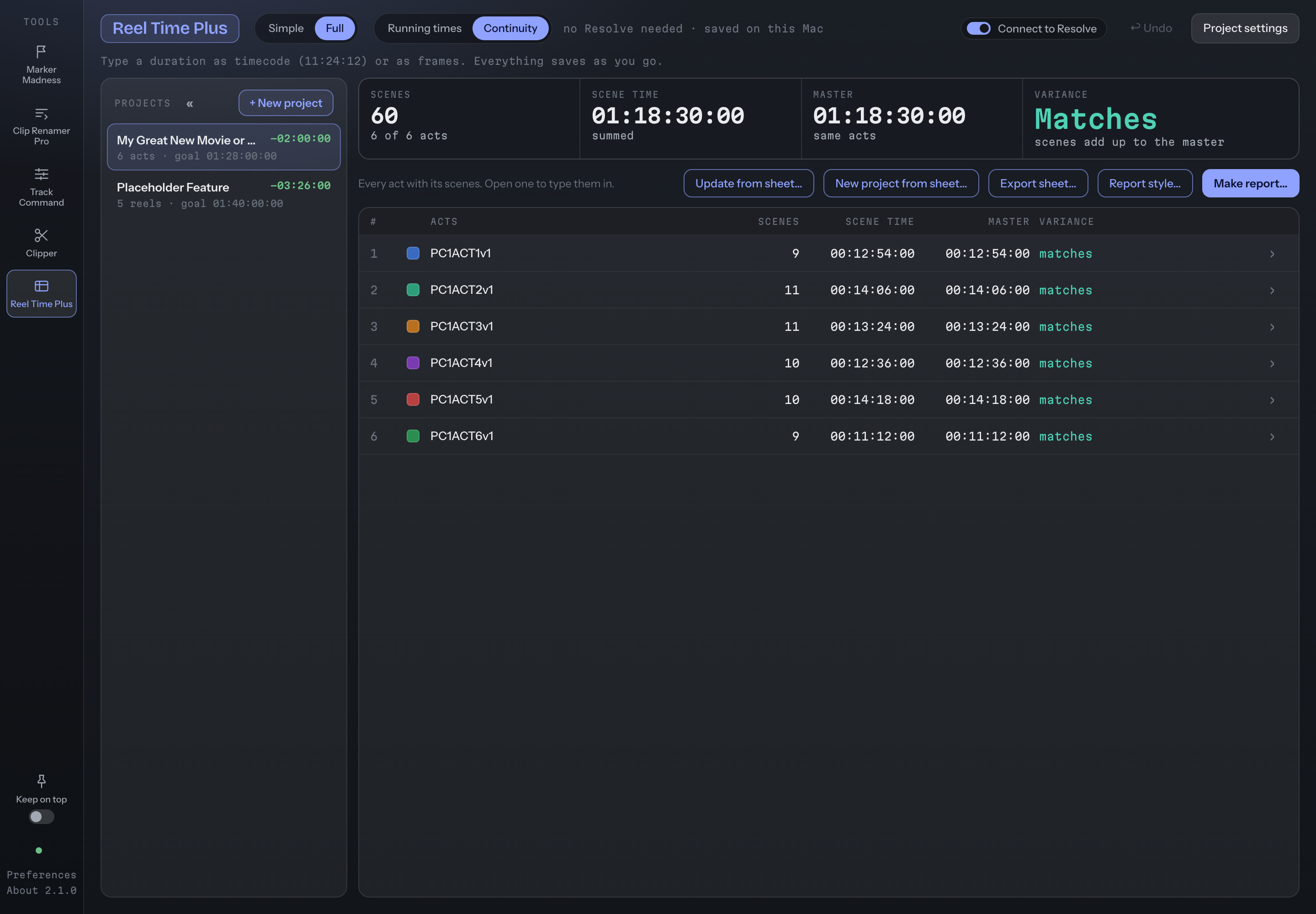
Every act with its scenes, each checked against the running time, and Make report one click away.
No more excuses from the executives. The scene breakdown is already in their inbox.
When the studio asks how long each scene runs, where every act starts and whether the cut is in balance, you do not rebuild a spreadsheet. You press Make report. A workbook and a PDF come out of the same numbers you have been cutting to, as plain or as detailed as the show needs. Feature film, TV movie, series episode, whatever you are cutting.
Every scene, with where it starts and where it ends.
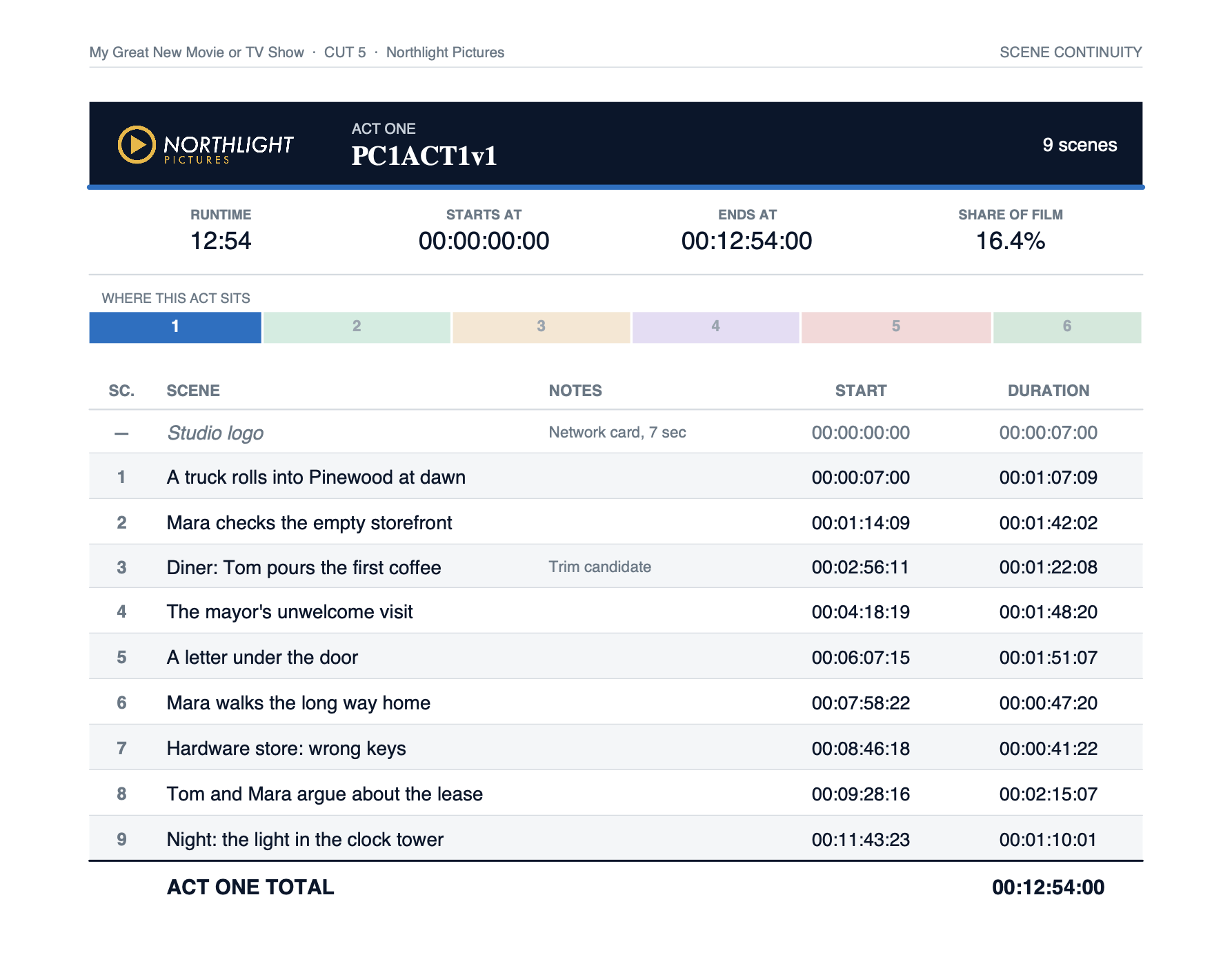
Each act or reel holds its scenes: a number, a description, a running time, and an In and Out line underneath when the scene came from the timeline. The act total is computed from the scenes and checked against the running times you already keep.
- Capture from markers: scene-head markers on the timeline become the scene list, with In and Out.
- Capture In/Out: mark a scene in the timeline and capture its range.
- Import: Avid and Premiere marker files, or a spreadsheet you already have.
- Or type them: a duration as timecode or frames, and Enter moves down to the next.
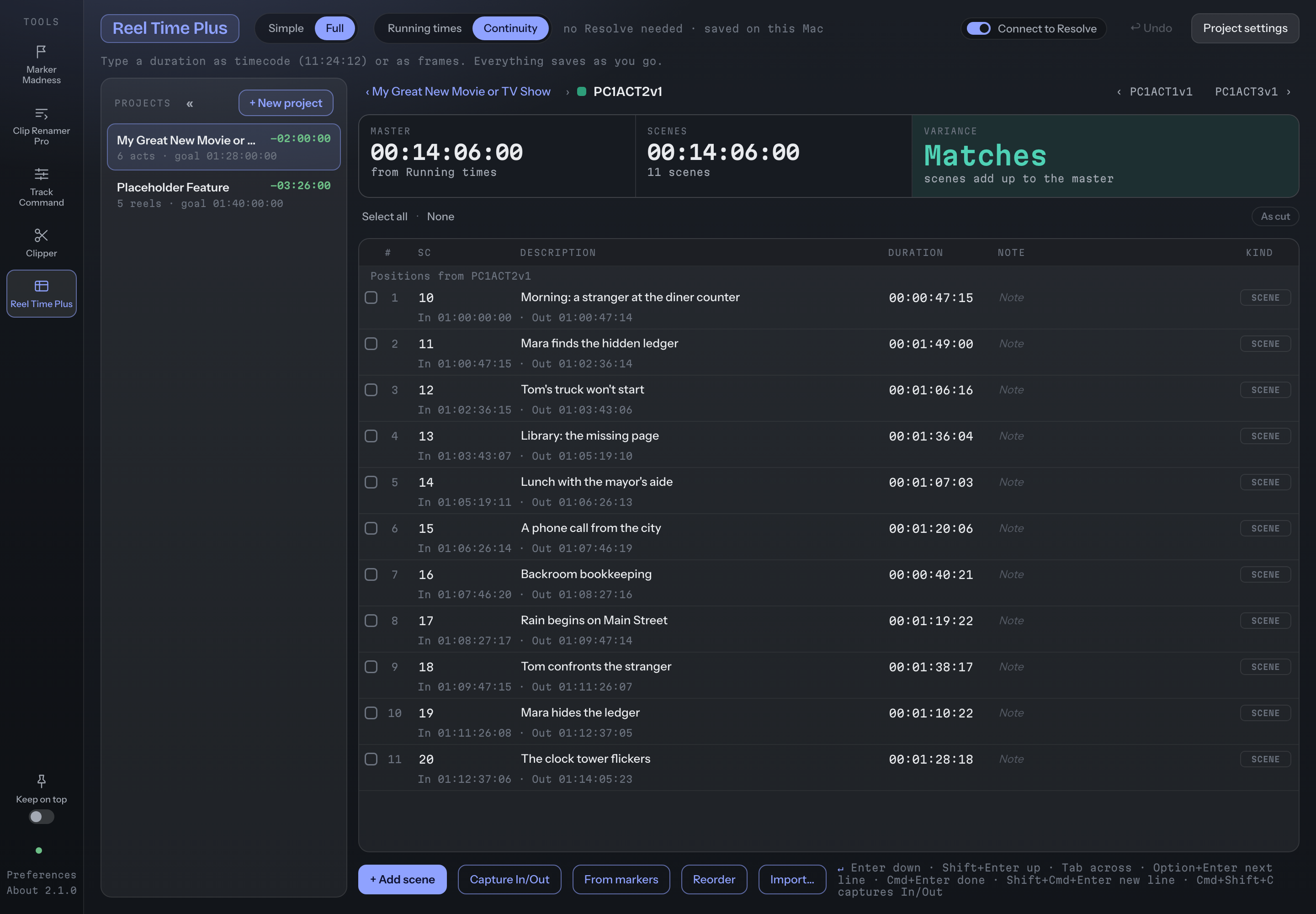
One act in Reel Time Plus: scenes with their durations and In and Out lines, and the act total checked against the Running times.
Open it and it is already laid out.
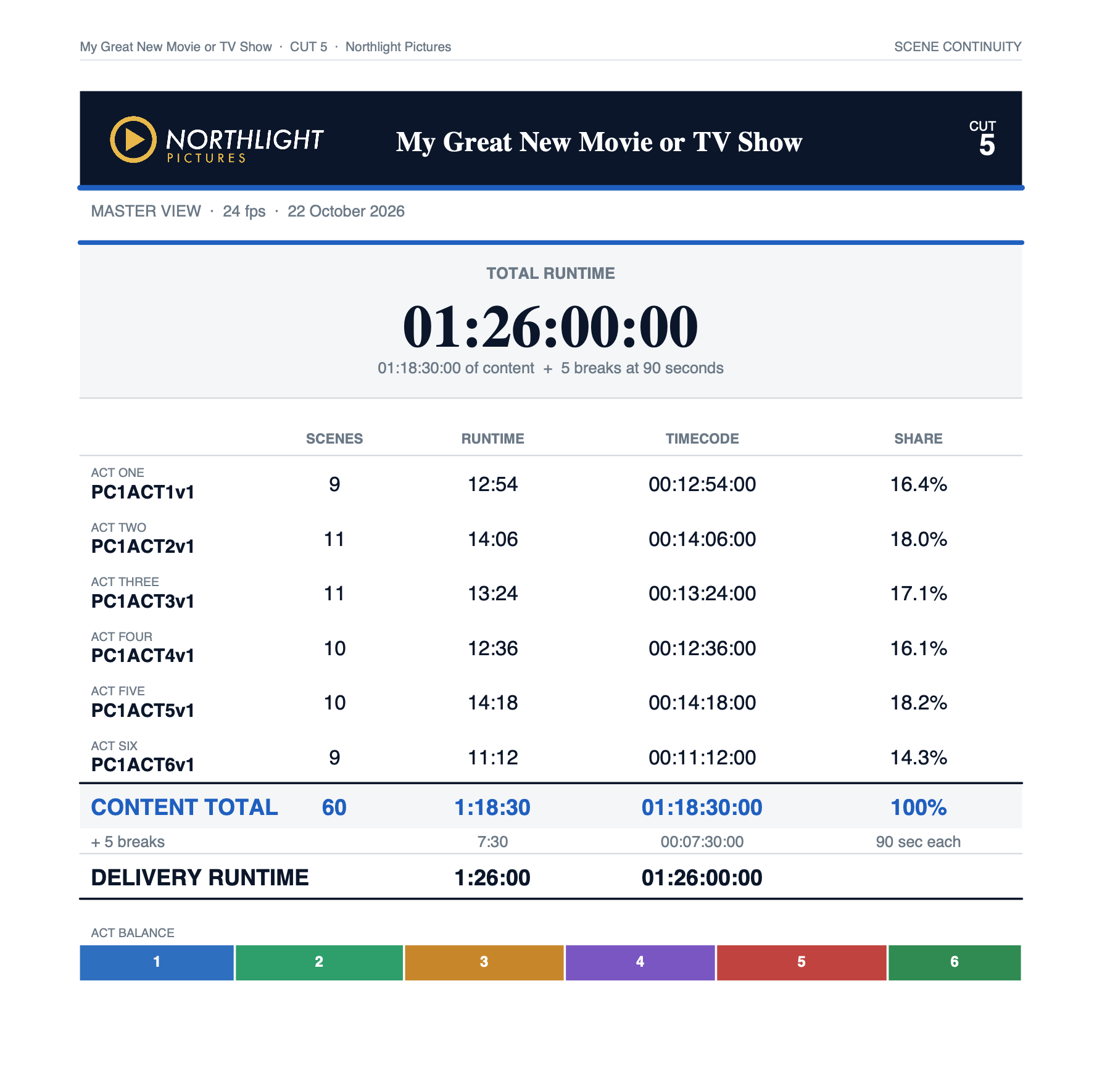
The PDF opens with a cover: the total running time, a table of every act with its scenes, running time and share, and an act balance bar so a heavy act or a thin one shows at a glance. Then one page per act, and a last page that lists every scene by length, longest first, for finding what to trim when you rebalance.
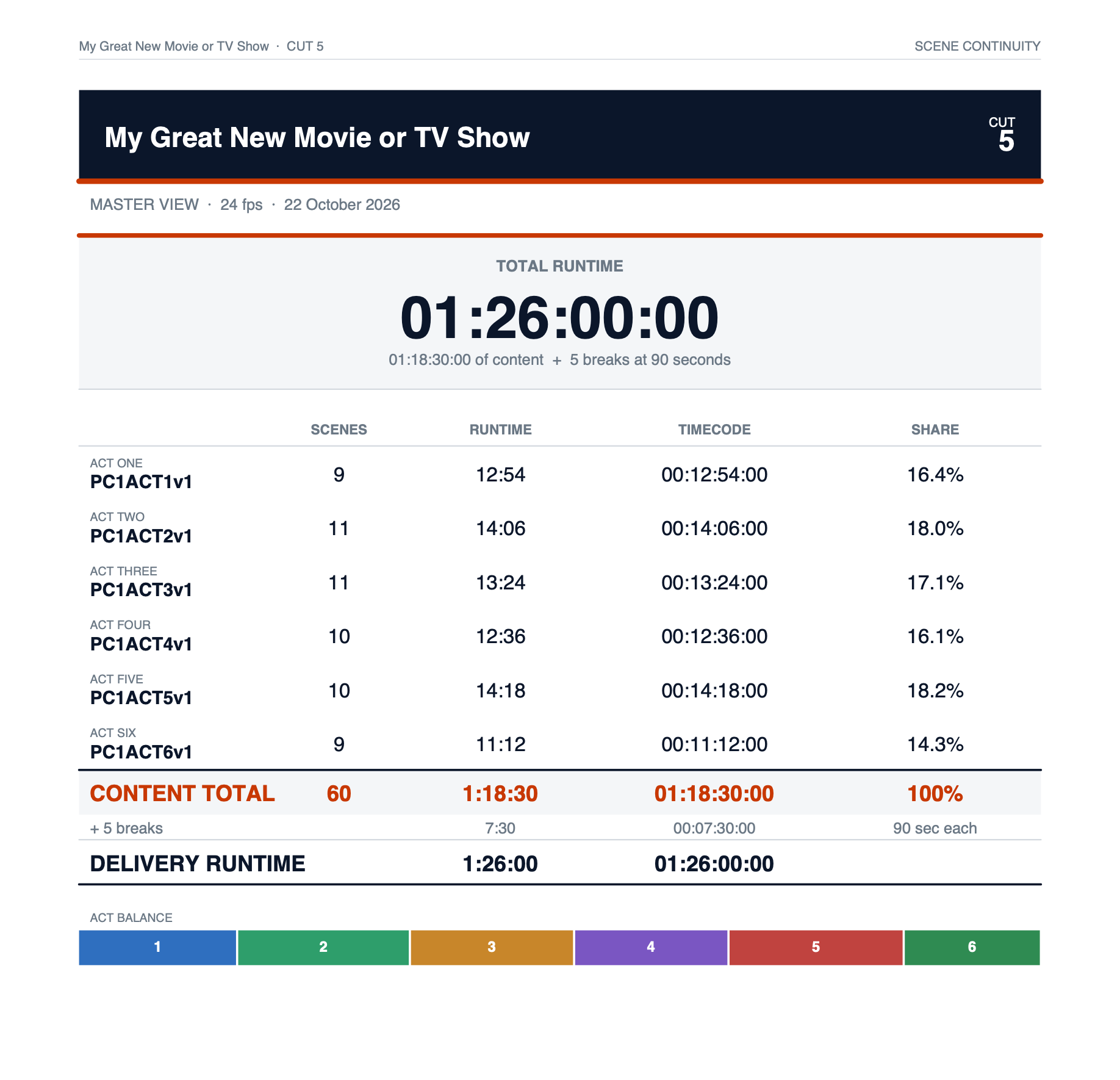
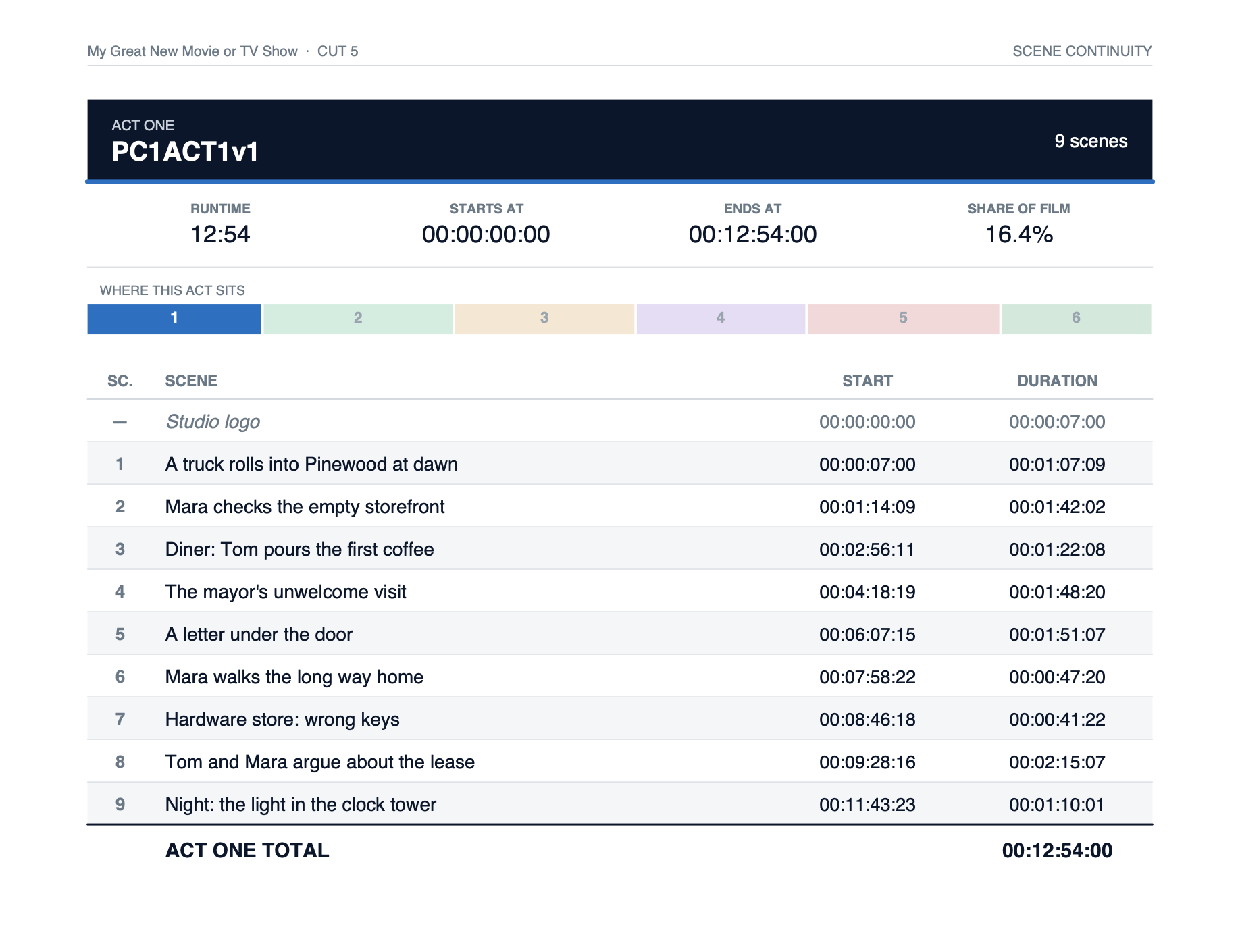
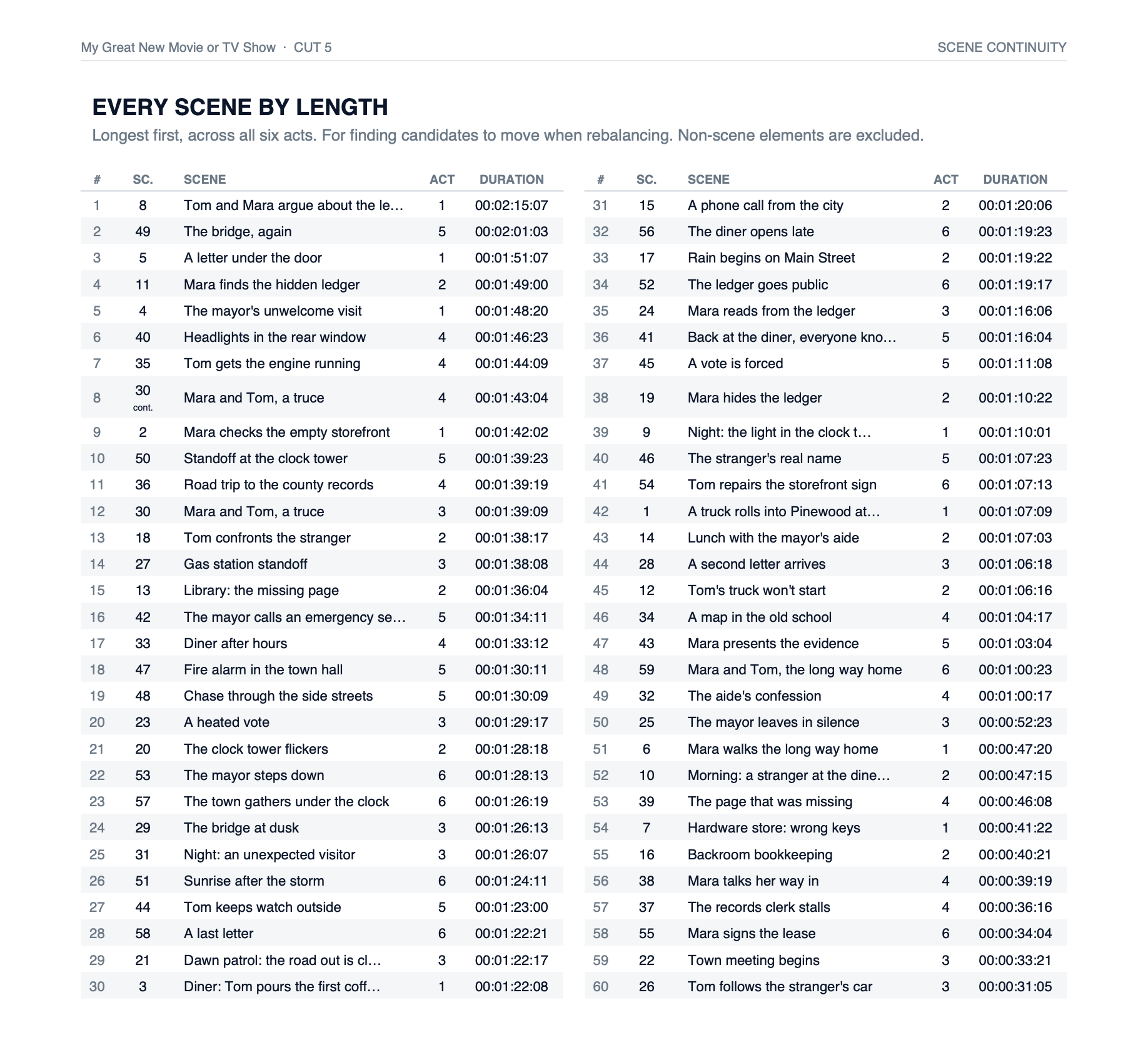
Built for the rebalance.
When an act runs long, the last page tells you which scenes to look at first, across all acts at once. Elements such as a studio logo or end titles are listed on their act page and kept out of the scene counts.
The act pages carry a “continues” or “cont.” mark where a scene is split across a break, so the numbers still add up.
Pages cropped to their content here. Click any page to see it full size. The workbook next to the PDF carries the same numbers in live formulas.
Your logo, your words, your colour. Watched live.
Report style opens beside a live preview of the real page. Change the accent, the type or the paper and the page redraws as you go; nothing is a guess. Add the company, a logo and a confidentiality line for the foot of every page.
- Words: rename any heading, such as Sc. to Scene #.
- Columns and parts: share, balance bar, as-cut line, start timecode, notes.
- Look: six accents, Classic or Editorial type, US Letter or A4.
- Locked on purpose: the grid, the timecode maths, the totals and the text sizes, so a style can never make a report wrong or hard to read.
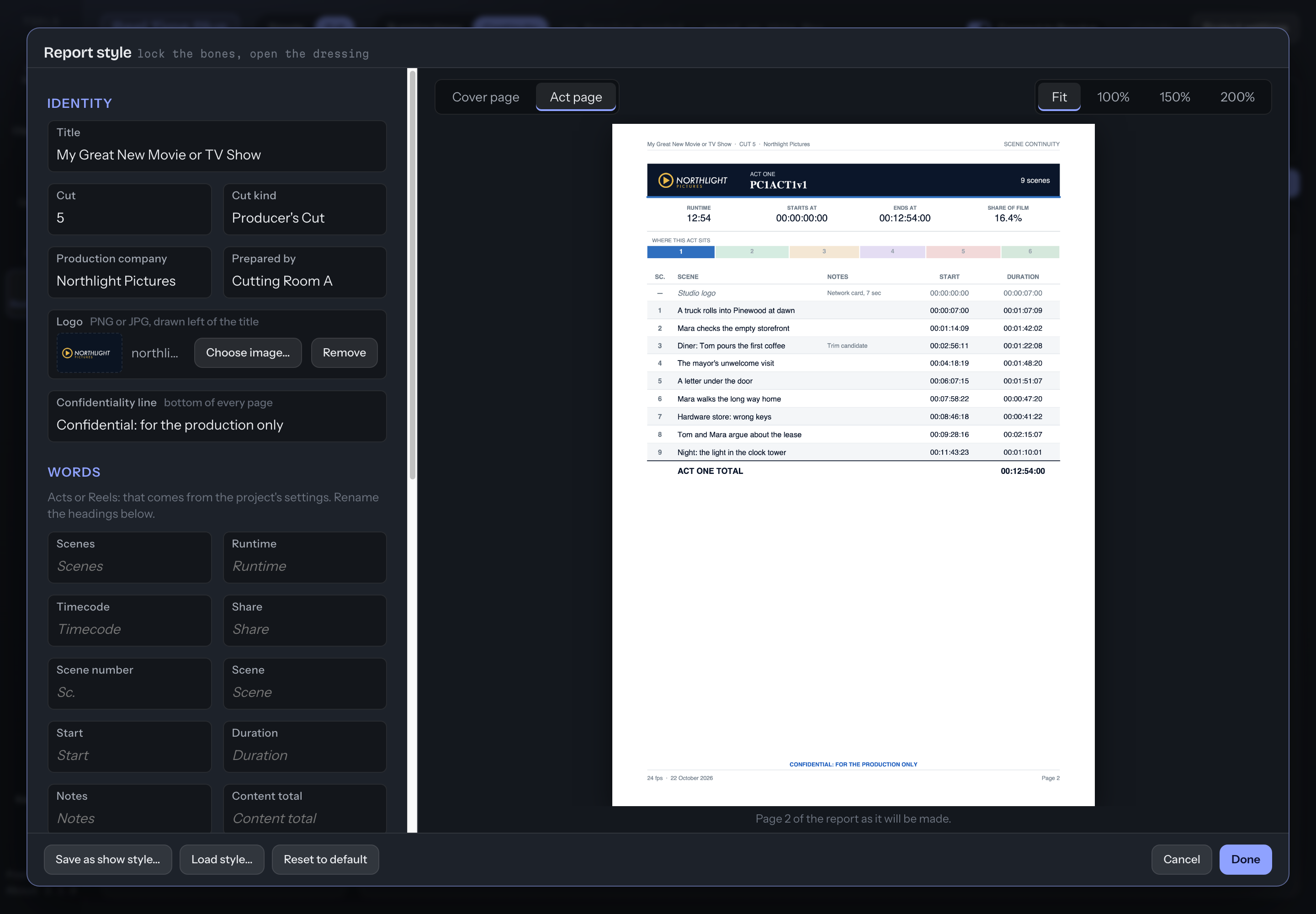
Report style: identity on the left, the real page redrawing on the right.
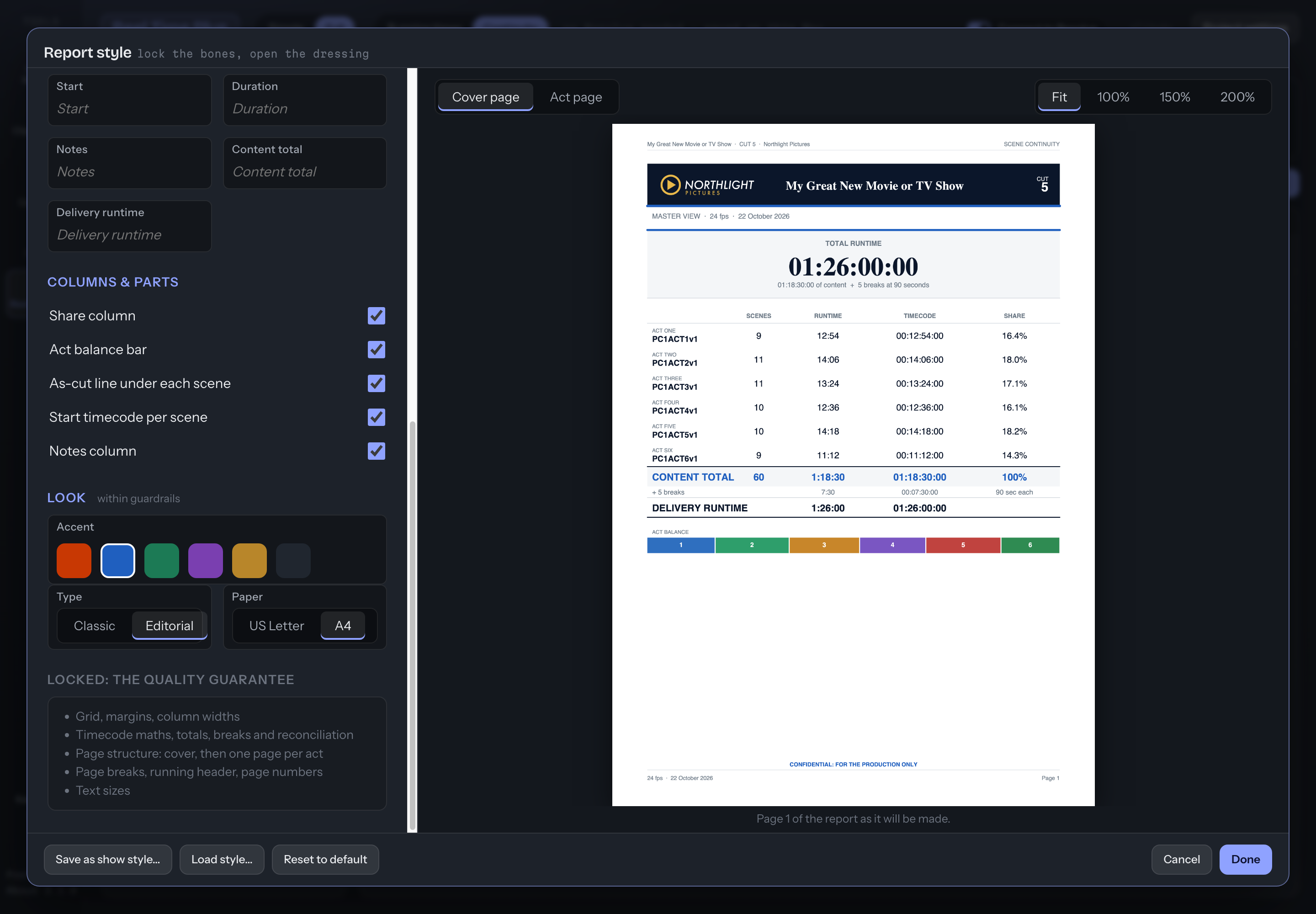
One show, three looks.
The same numbers, dressed three ways: the default, a TV production with its own logo and confidentiality line, and a bare numbers-only version for a quick internal check.
Default
Orange accent, Classic type, US Letter.
TV production
Blue accent, Editorial type, A4, a logo, a confidentiality line and a Notes column.
Minimal
Share column and balance bar off, start times off, act numbers off.
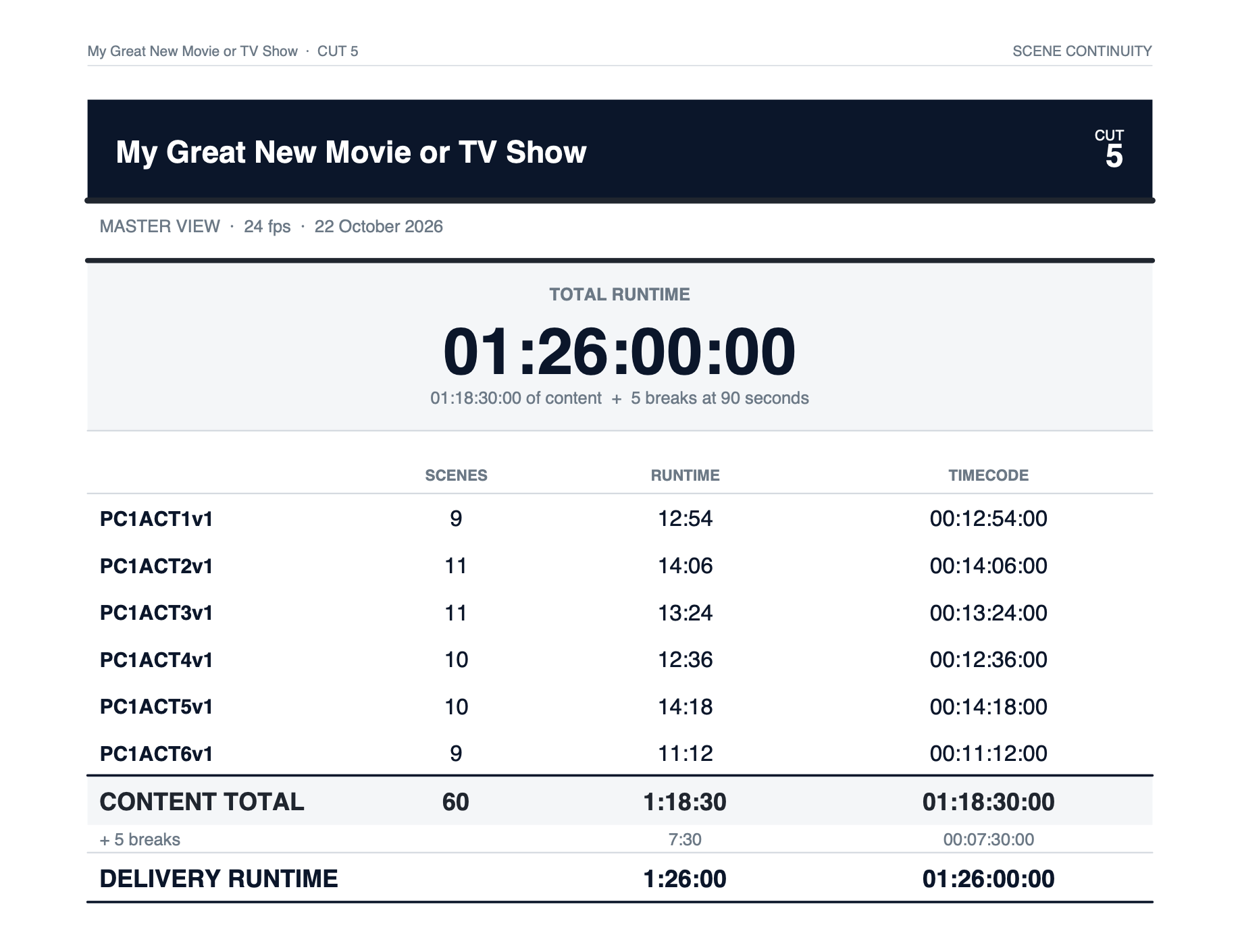
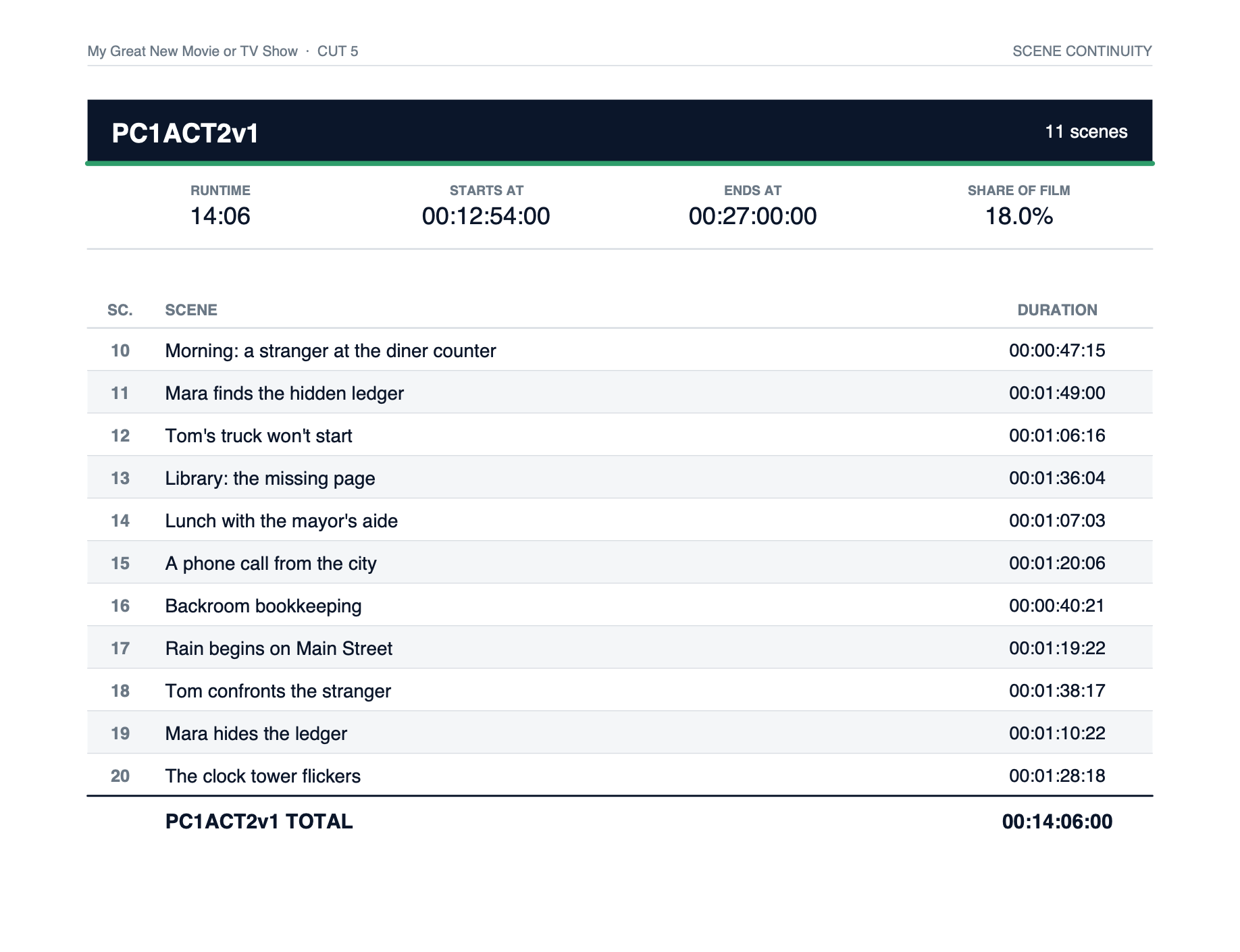
Placeholder show and an invented company logo, for illustration. Click any page to see it full size.
A feature film or a TV episode. The same report.
- Acts or Reels. A TV show breaks into acts; a feature into reels.
- Any frame rate you cut at. 23.98, 24, 25, 29.97 (drop-frame or non-drop), 30, 48, 50, 59.94 (drop-frame or non-drop) and 60. Every total, break and scene is exact, and film projects can read in feet + frames.
- TV breaks or film leader. The breaks or the leader are added to the delivery runtime and itemised.
- Act numbers above the name, below it, or off.
- Rename every heading. Your studio's words, not ours.
- Choose the columns. Show only what the reader needs.
- Letter or A4.
- Workbook and PDF side by side. The Excel workbook has live formulas, so a producer can check or change the sums.
- Save a show style as a small file and give it to the rest of the cutting room, so every cut looks the same.
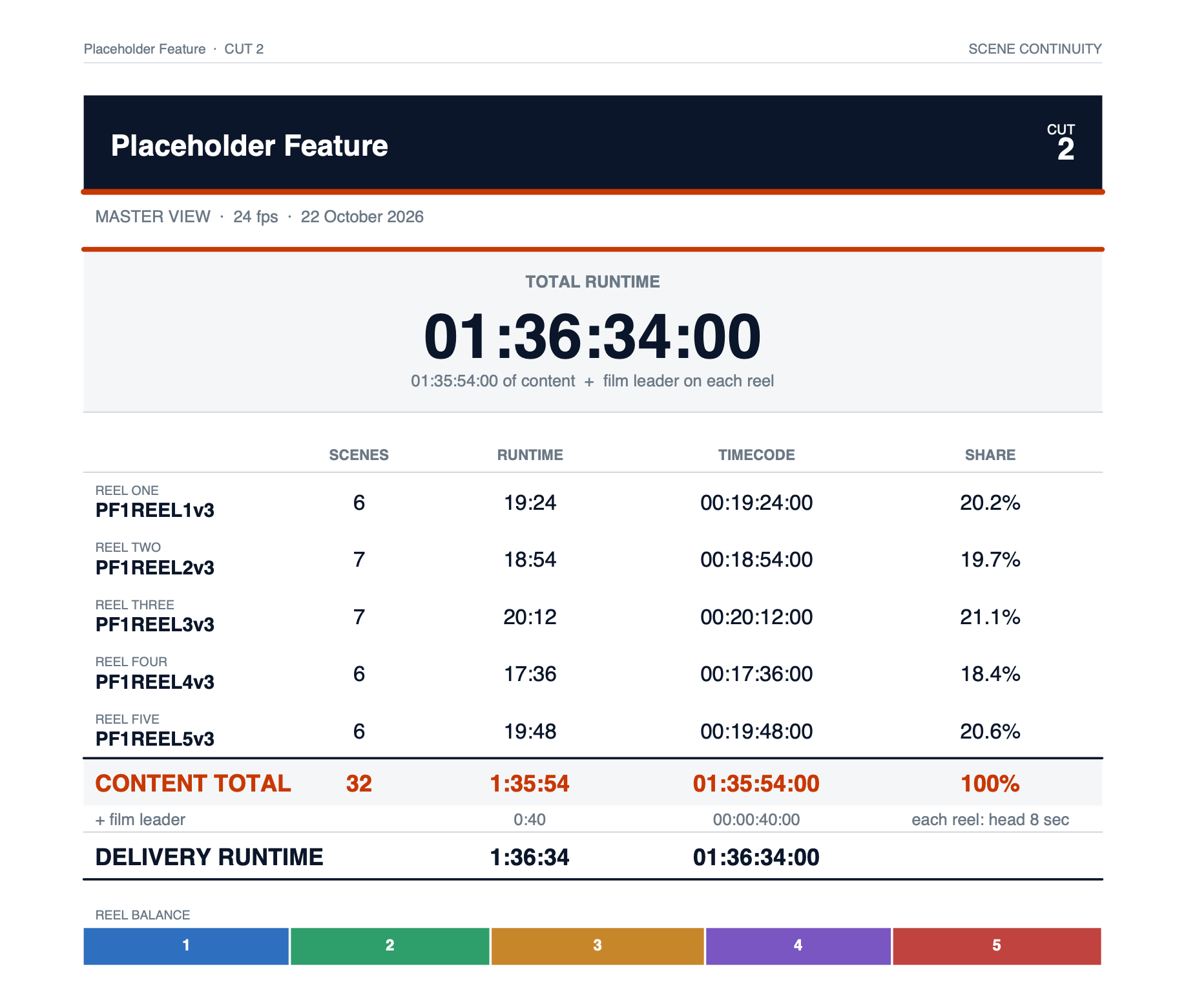
A feature: five reels, with film leader on each reel counted into the delivery runtime.
What you need. Typed numbers alone make a full report; no Resolve needed. Capturing scenes from the timeline needs DaVinci Resolve Studio 21.1 or later. Avid and Premiere marker files import without it. Make report and Report style are built into the app, in the suite and in the standalone Reel Time Plus.
What changed since Reel Time Plus 1.3.
- In the app nowReel Time Plus lives in the Resolve Tools app, beside DaVinci Resolve Studio 21.1 or later, instead of as a Scripts-menu script or its own standalone app. The classic Mac and Windows versions stay on the classic site.
- Your projects open as they areThe file format is the same, and 2.1 only adds to it.
- Capture from ResolveThis is new: timelines come in as linked segments with their durations, and they refresh while you cut.
- Master Continuity (2.1)Scenes inside every act or reel, import from Avid marker exports and spreadsheets, and Make report for a workbook and PDF. See above.
- Same rulesThe totals, the break and leader modes, feet + frames and the frame-rate lock follow 1.3, checked against it in tests.
The full guide for Reel Time Plus 2.1 is on its way. Until it lands, the guide for the 1.x tool (Reel Time Plus 1.3) is still up: classic guide (1.x).
Resolve Tools 2.1 for Mac and Windows
One app, five tools, free. On a Mac, open the .dmg and drag Resolve Tools into Applications. On Windows, run the installer (no administrator needed). Then in Resolve set Preferences › System › General › External scripting using: Local. Requires DaVinci Resolve Studio 21.1 or later, and macOS 12 or later or Windows 10/11 (64-bit).
This build isn't signed yet, so macOS asks you to choose Open Anyway and Windows asks you to choose Run anyway the first time. It's free, made with care, and only goes online if you press Check for updates. The one-time steps for each are on the front page.
Using Resolve 21.0 or earlier? The classic Reel Time Plus is still here: Reel Time Plus 1.x.
Reel Time Plus on its own
The same Reel Time Plus as its own small app, just the running times, for any editor. Type or paste your reel times while you cut in Avid Media Composer, Premiere Pro or Final Cut Pro, and Keep on top floats it over your editor. When DaVinci Resolve Studio is open, it captures from your timelines exactly as the full suite does.
Free, the same one-time Open Anyway (Mac) or Run anyway (Windows) as the suite, and it updates itself the same way. macOS 12 or later, or Windows 10/11 (64-bit). Capturing from Resolve needs DaVinci Resolve Studio 21.1 or later.